Working on an Issue
Open an Issue to read it, follow it, change it and see its history. This page covers the Issue drawer, its tabs, editing and what your Role allows.
Issues are raised in Revit and Navisworks, so the web app has no button to create one. On the web you read them, discuss them, change their status, assign people and track them. See Raise an Issue in Revit for how an Issue starts.
#Open an Issue
An Issue opens in a drawer on the right, over the page you were on, so you do not lose your place. You can open one from:
- The Issue list, Cards, Board or Calendar of a Project. See The Issue list.
- The Dashboard, for example from My work or the most overdue Issues. See The Dashboard.
- A notification in the bell, on a toast or on the notifications page. A mention opens the Issue on its Comments tab. See Notifications and reminders.
- A reminder on the Reminders page.
- A link in a comment that points at another Issue with
#.
Close the drawer with the close button at its top right or with Esc. Open in Project at the top of the drawer takes you to the Issue in its Project's Issue list.
#The header
The top of the drawer tells you what the Issue is and how urgent it is.
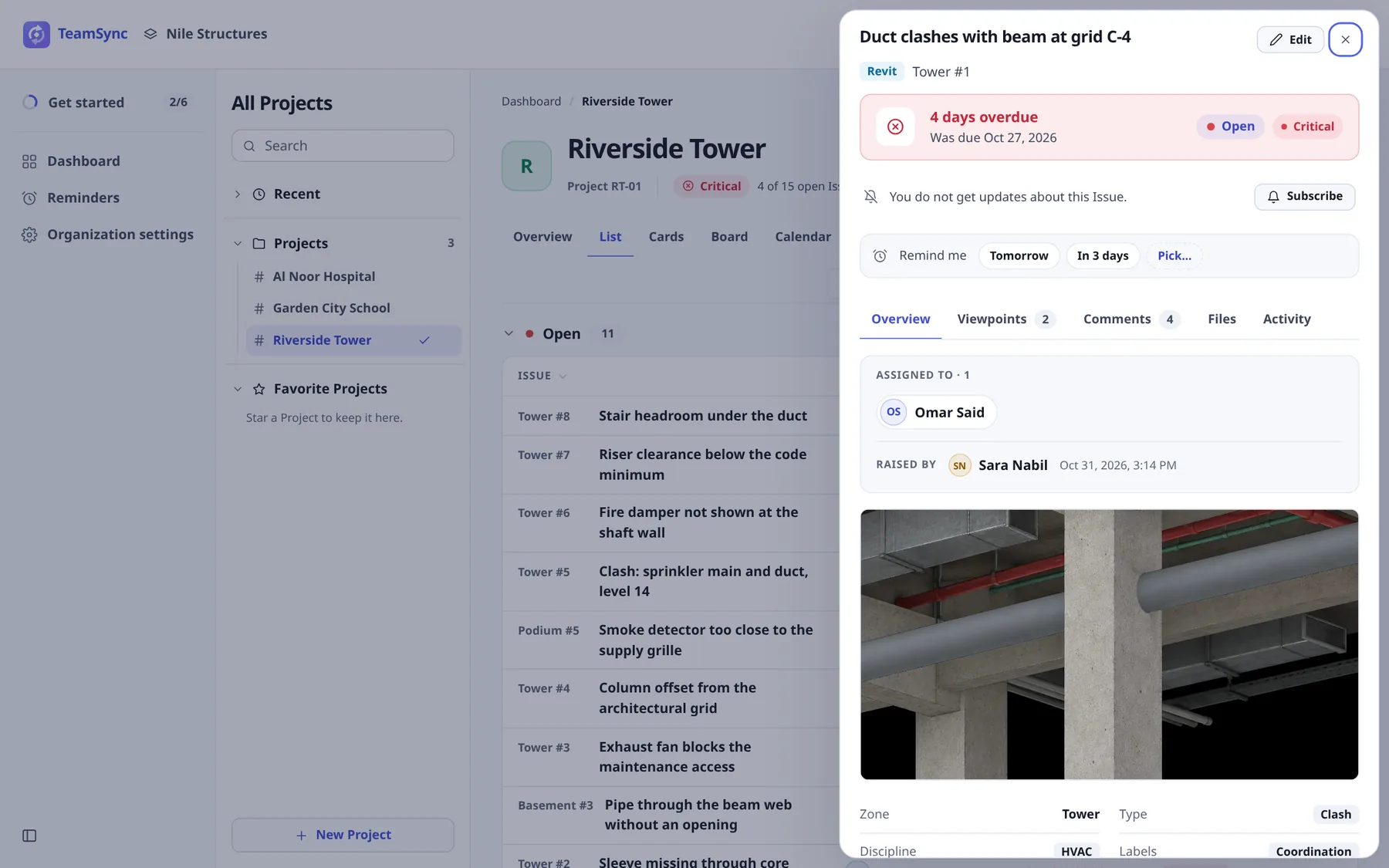
- Source pill
- The application the Issue was captured in, for example Revit or Navisworks. It is shown only when TeamSync can tell.
- Reference
- The Zone and the number in it, for example Tower #1. Issues are numbered within their Zone, so the reference needs both. The model file name follows it when there is one.
- Urgency banner
- How much time is left or how late the Issue is, for example "4 days overdue" with the due date, or "Due tomorrow". It turns red when the Issue is Overdue. With no due date it says so and suggests setting one with Edit. The banner also carries the status and the priority, and Archived or Restricted when they apply.
Note
If your Role cannot edit the Issue, the header says "Your Role can't edit this Issue." and the Edit button is not shown.
#Follow, mute or unsubscribe
Under the banner a line tells you whether you hear about this Issue and why, for example "You get updates because you raised it." The button beside it changes that. See Notifications and reminders for what each choice does to your bell.
| You are | Button | What it offers |
|---|---|---|
| Not hearing about the Issue | Subscribe | Starts your updates about its comments and status changes. |
| Hearing about it | Following | A menu: Mute: keep the updates, without a pop-up or a sound and Unsubscribe. |
| Muted | Muted | A menu: Unmute and Unsubscribe. |
You hear about an Issue when you raised it, when it is assigned to you, when you are kept informed, when your team is kept informed or when you commented. If you raised it or it is assigned to you, you can mute it but not unsubscribe, because the work is waiting on you. If you unsubscribe, mentions still reach you, and commenting or being assigned brings you back.
#Set a reminder
Below the following line, Remind me offers quick choices: Tomorrow, In 3 days, Day before due (only when the due date is still ahead) and Pick… for a date, a time and a note. Once set, the line shows when the reminder goes off with Change and Remove. Reminders are private to you. See Reminders.
#The tabs
The drawer has five tabs: Overview, Viewpoints, Comments, Files and Activity. The numbers beside Viewpoints and Comments count what is there.
#Overview
Who it is assigned to and who raised it and when, the main snapshot (click it to open it full size), then the Zone, Type, Discipline, Labels, due date and model file, and the description.
#Viewpoints
Each viewpoint is a picture of the model taken when the Issue was raised, with the view's name, who captured it, when and from which model file. The first is marked Main view. Any marks drawn on it in the markup window are shown.
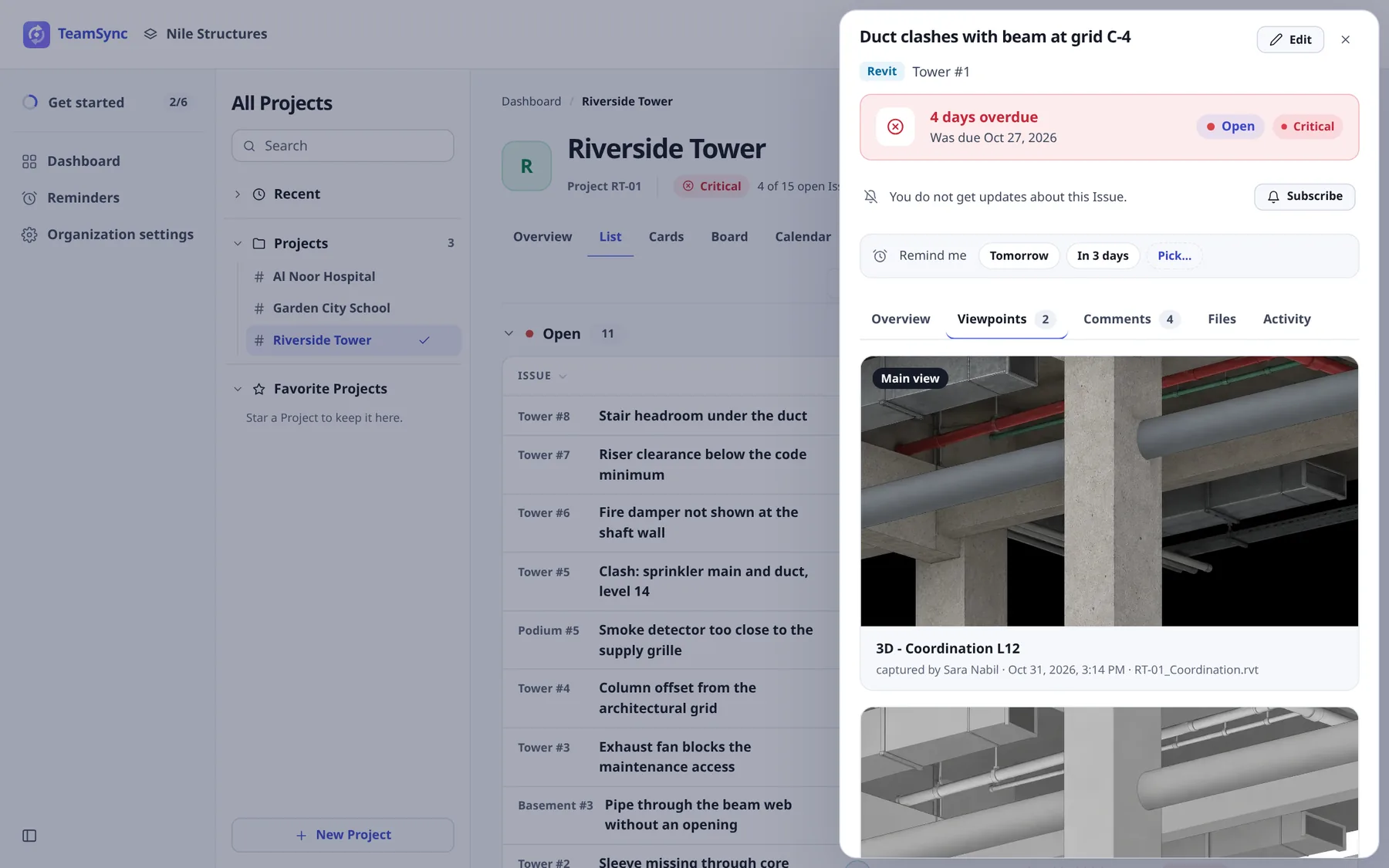
Click a picture to open it at full size over the whole window.
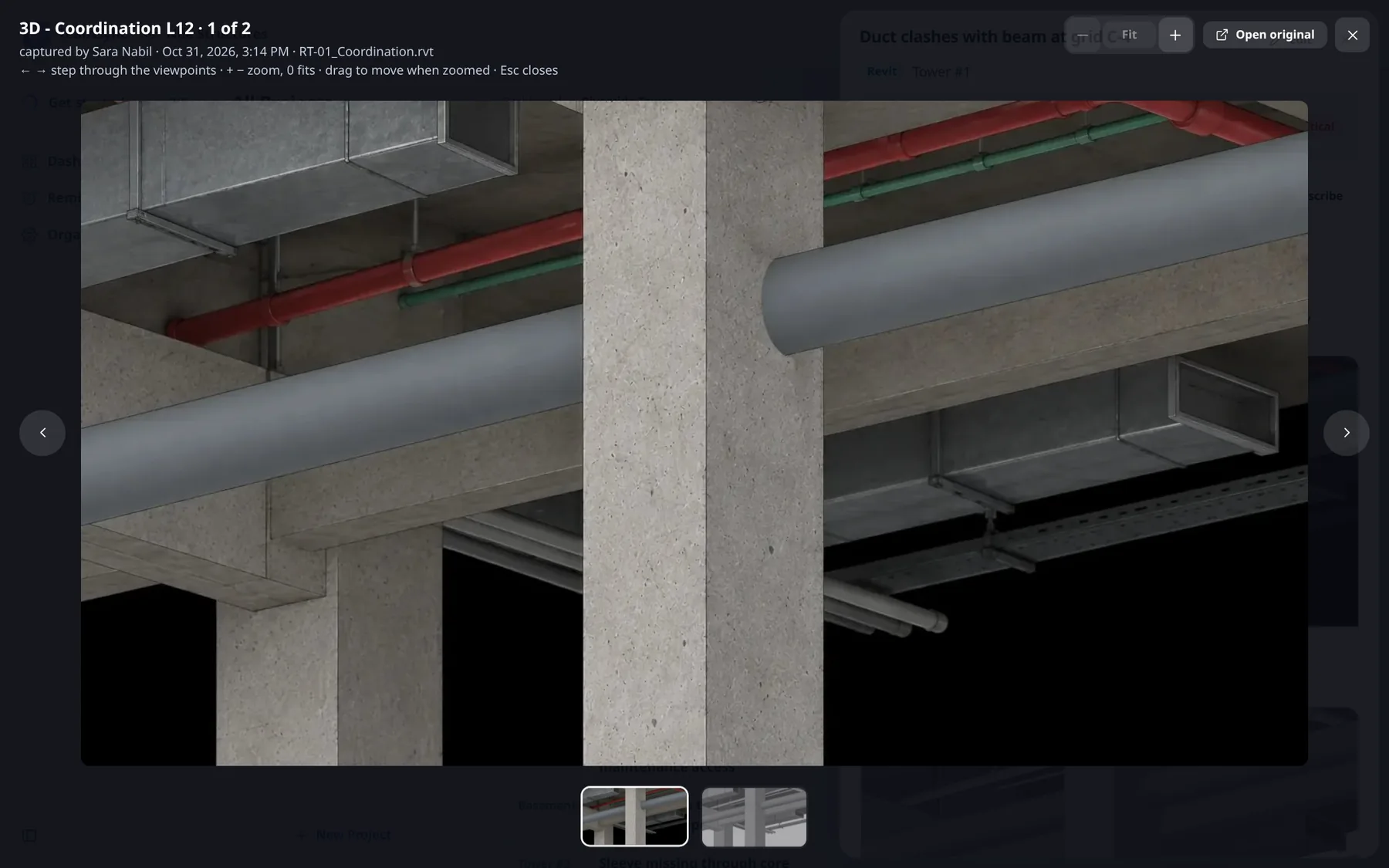
| Key | What it does |
|---|---|
| ← → | Step to the previous or next viewpoint. |
+ and - | Zoom in and out. |
0 | Fit the picture to the window. |
| Drag | Move the picture when it is zoomed in. |
| Esc | Close the full-size view. |
Open original opens the original image. The web app shows pictures only. Viewpoints are captured in Revit and Navisworks, and Show in model, which takes you back to the same view in the model, happens in the add-in. See Issues in the model.
#Comments
The conversation on the Issue. See Comments and mentions.
#Files
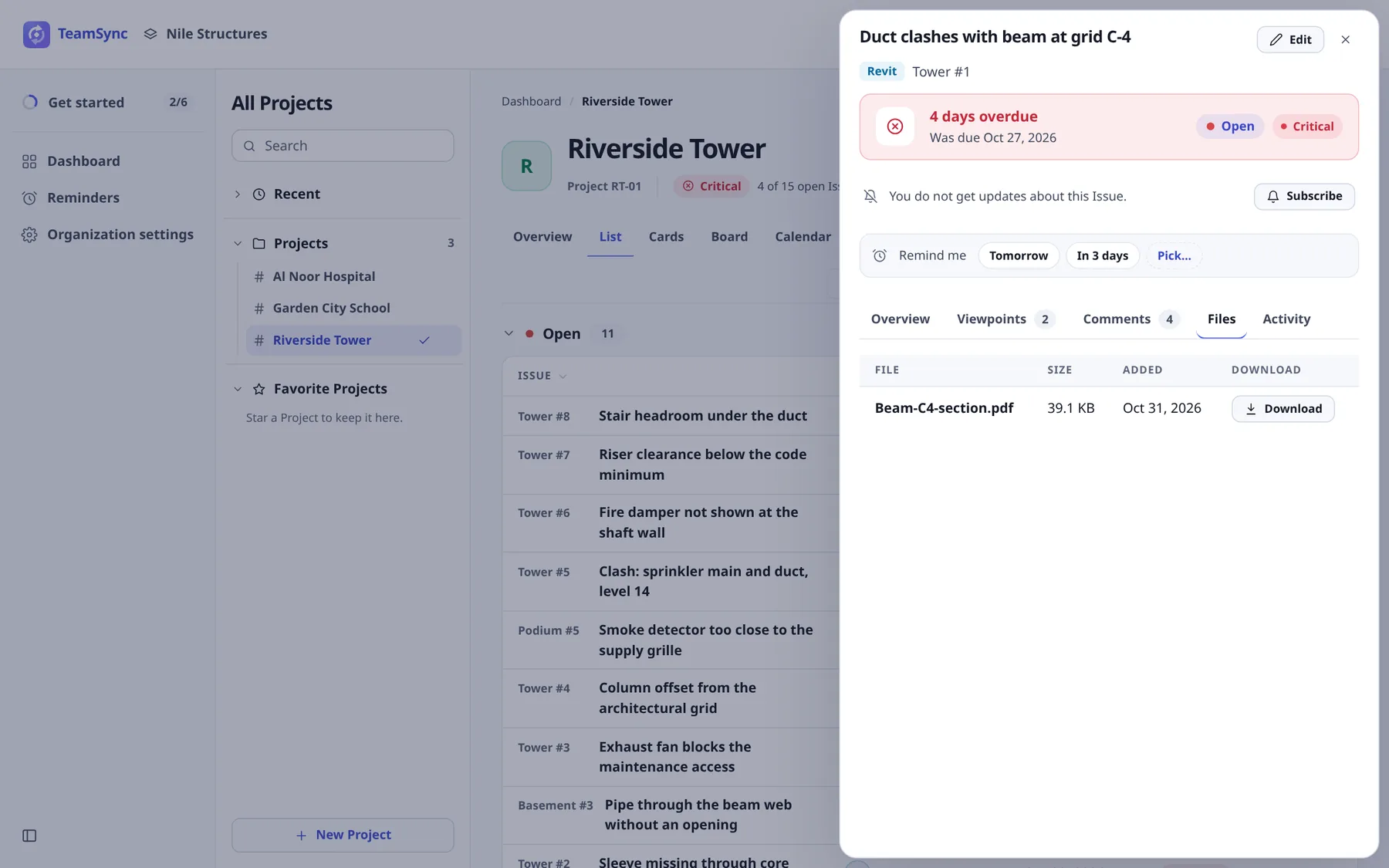
Files attached to the Issue, with their size and the date they were added, each with a Download button. Files are attached in the add-in.
#Activity
The history of the Issue: when it was raised, each field that changed with its old and new value, viewpoints added, replaced or removed, and when it was deleted or restored. Use Load older activity to go further back.
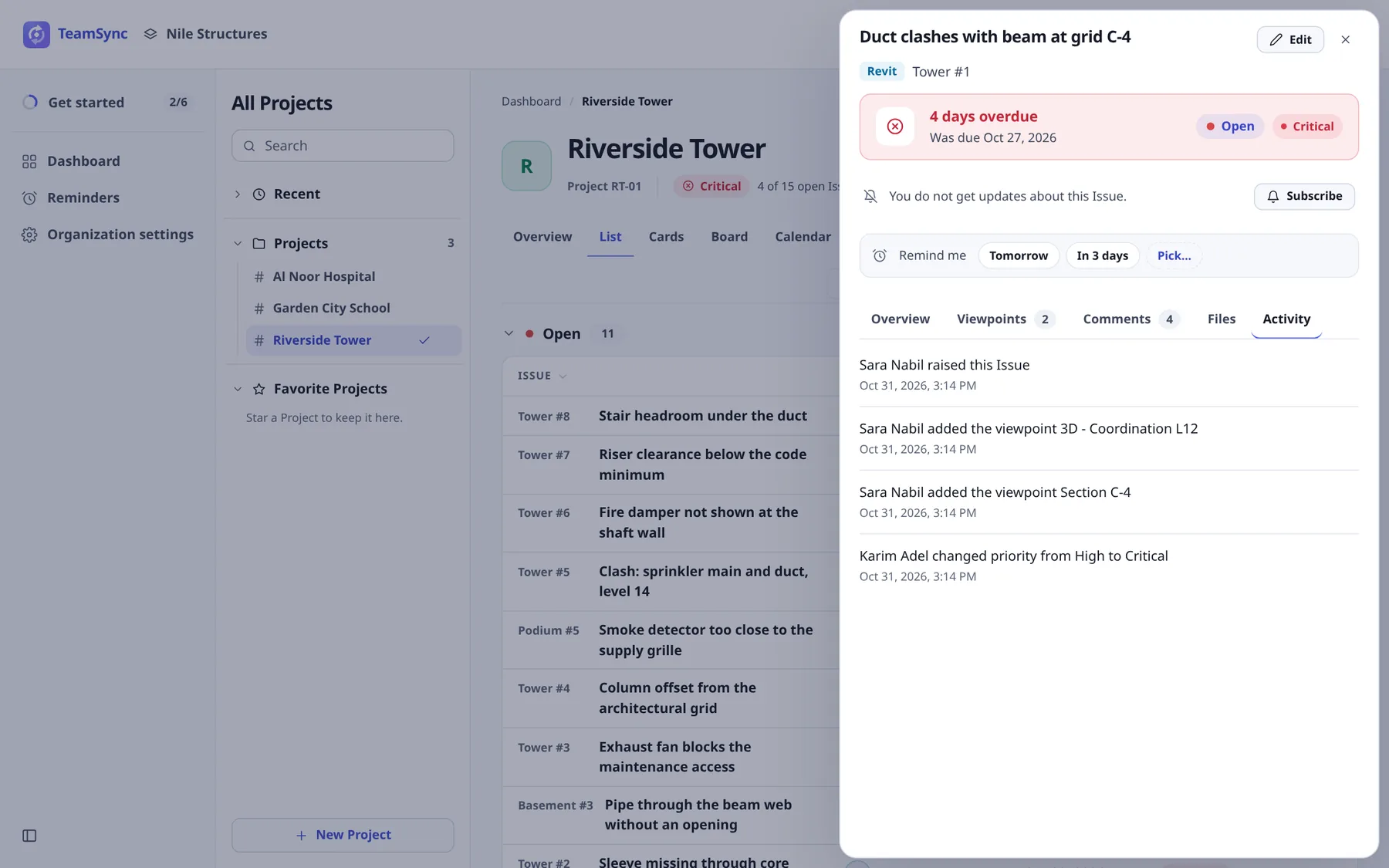
#Edit an Issue
Click Edit
The button is at the top right of the drawer. The Overview tab becomes a form.
Change what needs changing
The form has four sections.
- What: Title and Description.
- Status and urgency: Status, Priority and Due date. Under the date, Today, +1 week, +2 weeks and Clear set it quickly. Leave the date empty for none.
- People: Assigned to. Type a name in Find a person… or Add a person…, choose with the arrow keys and Enter, and remove someone with the button on their chip.
- Where and what kind: Zone, Type, Discipline and Labels.
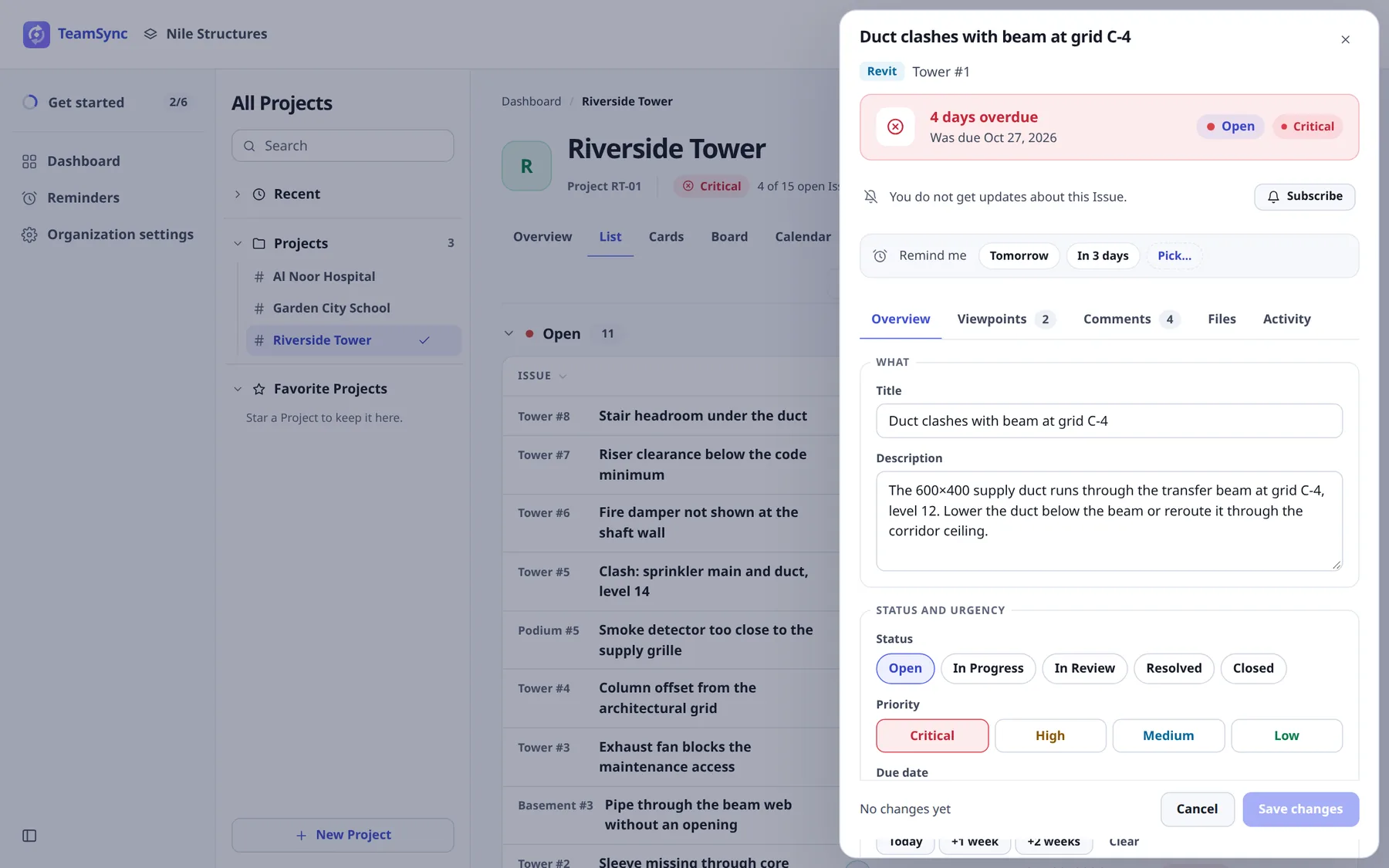
The Edit form. The bar at the bottom says how many changes you have made. Save
Click Save changes. The bar next to it lists what you changed, for example "3 changes". Every change is listed in the Activity tab, and the drawer links to it with See the Activity.
Zone moves renumber
Moving an Issue to another Zone gives it the next number there, so its reference changes. For example, Tower #1 moved to Podium becomes Podium #6 if Podium already has five Issues. The form says so under Zone when you change it.
#What your Role lets you change
Each field is offered only when your Role allows it, and the server checks again when you save. A Role may be able to change some parts of an Issue and not others, for example to move its status or assign people without editing its text.
- If you can change only some of it, the form says "Your Role lets you change only some of this Issue: the rest is shown but locked."
- A status your Role cannot move the Issue to is shown with a lock and the hint "Your Role can't move the Issue to this status".
- If nothing is allowed, Edit is not shown.
#If someone else changed it first
When two people edit the same Issue, the second save is refused so that nobody's change is overwritten. The form says "Someone changed this Issue while you were editing. Cancel to see their change, then edit again." Click Cancel, read the new version, and make your change again.
#Change the status
Choose a new Status in the Edit form and save. On a phone, use the Status action of the Issue sheet. See Using TeamSync on a phone.
Who may move an Issue where depends on your Role and on the Project's workflow. Moving an Issue between open statuses and closing one are separate permissions: a Role may be able to do the first and not the second. In the default workflow the author raises the Issue, the assignee does the work and moves it, and the author verifies and closes it. "Resolved" is not closed. See Roles.
#Archive, delete and restore
An Archived Issue is set aside as finished or no longer relevant. It stays readable and is kept indefinitely. It shows an Archived badge in the drawer, and the Issue list hides it unless you choose Include archived in the filters. To archive Issues on the web, select them in the Issue list and choose Archive (see Change several Issues at once). In Revit or Navisworks, use Archive this issue in the Issue’s ⋯ menu.
A Deleted Issue is removed from every view and can be restored for 90 days, after which it is gone for good. Neither the web app nor the add-ins offer deleting Issues at this release, so archive an Issue you no longer need. If an Issue must be removed, write to info@top-matrix.com.
Tip
Archived Issues leave the list and the counts but are never lost: turn on Include archived in the Filter panel to find them again.
Can’t find what you need? Write to info@top-matrix.com and we’ll help.