Quick start
From a new Organization to your first Issue, followed on the web. General Managers do Part 1 once; everyone does Part 2.
This page is the shortest route through TeamSync. Each step links to the full page when you want more detail.
#Part 1: For General Managers
If your company already uses TeamSync and a General Manager has set it up, skip to Part 2.
Accept the invitation
Top Matrix creates your Organization and sends the first General Manager an invitation email. Open the link in it and choose a password. The password needs at least 8 characters, an uppercase letter, a lowercase letter and a number, and must not include the name part of your email address. Then sign in on the web. See Sign in to the web app.
Open Get started
In the sidebar, open Get started. It lists the tasks that set up an Organization and ticks each one off when TeamSync sees it done. It shows your progress next to its name until you close it.
Invite your people
Open Organization settings and then People, and choose Invite people. Enter their Email, choose a Department and, if you want, a Project, then choose Send invitation. Each link works once and expires after 7 days.
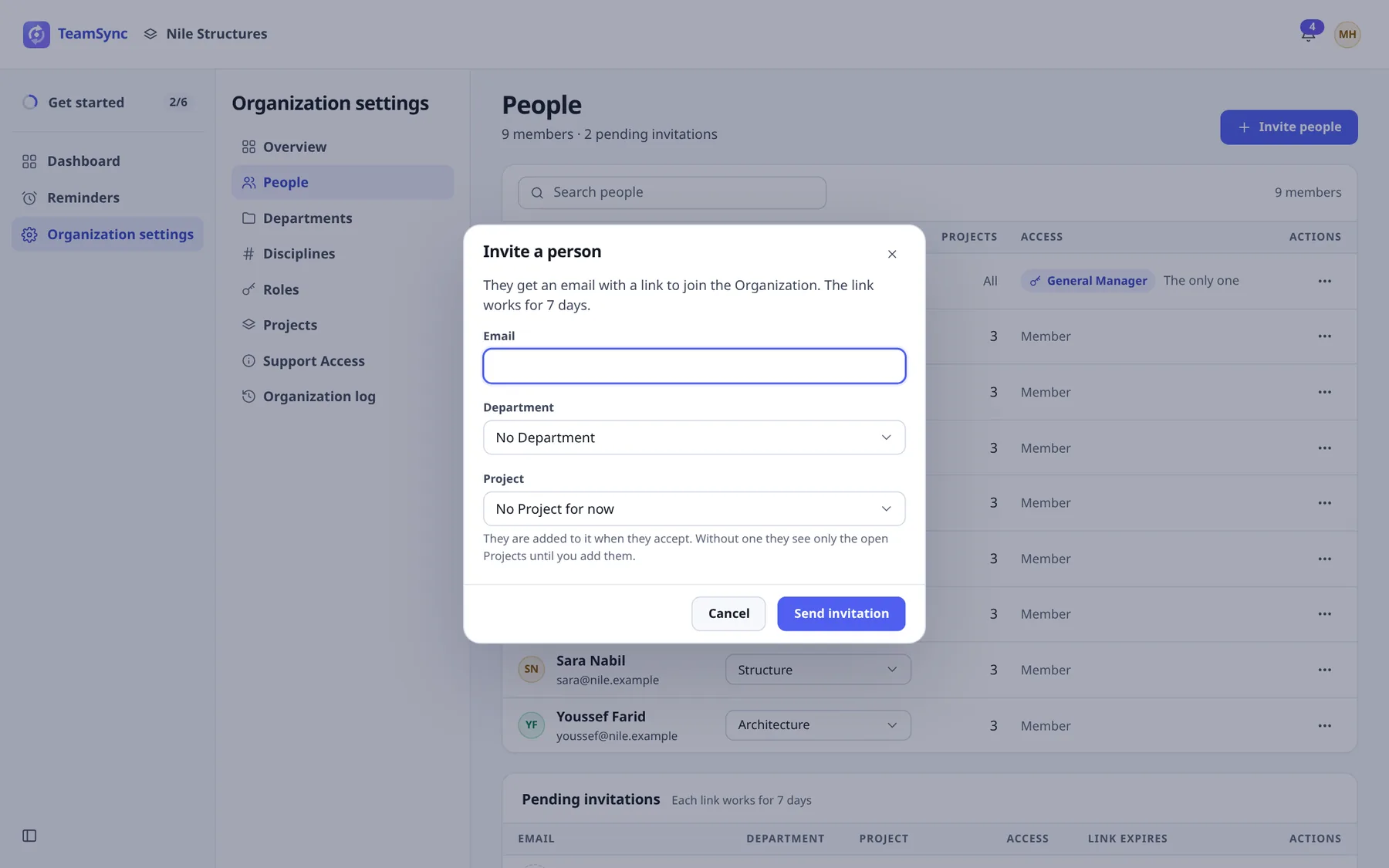
Invite a person: an email address, a Department and optionally a Project. Check the defaults
Look through Departments, Disciplines and Roles in Organization settings. TeamSync starts you with sensible ones. Change them only if they do not fit your company. See Departments and Disciplines and Roles.
Create a Project with Zones
Open Organization settings, then Projects, and choose New Project. Enter a Name and, optionally, a Number such as RT-01, then choose Create Project. A new Project starts empty, for its Members only.
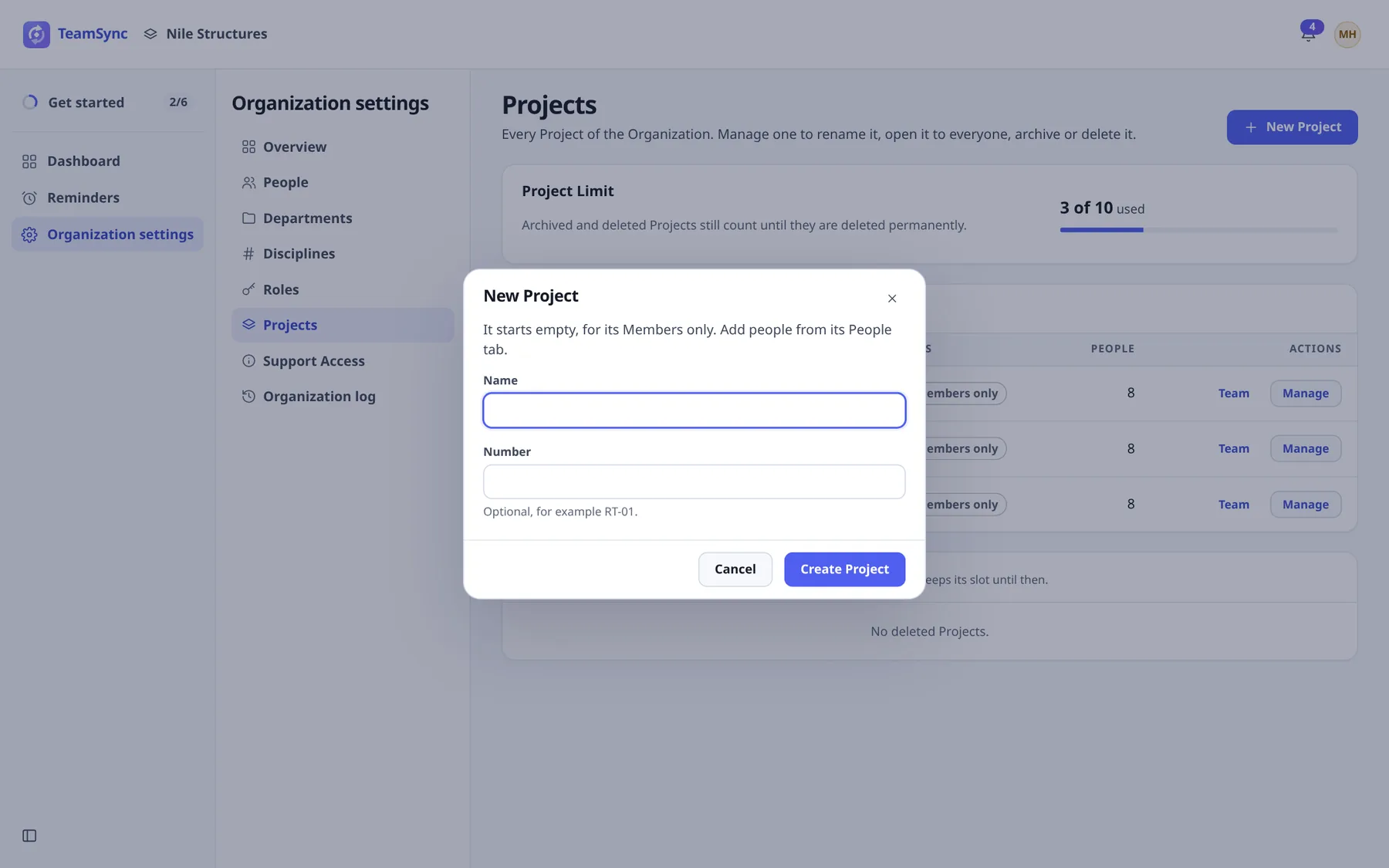
New Project. The Project Limit above the list shows how many Projects your License allows. Add Zones
Open the Project, go to its Settings tab and find Zones. Choose Add a Zone for each part of the Project, for example Basement, Podium and Tower. Issues are numbered within their Zone, so the first Issue in Tower is Tower #1. A Project needs at least one Zone.
Add Members
On the Project, open the Team tab and choose Add Member after picking a person, or add them from People with Add to Projects. Choose each person's Role on the Project. Without a Project, people see only Open Projects. See Team and Project settings.
#Part 2: For everyone
Install the add-in
Run the TeamSync installer (
TopMatrix.TeamSync-<version>-Setup.exe) on a Windows computer with Revit or Navisworks 2023 to 2026. Close Revit and Navisworks first. When setup finishes, start Revit or Navisworks. See Install the add-in.Open the TeamSync pane
In Revit or Navisworks, open the TeamSync tab and choose Team Sync in the Issues panel. The pane docks on the right.
Sign in
Enter the Work email and Password you use on the web, then choose Sign in. If you were invited, accept the invitation on the web first. The add-in does not create accounts in the cloud. See Sign in to the add-in.
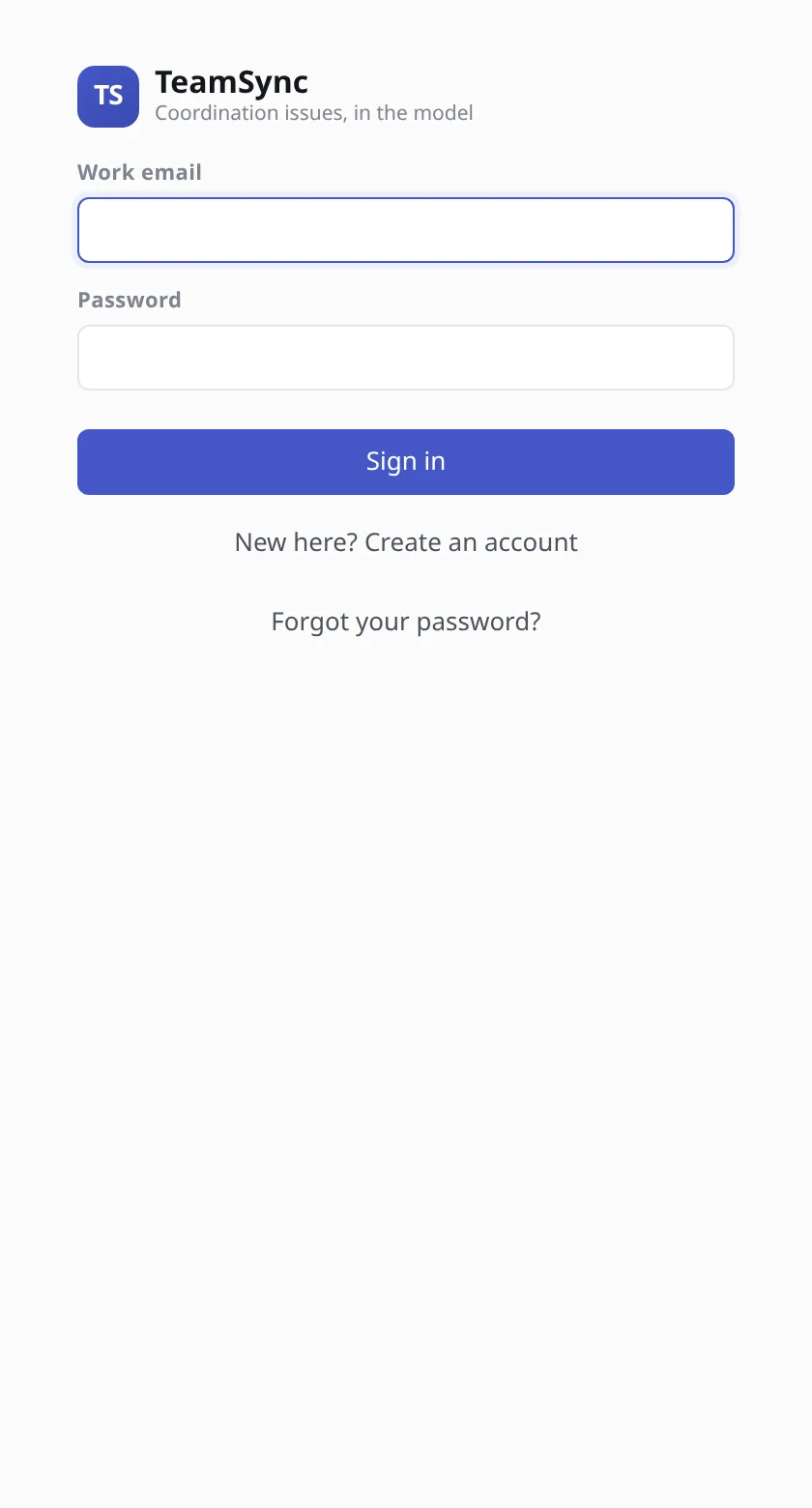
The sign-in screen of the pane. The connection to your Organization is built into the installer. Pick a Project and a Zone
At the top of the pane, use the Project picker and the Zone bar. New Issues go to the Zone you choose.
Raise your first Issue with a viewpoint
Open the 3D view or plan where you see the problem. In the pane, choose + to open New issue.
- Type a short title in What is wrong, in a line, and a description in Where, and what should happen instead.
- Set Type, Priority, Zone, Due date and + Assign if you know them.
- Under Viewpoint, leave Revit image chosen to capture the view, or choose Snip myself to draw a rectangle on screen.
- Choose Create issue.
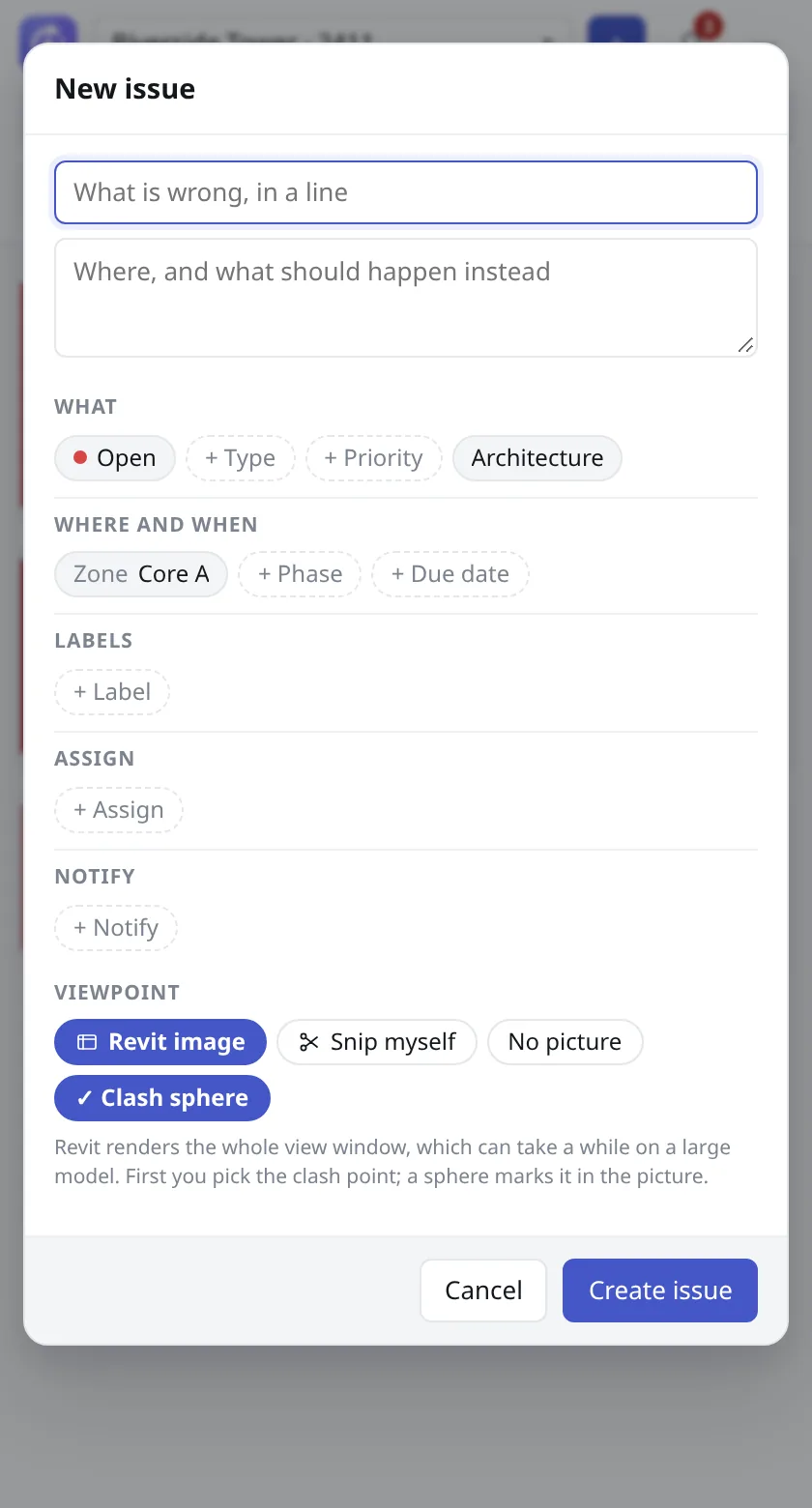
The New issue form. The viewpoint stores the camera, section box, hidden elements and a picture. Open the Issue on the web
Sign in to the web app and open the Project. The Issue is in the List tab, numbered by its Zone. Select it to open the Issue drawer.
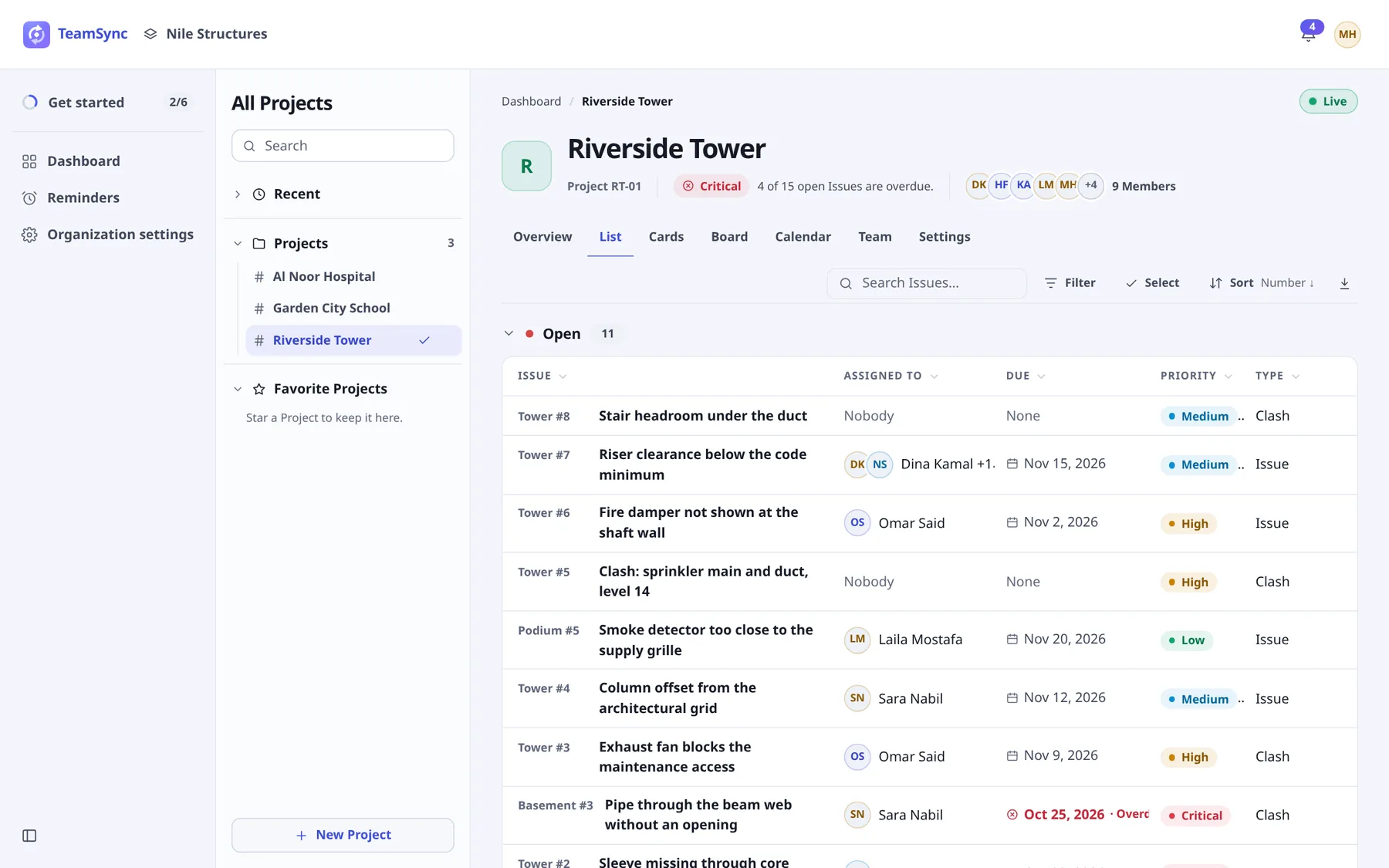
The Project's Issue list. Every Issue raised from Revit or Navisworks appears here. Look at the viewpoint
The drawer opens on Overview, with the main snapshot. Open the Viewpoints tab to see every viewpoint attached to the Issue.
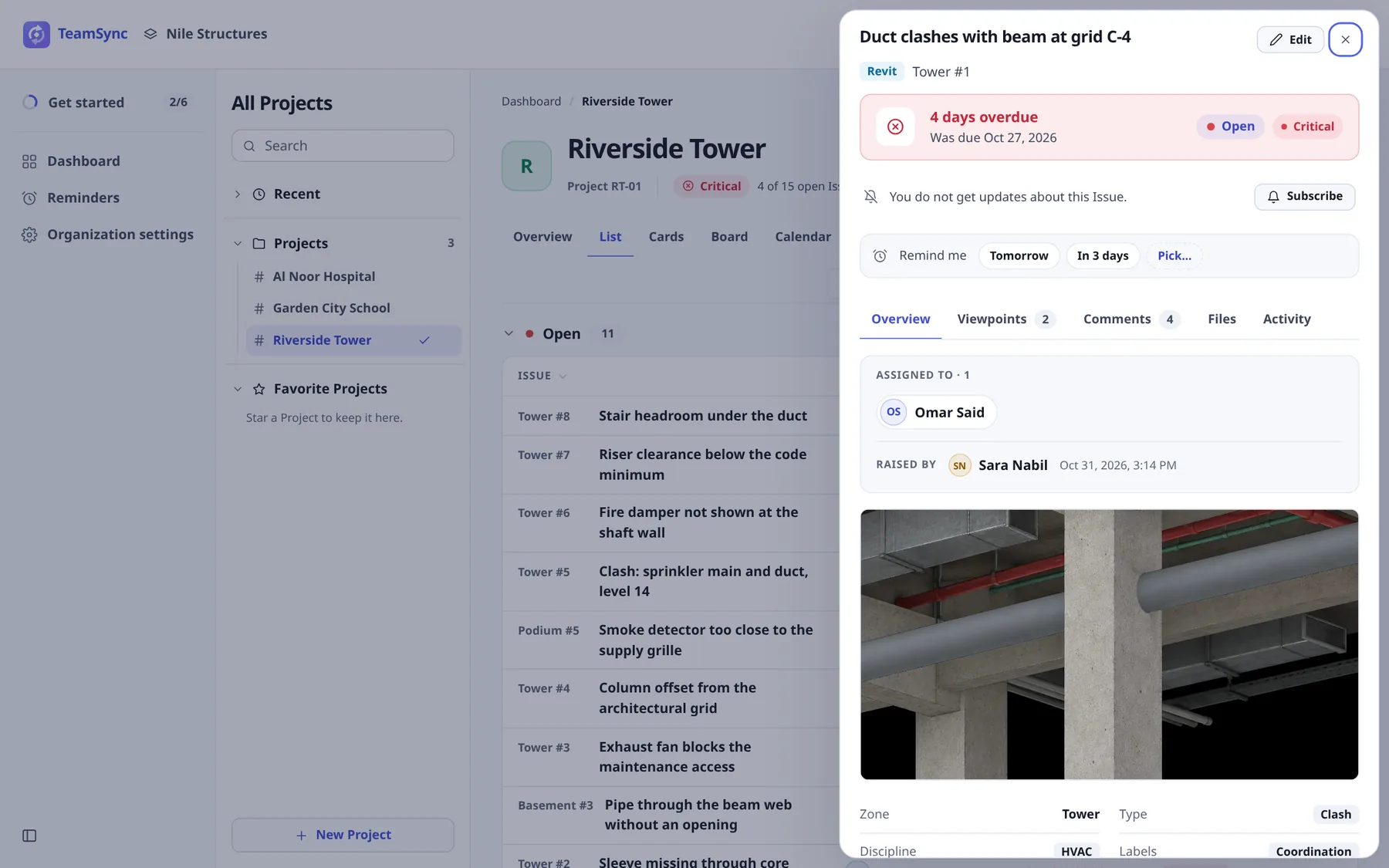
The Issue drawer. The tabs sit under the banner; the snapshot is the viewpoint captured in Revit. Comment and mention someone
Open the Comments tab. Type your comment and type
@to pick a person to mention. They are notified and can open the Issue. Press Ctrl+Enter or choose Post comment.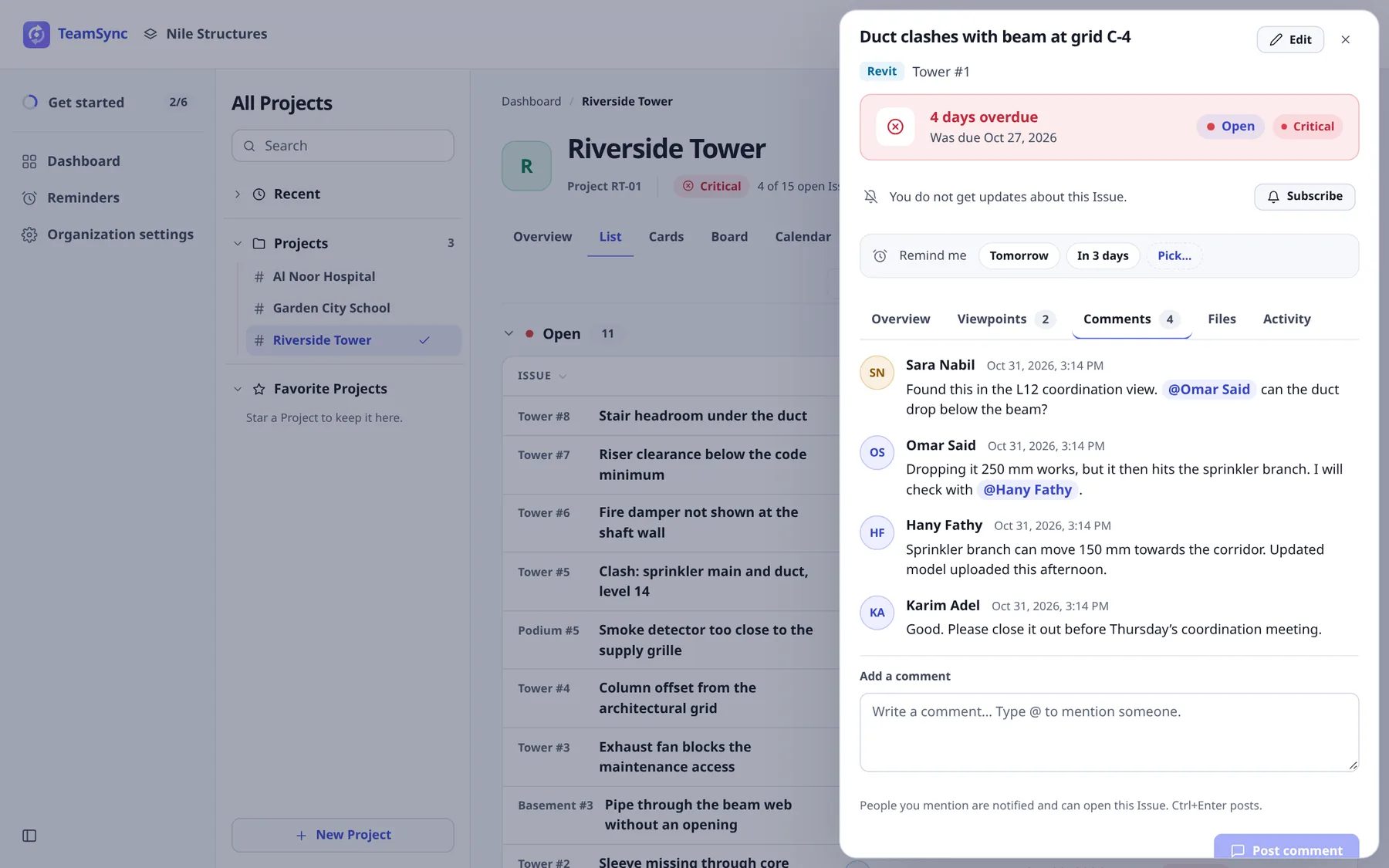
Comments with @mentions. Anyone you mention is notified. Change the status
Choose Edit at the top of the drawer, change Status and choose Save changes. The change is listed in the Activity tab. Which statuses you can move an Issue to depends on your Role and on your part in the Issue. See Working on an Issue.
Note
There is no button to create an Issue on the web. If you cannot find one, that is expected: raise Issues from Revit or Navisworks.
#Next steps
- ConceptsThe words TeamSync uses and how they relate.
- Viewpoints and markupDraw on a picture before you raise an Issue.
- Notifications and remindersWhat you are told about, and how to quieten an Issue.
- The DashboardYour work and your Projects at a glance.
- TroubleshootingIf something does not work as described.
Can’t find what you need? Write to info@top-matrix.com and we’ll help.