Finding your way
The parts of the web app: the top bar, the sidebar, the Projects panel and a Project's tabs.
Every page of the web app sits in the same frame. Once you know the frame, you can reach any Project in two clicks.
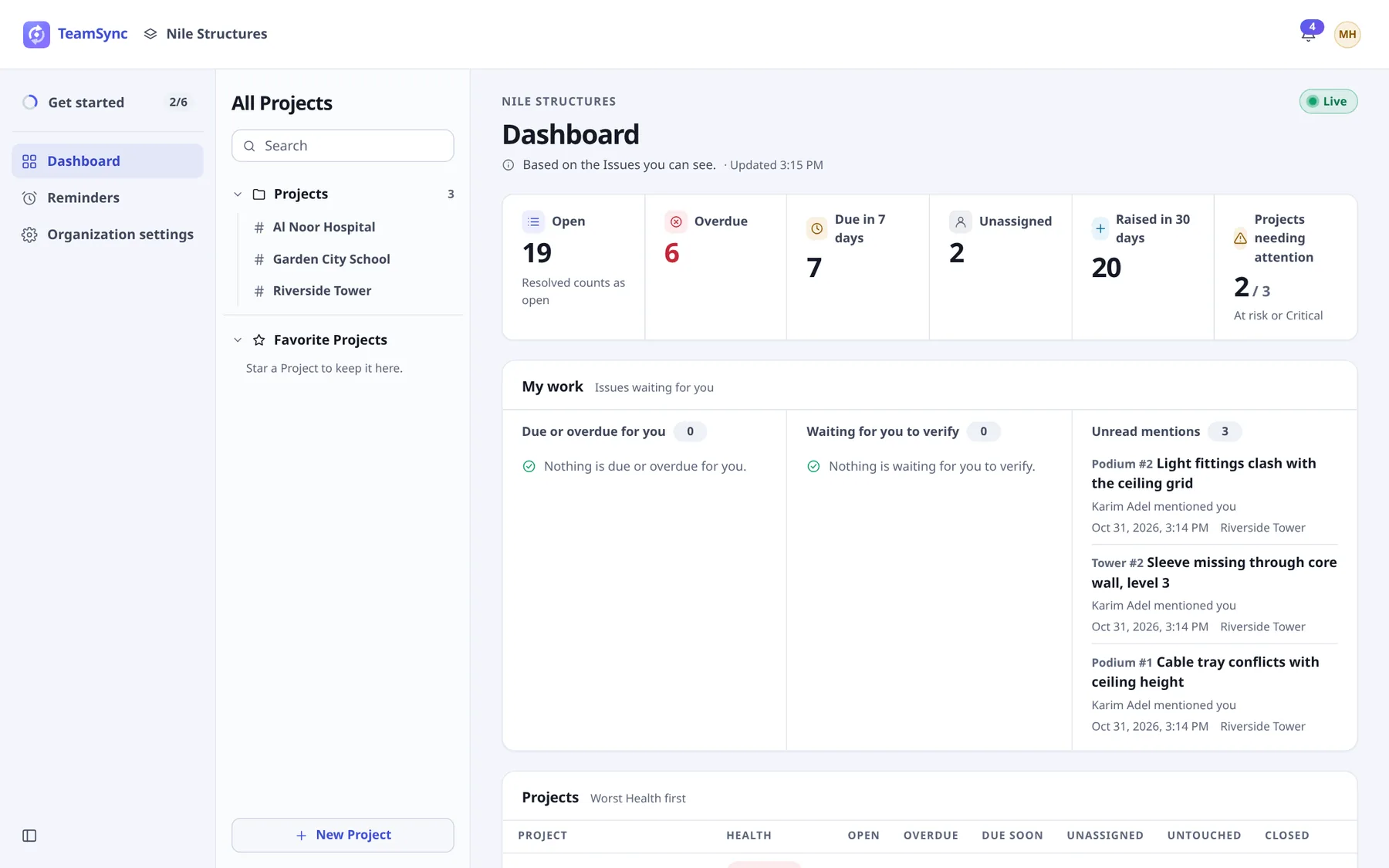
#The top bar
- TeamSync
- The brand. Select it to go home.
- Organization switcher
- Shows the name of the Organization you are in. If you belong to several, its Switch Organization menu lists them. An Organization opened through Support Access is marked Read-only.
- Notifications bell
- Shows how many notifications are unread. Select it for the latest ones, Mark all read, or See all notifications. See Notifications and reminders.
- User menu
- Your avatar. It holds Sign-in and security, the color theme and Sign out.
#The sidebar
- Get started: a checklist for General Managers of a new Organization, with its progress. It leaves the sidebar when the checklist is closed, and you can open it again from Organization settings. See Get started.
- Dashboard: the state of every Project you can see. See The Dashboard.
- Reminders: reminders you set on Issues.
- Organization settings: People, Departments, Disciplines, Roles, Projects, Support Access and the Organization log. You see it only when your Role allows it.
Select Collapse the sidebar at the bottom to shrink it to icons, and Expand the sidebar to bring the labels back.
#The Projects panel
Next to the sidebar, the All Projects panel lists every Project you can open.
- Search: type to narrow the list. If nothing matches, it says No Project matches.
- Recent: the Projects you opened last.
- Projects: all your Projects, with a count. The current one is marked.
- Favorite Projects: Projects you starred. Select the star beside a Project to add it, and again to remove it. The section says Star a Project to keep it here. until you do.
- Archived Projects: Projects that were archived.
- New Project: at the bottom, for people whose Role may create Projects. See Projects.
Note
If you see No Projects yet. you have not been added to a Project. Ask your General Manager to add you.
#A Project's page
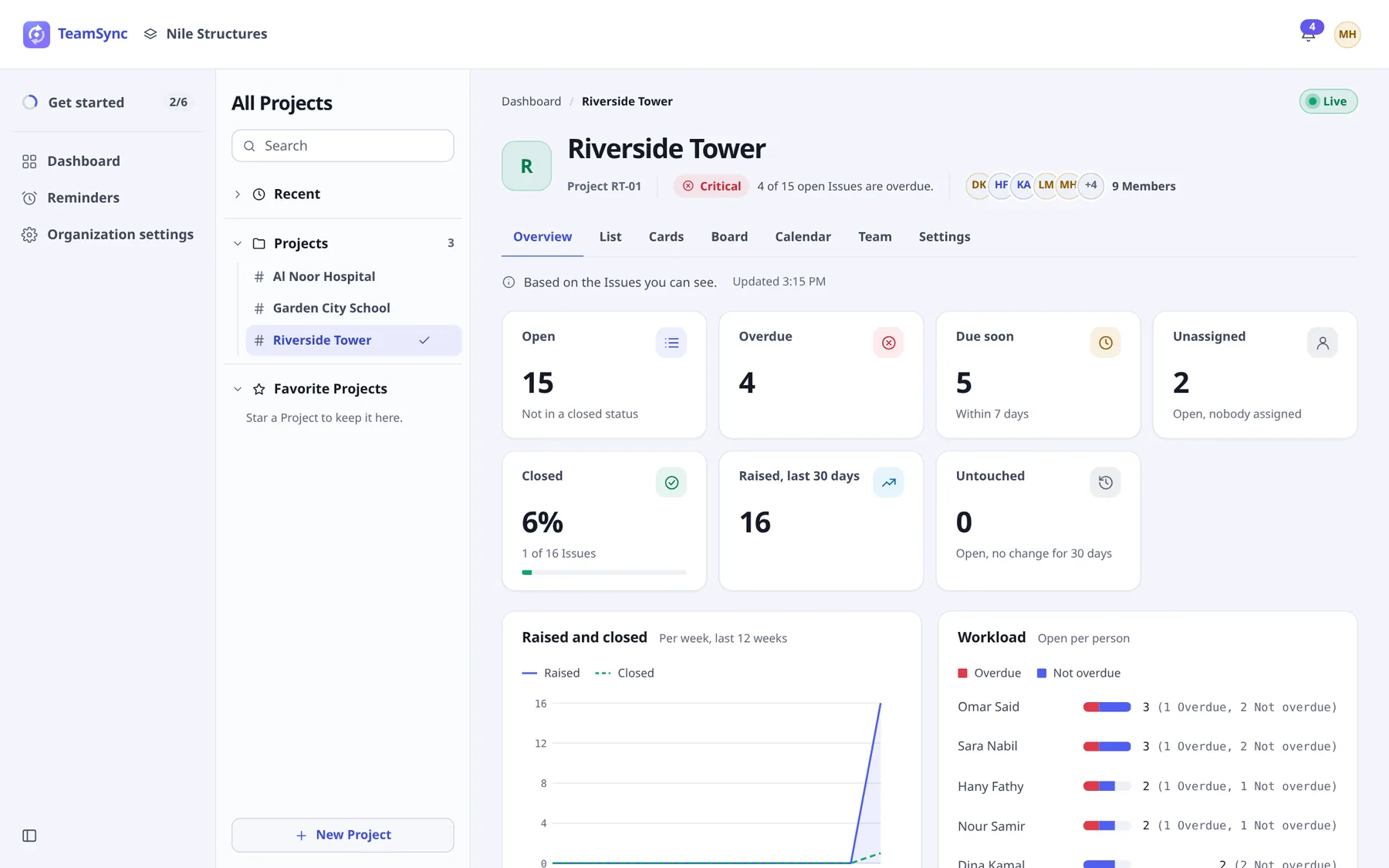
The breadcrumb at the top leads back to the Dashboard. The header shows the Project's name and number, its Health with the sentence that explains it, its Members and, if it applies, Open Project or Archived. Select the Members to go to the Team tab.
| Tab | What it is for |
|---|---|
| Overview | Counts and charts for the Project. See Overview. |
| List | Issues in a table, grouped by status. See Issue views. |
| Cards | Issues as cards with their snapshots. |
| Board | A column for each status. |
| Calendar | Issues on the day they are due. |
| Team | The Project's Members. See Team and Project settings. |
| Settings | Zones, labels and the Project's details. Only people whose Role allows it see this tab. |
#The Live indicator
The Dashboard, a Project's Overview and its Issue views show a Live badge. It means changes made in Revit, Navisworks or the web appear on the page by themselves, without a reload.
| Badge | Meaning |
|---|---|
| Live | Connected. Changes show up on their own. |
| Reconnecting… | The connection was lost and is being retried. The page refreshes every minute meanwhile. |
| Offline | Your device has no network connection. The page catches up when it is back. |
| Updates every minute | Live updates are not available right now, so the page refreshes itself every minute. |
#Themes and accessibility
Open the User menu to choose System, Dark or Light. System follows your device. You can also pick a theme for each mode: Midnight, Obsidian, Ash or Dusk for dark; Daylight, Paper, Sky or Mint for light. The choice is remembered in your browser. The sign-in page has the same switch.
Keyboard users get a Skip to content link at the start of each page.
Can’t find what you need? Write to info@top-matrix.com and we’ll help.