Roles and permissions
Roles decide what a Project Member may do and which Issues they see. Review the four default Roles, edit them, or add your own.
#The four Roles
Every Organization starts with four Roles. The General Manager Role is fixed. The other three are Project Roles you can change, and you can add more.
| Role | Rank | Held | Notes |
|---|---|---|---|
| General Manager | Highest | On the Organization | Fixed. Has every permission, sees every Project, and is the only Role that manages people, Roles, Departments, Disciplines and Support Access. Every Organization keeps at least one. |
| Project Manager | 30 | On a Project | Default |
| Team Leader | 20 | On a Project | Default |
| Engineer | 10 | On a Project | Default. The base Role. |
A higher rank is more senior. A person can only give Roles ranked below their own. A Project Manager cannot make someone a Project Manager or promote themselves.
#What each Role may do
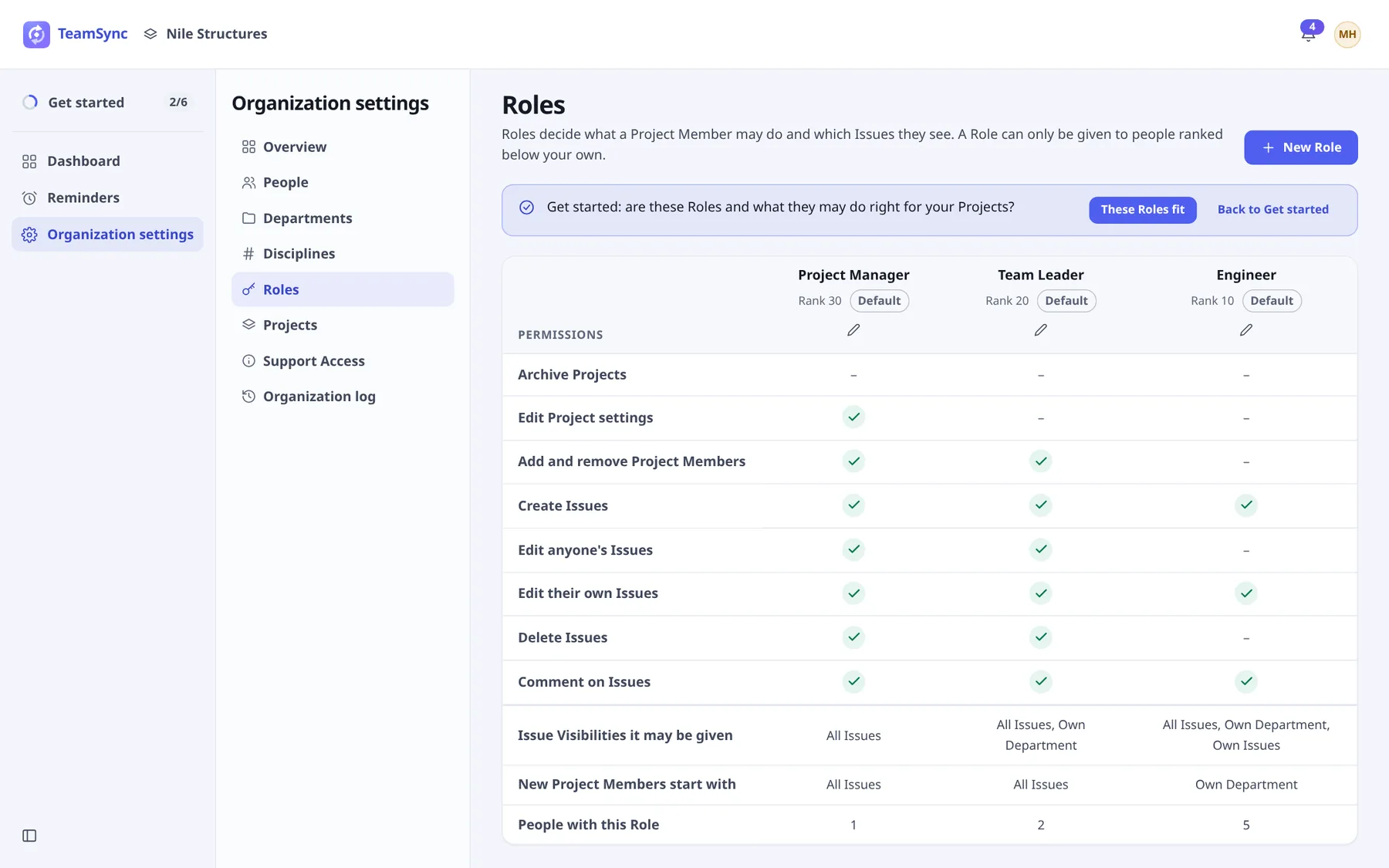
The table below is the default for each Role, as the Roles page shows it. Creating and deleting Projects belong to General Managers alone and are not in the Roles table.
| Permission | What it allows | Project Manager | Team Leader | Engineer |
|---|---|---|---|---|
| Archive Projects | Archive and unarchive a Project | No | No | No |
| Edit Project settings | Change a Project’s Zones, Phases and Labels | Yes | No | No |
| Add and remove Project Members | Manage the Project’s Team | Yes | Yes | No |
| Create Issues | Raise an Issue on the Project | Yes | Yes | Yes |
| Edit anyone's Issues | Edit Issues raised by others | Yes | Yes | No |
| Edit their own Issues | Edit Issues they raised | Yes | Yes | Yes |
| Delete Issues | Delete Issues | Yes | Yes | No |
| Comment on Issues | Add comments | Yes | Yes | Yes |
Tip
Archive Projects is held by General Managers. You can turn it on for a Role if you want other people to archive Projects.
Note
When a release adds a new permission, the three default Roles get it and Roles you created do not, until you turn it on.
#Issue Visibility
Issue Visibility decides which of a Project’s Issues a Project Member can see. It is enforced everywhere an Issue can be read: lists, search, # references, notifications, viewpoints, files and the Dashboard.
| Setting | What the person sees |
|---|---|
| All Issues | Every Issue on the Project. |
| Department Issues (shown as Own Department) | Their own Issues, plus the Issues raised by anyone currently in their Department, whatever the Issue’s Discipline. |
| Own Issues only | Issues they raised, are assigned to, or were named on. |
“Named on” means mentioned or on the notify list. Assigning someone to an Issue, or mentioning them, makes it visible to them even if their Visibility would otherwise hide it.
| Project Manager | Team Leader | Engineer | |
|---|---|---|---|
| Issue Visibilities it may be given | All Issues | All Issues, Own Department | All Issues, Own Department, Own Issues |
| New Project Members start with | All Issues | All Issues | Own Department |
The Project’s Team tab lets a manager set a person’s Visibility, within what their Role allows. Changing a person’s Department changes what they see at once.
#Create or edit a Role
Open Roles
Open Organization settings › Roles.
Choose New Role, or the pencil on an existing Role
The form is called New Role, or Edit and the Role’s name.
Set the name and rank
Name is required. Rank is a whole number from 1 to 999 and must be unique. Higher is more senior.
Tick its permissions
Tick what its Project Members may do.
Choose the Issue Visibilities it may be given
Under Issue Visibilities this Role may be given, allow at least one of All Issues, Department Issues and Own Issues only.
Set the default Issue Visibility
Default Issue Visibility is what people added to a Project with this Role start with. Changing it affects only people added later.
Choose Save Role
When you edit an existing Role, a dialog titled Save the changes to the Role’s name lists what changes, for example Gains: and Loses: lines, a rename, or a new rank. Everyone who holds the Role, on every Project, is affected at once. Choose Save changes to confirm.
You can only give a Role to people ranked below your own, and changing a Role’s rank changes who may give it.
#Remove a Role
Choose the bin on the Role’s column (Remove), then Yes, remove and the Role’s name. This cannot be undone. The three default Roles have no bin, so only Roles you created can be removed. A Role that Project Members still hold cannot be removed: move those people to another Role first.
The Roles page shows People with this Role for each Role, so you can see before you edit.
Can’t find what you need? Write to info@top-matrix.com and we’ll help.