Issue views, search and filters
List, Cards, Board and Calendar show the same Issues four ways. Search, filter, sort, export and change many Issues at once.
Where Issues come from
You cannot raise an Issue on the web. Issues are raised in Revit and Navisworks, where the model and its viewpoints are. The web app is where you follow, discuss and manage them. See Raising an Issue in Revit.
The List, Cards, Board and Calendar tabs of a Project show the same Issues. Search, filters and sort carry over when you switch tabs. They are kept in the page address, so a filtered view survives a reload and you can share it by copying the link. Select an Issue in any view to open it beside the list. See Working on an Issue.
#The four views
#List
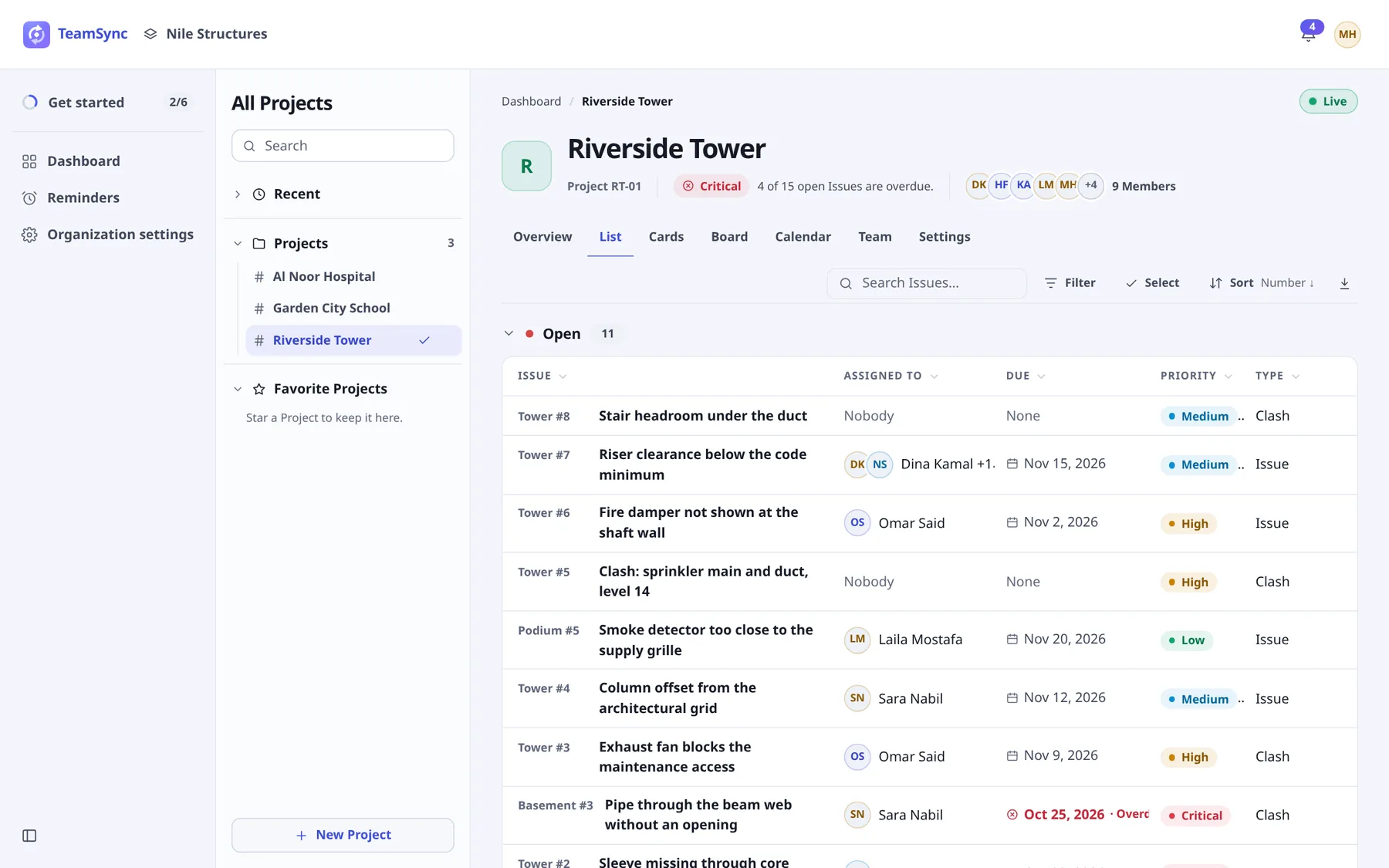
A table with one section per status, each with its count. Columns are Issue, Assigned to, Due, Priority and Type. Overdue dates are shown in red. Select a section's heading to fold it.
#Cards
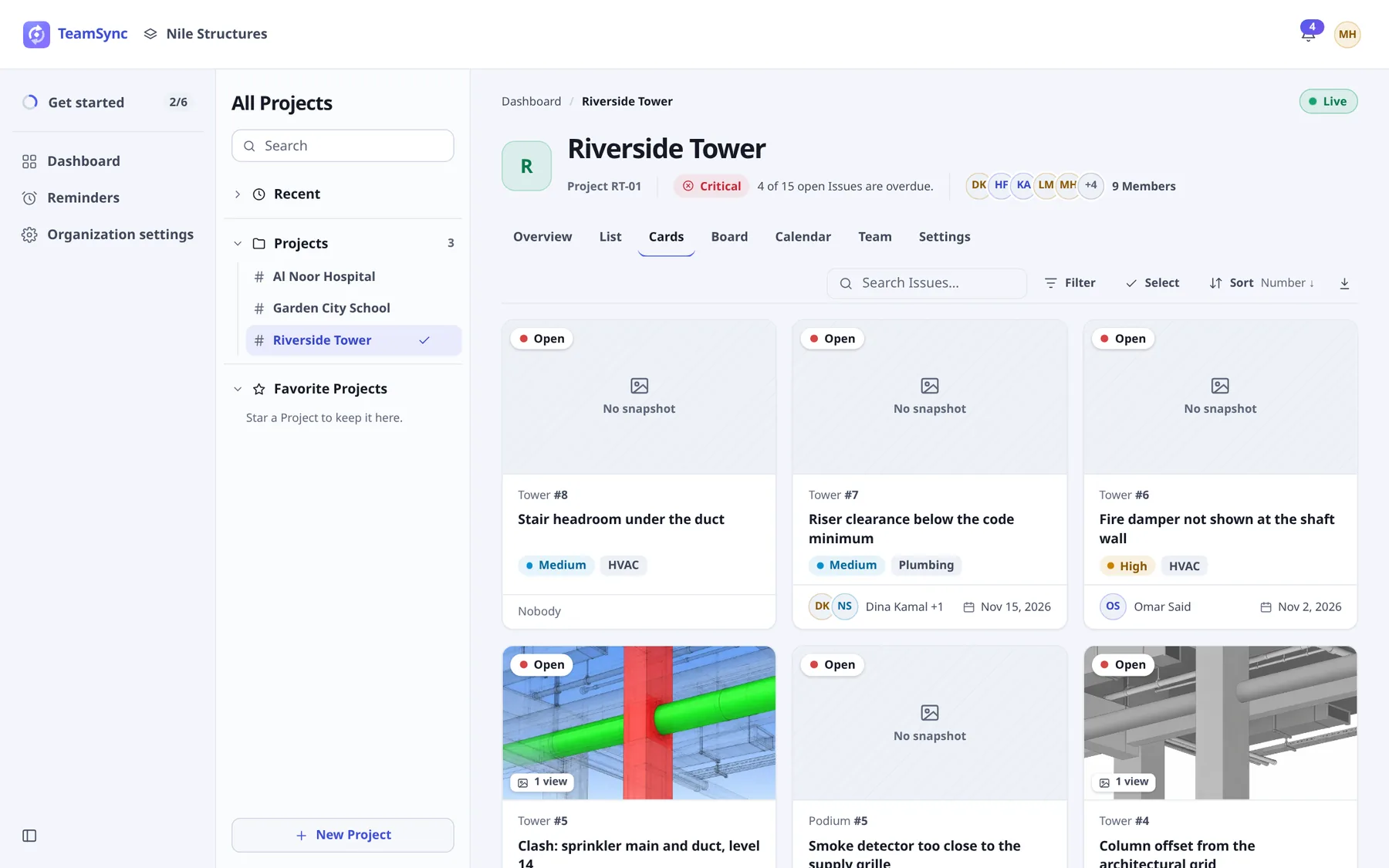
Each Issue is a card with its snapshot from the model, its status, priority, Discipline, assignees and due date. Issues without a picture say No snapshot, and a card with viewpoints shows how many (for example 1 view).
#Board
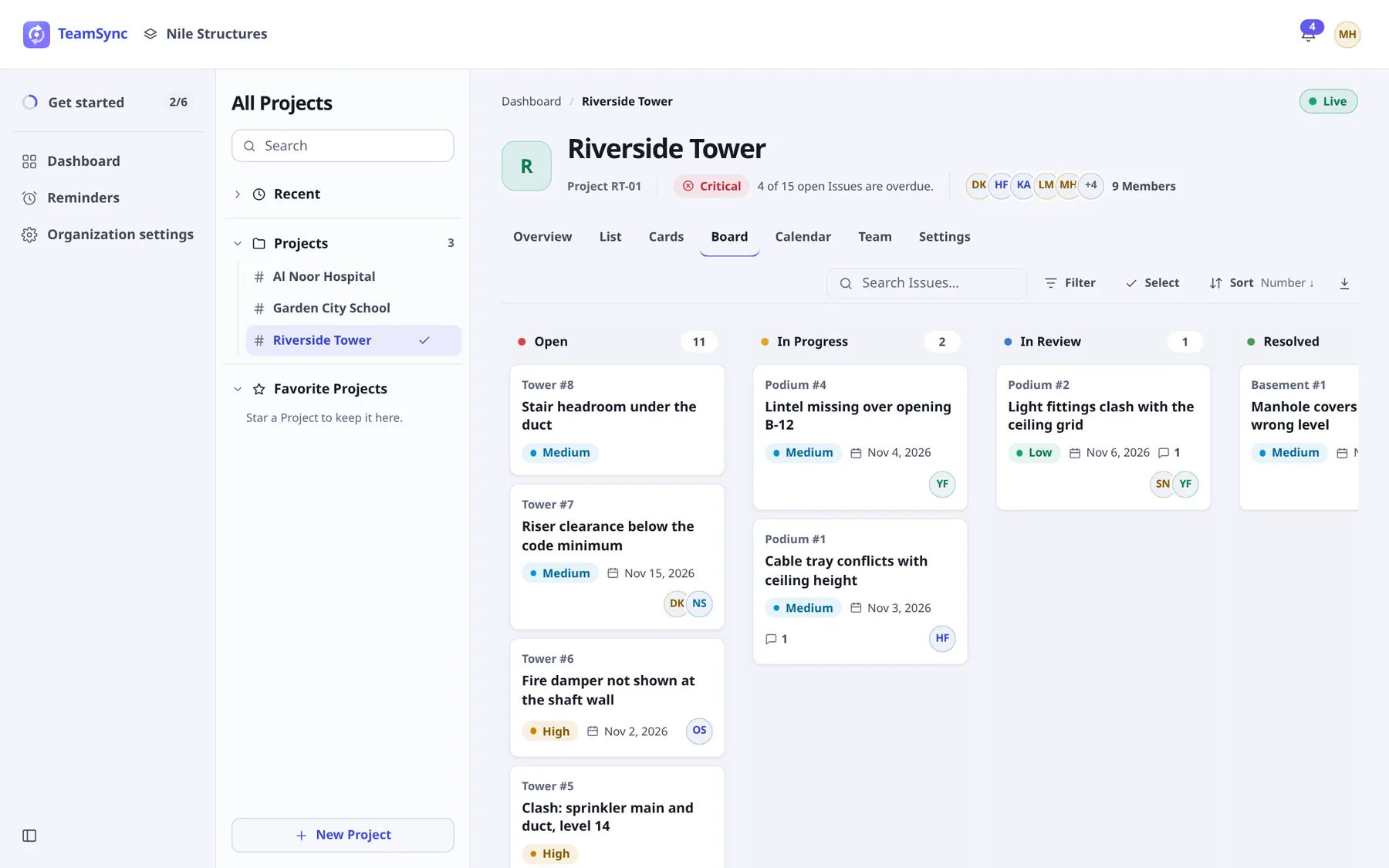
A column per status with its count, such as Open, In Progress, In Review and Resolved. The board is read-only: you cannot drag a card to change its status on the web. Select a card to open the Issue.
#Calendar
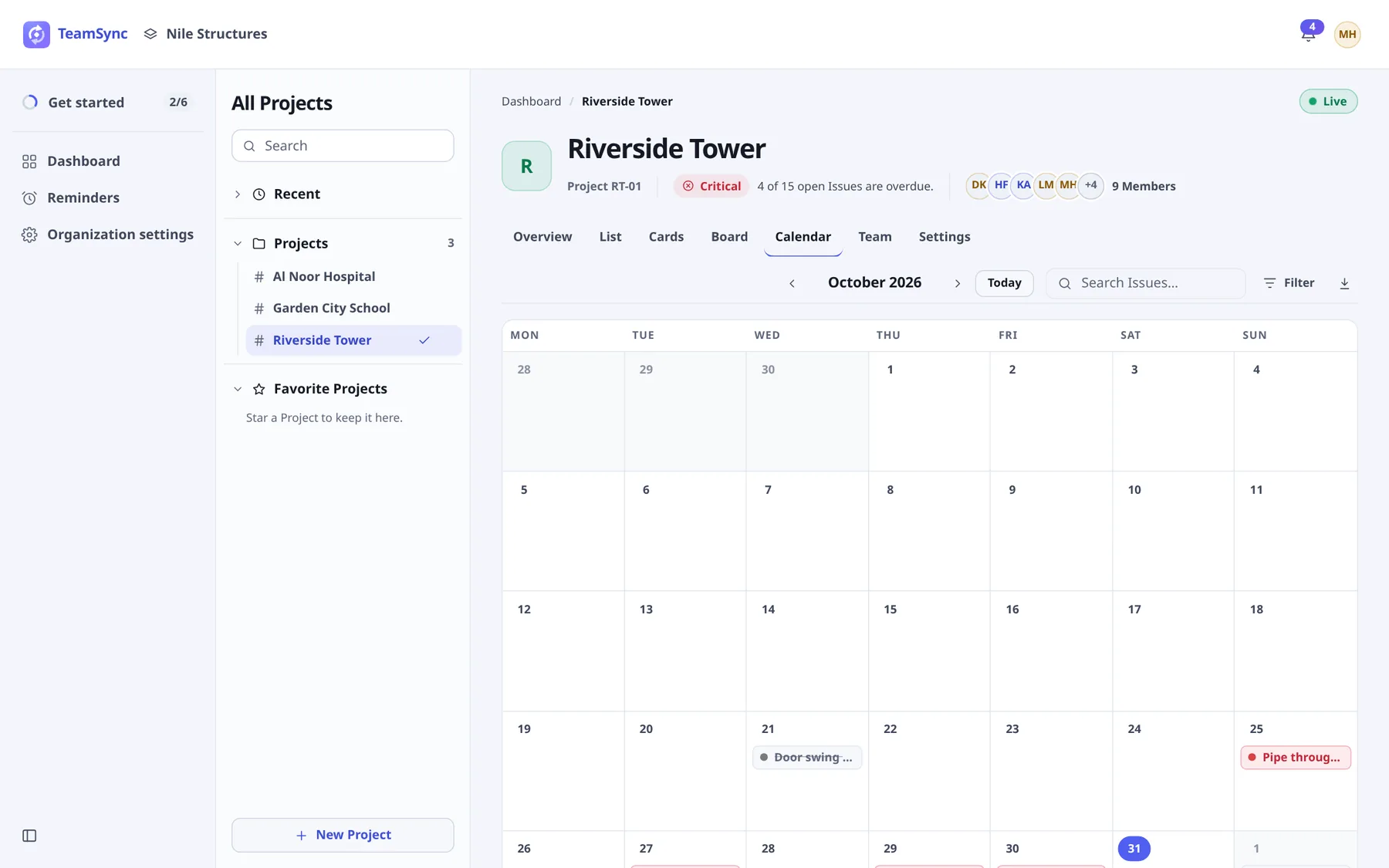
Each Issue on the day it is due, one month at a time. Use Previous month, Next month and Today to move around. Only Issues with a due date are on the calendar. If too many Issues are due in the weeks shown, it says so and asks you to filter. The calendar has no Sort and no Select.
#Search
Type in Search Issues… to look through titles, descriptions and numbers. Results update after you stop typing, or press Enter to search at once. The search shows as a chip, Search: followed by your words.
#Filter
Select Filter
The panel opens. When filters are on, the button shows how many.
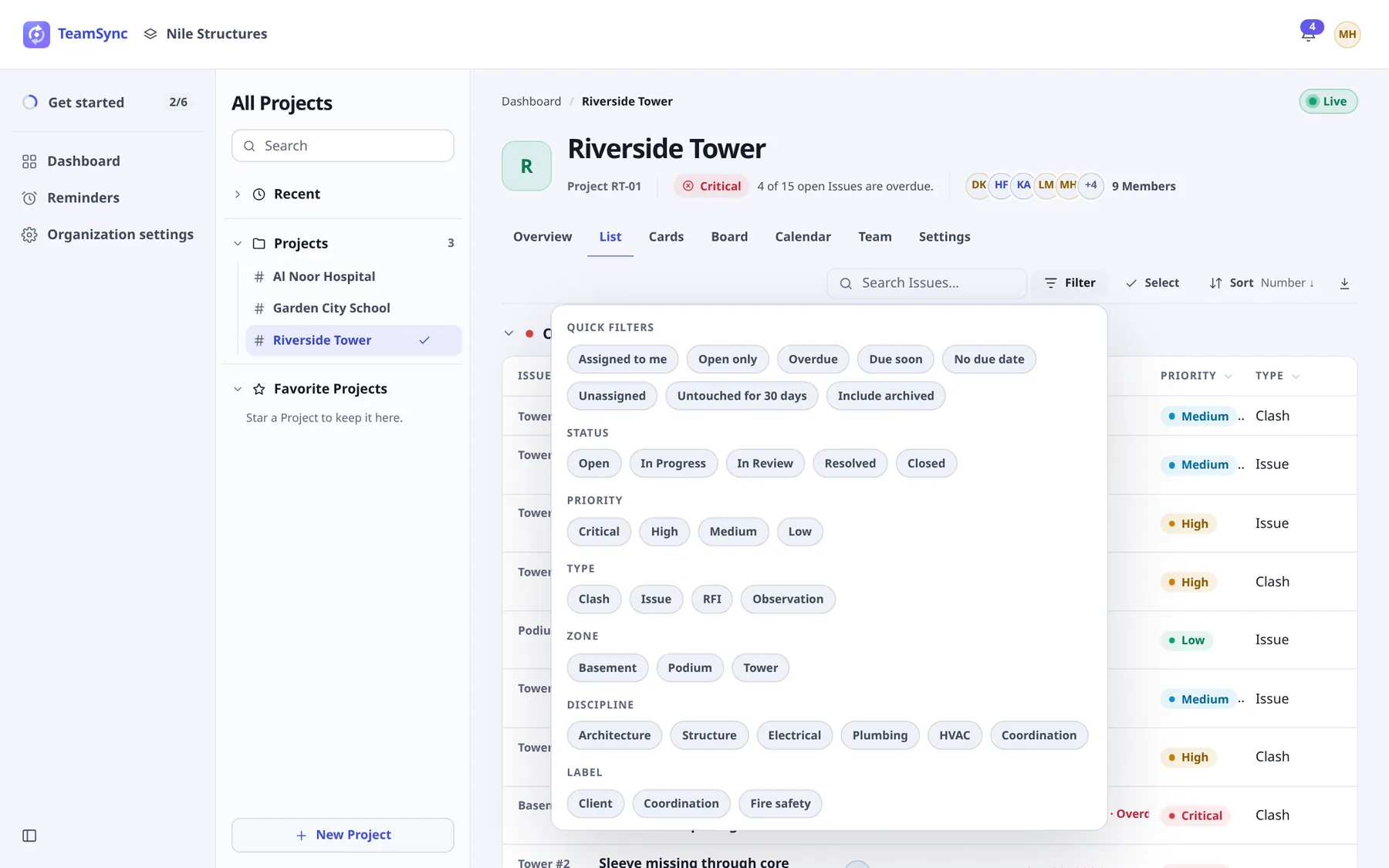
The Filter panel: quick filters first, then a group per field. Pick chips
Select a chip to turn it on and again to turn it off. Within one group the choices are alternatives (Open or In Progress); across groups they combine (Open and High).
Read the applied filters
Applied filters appear as chips under Applied filters. Select one to remove it.
Clear them
Select Clear all filters to start over.
#What you can filter by
| Group | Choices |
|---|---|
| Quick filters | Assigned to me, Open only, Overdue, Due soon, No due date, Unassigned, Untouched for 30 days, Include archived |
| Status | The Project's statuses |
| Priority | Critical, High, Medium, Low |
| Type | The Project's Issue types |
| Zone | The Project's Zones |
| Discipline | The Organization's Disciplines |
| Label | The Project's labels |
| Assignee | The Project's Members |
A group with nothing to choose from, such as Label in a Project without labels, is left out. Assigned to me appears only if you are a Member of the Project.
Selecting a count on the Overview or the Dashboard can add a date filter you cannot set in the panel, such as Raised from a date. It shows as a chip you can remove like any other.
#Sort
Select Sort and choose a field: Number, Due date, Priority, Status, Last changed, Raised, Title, Type or Assigned to. Choose the current field again to reverse the direction. The button shows the current choice, for example "Number ↓". Sort is available in the List, Cards and Board.
#Grouping and showing more
The List groups Issues by status and each group has its own count. A group shows its first Issues and a line such as "25 of 61"; select Show more to load more. Cards load the same way. Each Board column loads 25 at a time and offers a Show button for the rest. Issues saved without a status get their own No status group.
#Export to CSV
Select the download button (Export CSV) at the end of the toolbar. TeamSync saves the Issues that match your search and filters as a CSV file you can open in Excel. The message Exported the filtered Issues. confirms it. Clear the filters first to export every Issue.
#Change several Issues at once
If your Role may change Issues, the toolbar has a Select button in the List, Cards and Board. It is not shown in the Calendar.
Select Select
A checkbox appears on every Issue, and the button becomes Done selecting.
Tick the Issues
Tick Issues one by one, or tick a group's checkbox to take every Issue shown in it. To take everything that matches the current filters, use the Select all link with the number. If that is more than the limit, only the first Issues are selected and the page says so: narrow the filters to change the rest.
Choose what to set
A bar shows how many Issues are selected. Under Set, choose a property (Status, Priority, Assigned to, Due date, Zone, Type or Discipline) and a value.
Apply
Select Apply to and the number, then confirm the question that appears.
Read the result
The page says how many of the Issues were changed. Issues that could not be changed are named.
Each Issue is changed on its own and each change goes into its Activity. Issues your Role or the Project's workflow will not let you change are left as they are: they show a locked checkbox, the bar tells you how many there are, and they are named afterwards.
Select Archive in the same bar to archive the selected Issues. They leave the list and the counts and stay findable with Include archived. Select Clear the selection to start over, or Done selecting to leave selection mode.
#Archived Issues
An archived Issue is hidden from the list and the counts. Turn on Include archived in the Filter panel to see it. It shows an Archived mark.
Can’t find what you need? Write to info@top-matrix.com and we’ll help.