Raising an Issue in Revit
Set up the view, choose a viewpoint, fill in the New issue form and choose Create issue. The Issue appears on the web at once, with the view attached.
#Raise an Issue
The Issue is raised from the view you are looking at. TeamSync saves that view with it, so everyone can return to exactly what you saw.
Set up the view
Open the 3D view, plan, section or sheet that shows the problem. Frame the problem, then use a section box, hide elements that are in the way and select the elements involved. What you set up is saved with the Issue.
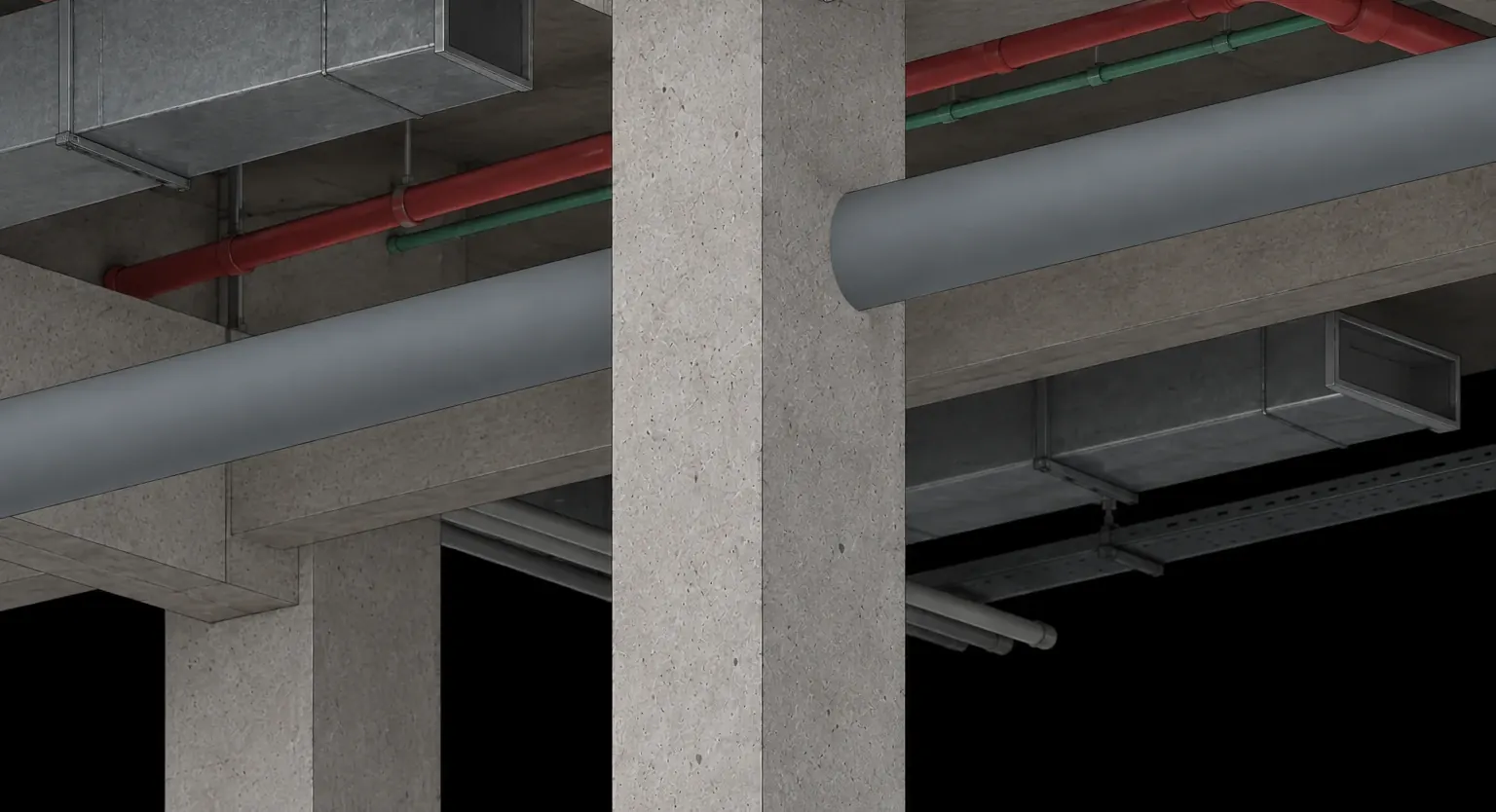
Frame the problem before you raise the Issue. Open the New issue form
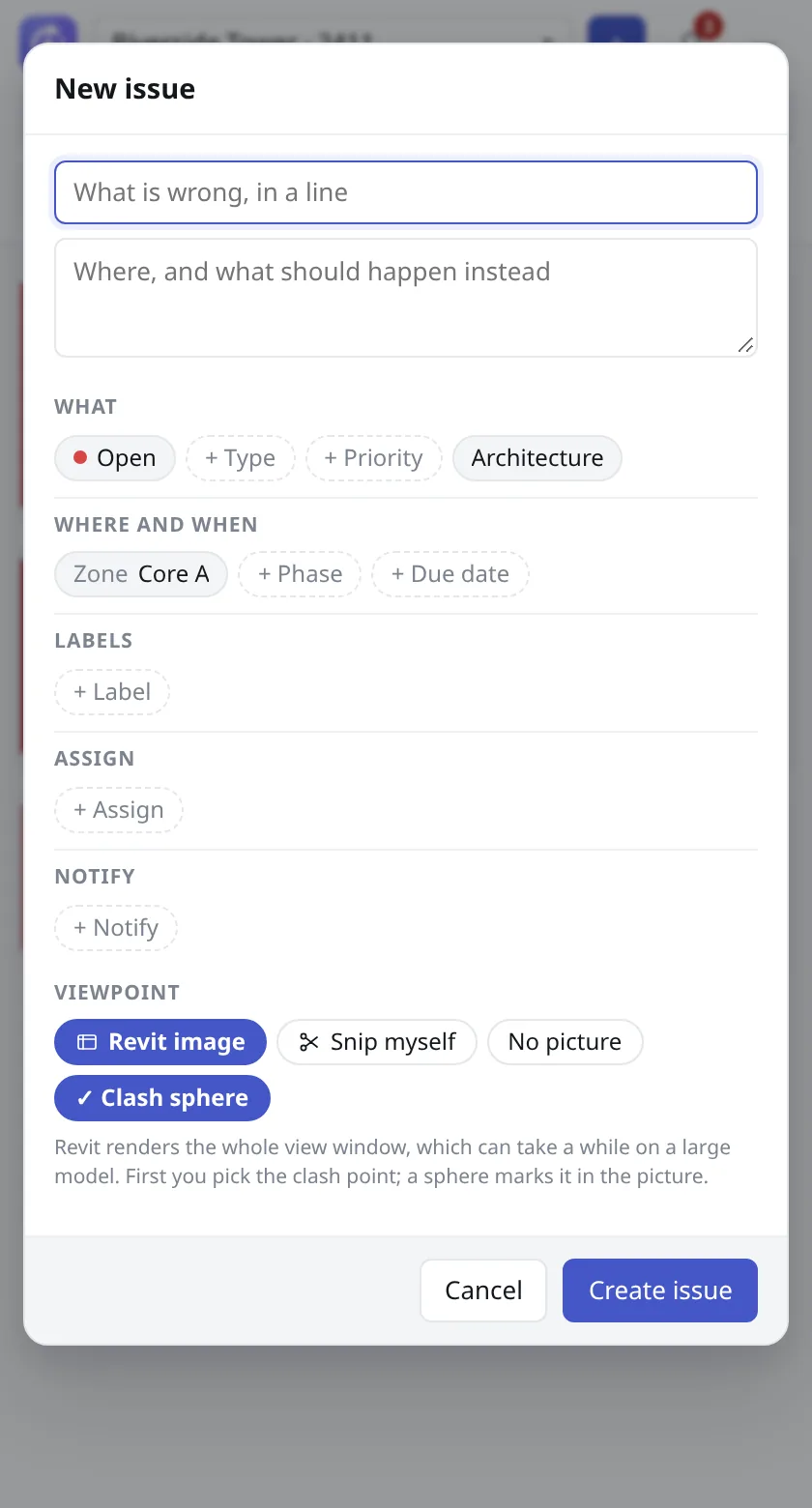
In the TeamSync pane, choose + in the header, or press N. In a Project with no Issues, choose Raise the first issue.
Write the title
Type a line in the title field, which asks "What is wrong, in a line". The title is required: without one the form says "An issue needs a title."
Add a description
The description field asks "Where, and what should happen instead". A sentence or two is enough.
Set the details
Use the chips under What, Where and when, Labels, Assign and Notify. All of them are optional. The table below explains each one.
Choose a viewpoint
Under Viewpoint, choose Revit image, Snip myself, No picture or Clash sphere. Choosing a viewpoint explains when to use each. Your choice of image or snip is remembered for next time.
Choose Create issue
TeamSync saves the Issue and the viewpoint, and a Raised message shows the Issue’s reference. Choose Cancel instead to throw the form away.
#The New issue form
| Field | What it is |
|---|---|
| Title | Required. One line saying what is wrong. |
| Description | Where the problem is and what should happen instead. |
| Status | Where the Issue stands. New Issues start at the first open status, normally Open. The default statuses are Open, In Progress, In Review, Resolved and Closed. |
| Type | The kind of Issue. The defaults are Clash, Issue, RFI and Observation. |
| Priority | How urgent it is. The defaults are Critical, High, Medium and Low. |
| Discipline | The Discipline the Issue concerns. It starts as the one that matches your Department. |
| Zone | The Zone the Issue belongs to. It starts as the Zone you picked in the header. |
| Phase | Shown only if the Project has phases. |
| + Due date | Choose Tomorrow, In a week, In 2 weeks, No date, or pick a day in the calendar. |
| + Label | Labels help you group and filter Issues. |
| + Assign | Who has to act on it. Search by name, team or email. |
| + Notify | People who are kept informed, but are not answerable for it. |
Chips that show Not set have no value yet. Choose one to pick a value.
#Choosing a viewpoint
| Choice | What you get | Use it when |
|---|---|---|
| Revit image | Revit renders the whole view window as a picture. | The whole view tells the story. It can take a while on a large model. |
| Snip myself | You drag a rectangle on the screen and mark it up. | Only part of the view matters, or you want to draw on it right away. |
| No picture | The Issue is raised with no picture. | A picture adds nothing to the Issue. |
| Clash sphere | You click the clash point in the model, and a sphere marks it in the picture. Available in 3D views only. | Two elements clash in 3D and you want the exact point marked. |
#Pick the clash point
Choose Clash sphere
Choose Clash sphere under Viewpoint in a 3D view, then Create issue.
Click the point in the model
The pane asks you to click the point where the clash is in the model. Press Esc to stop.
Finish
A sphere marks the point in the picture, and the viewpoint records it as a Clash sphere.
If you stop without clicking, the pane asks what to do with No clash point was picked: Pick the point again, Continue without a clash sphere, or Cancel. If you change the view while picking, it says The view changed while picking the clash point and offers Mark up this 2D view instead, a button to go back to the original view and pick again, or Cancel.
#Snip myself
Choose Snip myself and Create issue
The screen freezes.
Drag a rectangle
Drag over the part you want, then adjust the corners with the handles.
Take it
Press Enter, double-click, or choose ✓ Snip. To cancel, press Esc, right-click, or choose ✕.
A snip always opens the markup window so you can draw on it before the Issue is created. Viewpoints and markup covers the tools.
#Plans, sections and sheets
You can raise an Issue from plans, ceiling plans, elevations, sections, callouts, drafting views, legends and sheets. Schedules are not supported. In these 2D views there is no Clash sphere. The picture opens in the markup window before the Issue is created, so you can mark up the problem first.
#What is saved with the viewpoint
- The camera and, in a 3D view, the section box.
- Which elements are hidden, and the view template.
- The elements you had selected.
- A picture of the view (the snapshot).
- The Issue itself records its source (Revit) and the name of the model file.
Later, Show in model brings all of this back. See Viewpoints and markup.
#After you create it
The pane shows Raised with the Issue’s reference. The Issue is in the Project’s list at once, in the pane and on the web, and anyone you assigned or asked to be notified hears about it. You cannot raise Issues from the web app, so the add-ins are where every Issue starts. To follow one up on the web, see Working on an Issue.
Tip
Press N in the pane to start a new Issue from the keyboard.
Can’t find what you need? Write to info@top-matrix.com and we’ll help.