Working with Issues in the pane
Find, read, discuss and change Issues without leaving the model: the list, the Issue page, comments, files, activity, changing several Issues at once, and notifications.
#The Issue list
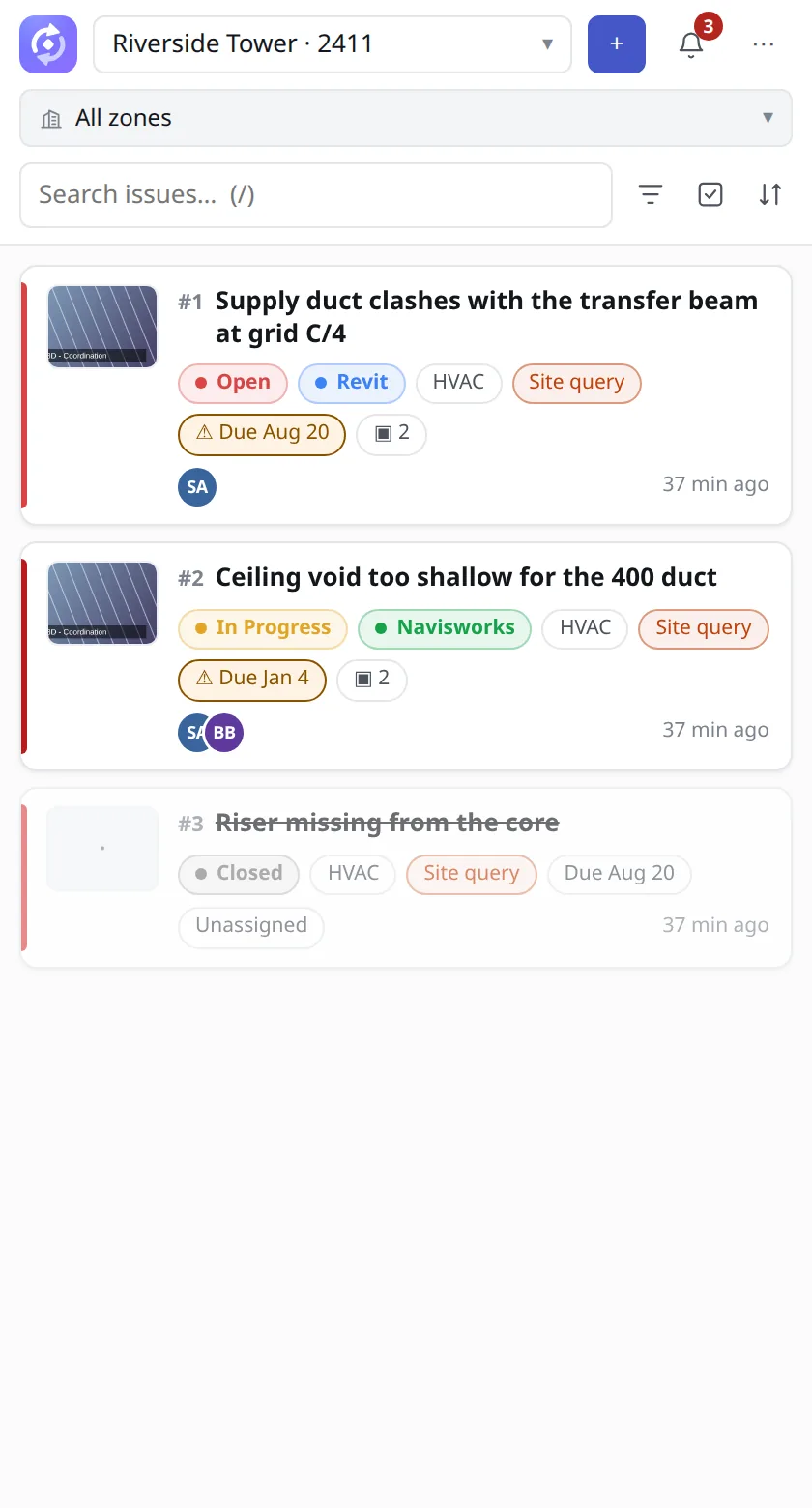
The pane lists the Issues of the Project and Zone you chose in the header. Each card shows the Issue’s number, title, Zone, status, source (Revit or Navisworks), Discipline, labels, due date, number of viewpoints and who it is assigned to, or Unassigned. A footer shows how many are loaded ("Showing X of Y"); choose Load N more to get the rest.
#Search, filter and sort
- Press / or click Search issues… to search by words.
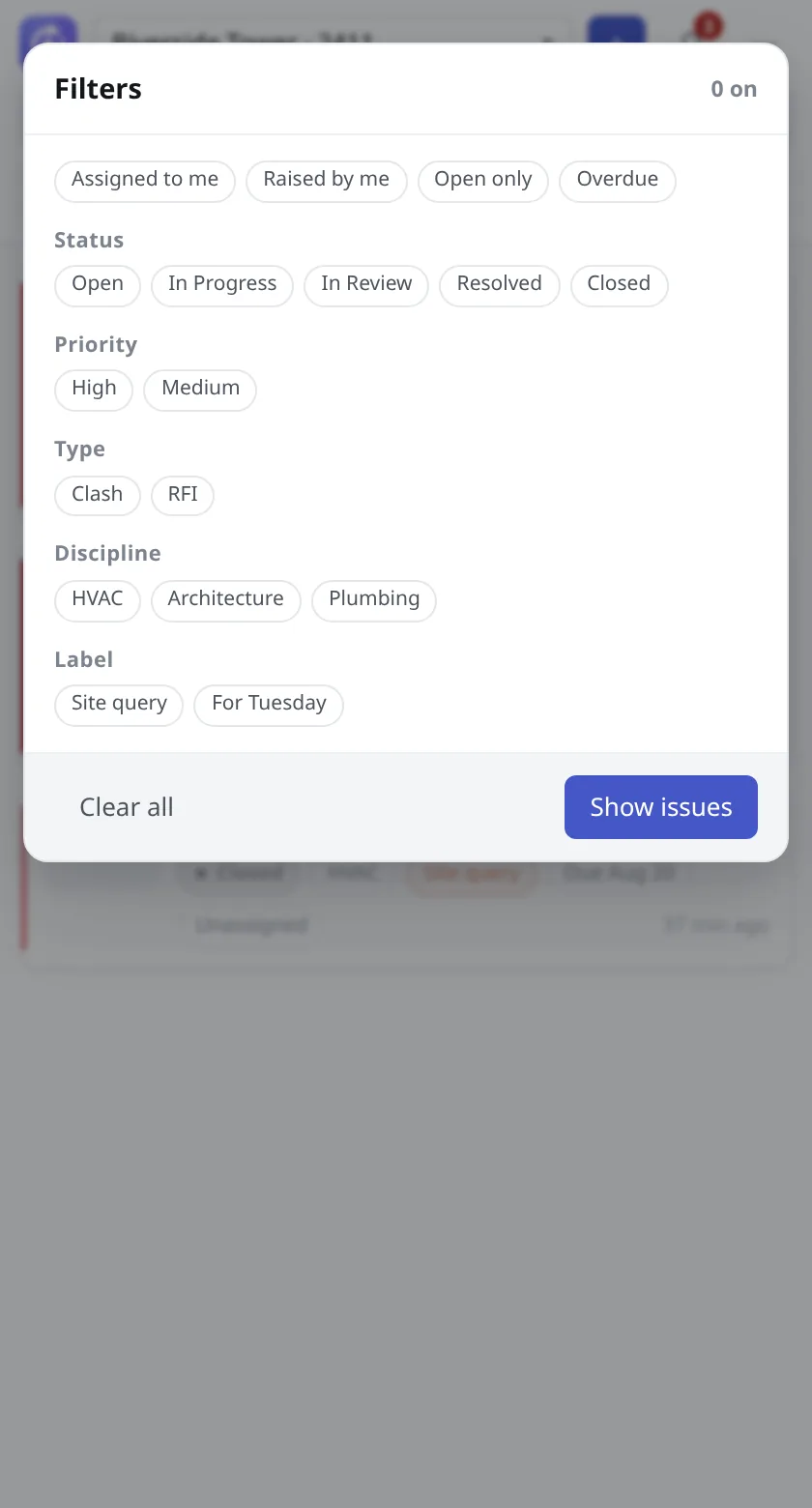
- Choose the filter button to open the Filters sheet. It has Assigned to me, Raised by me, Open only and Overdue, and groups for Status, Priority, Type, Discipline and Label. Choose Show issues to apply, or Clear all to start over. Active filters show as chips above the list.
- Choose the sort button for Sort by: Newest first, Priority, Due date, Status or Title.
#The Issue page
Choose a card to open the Issue. ← Issues goes back to the list.
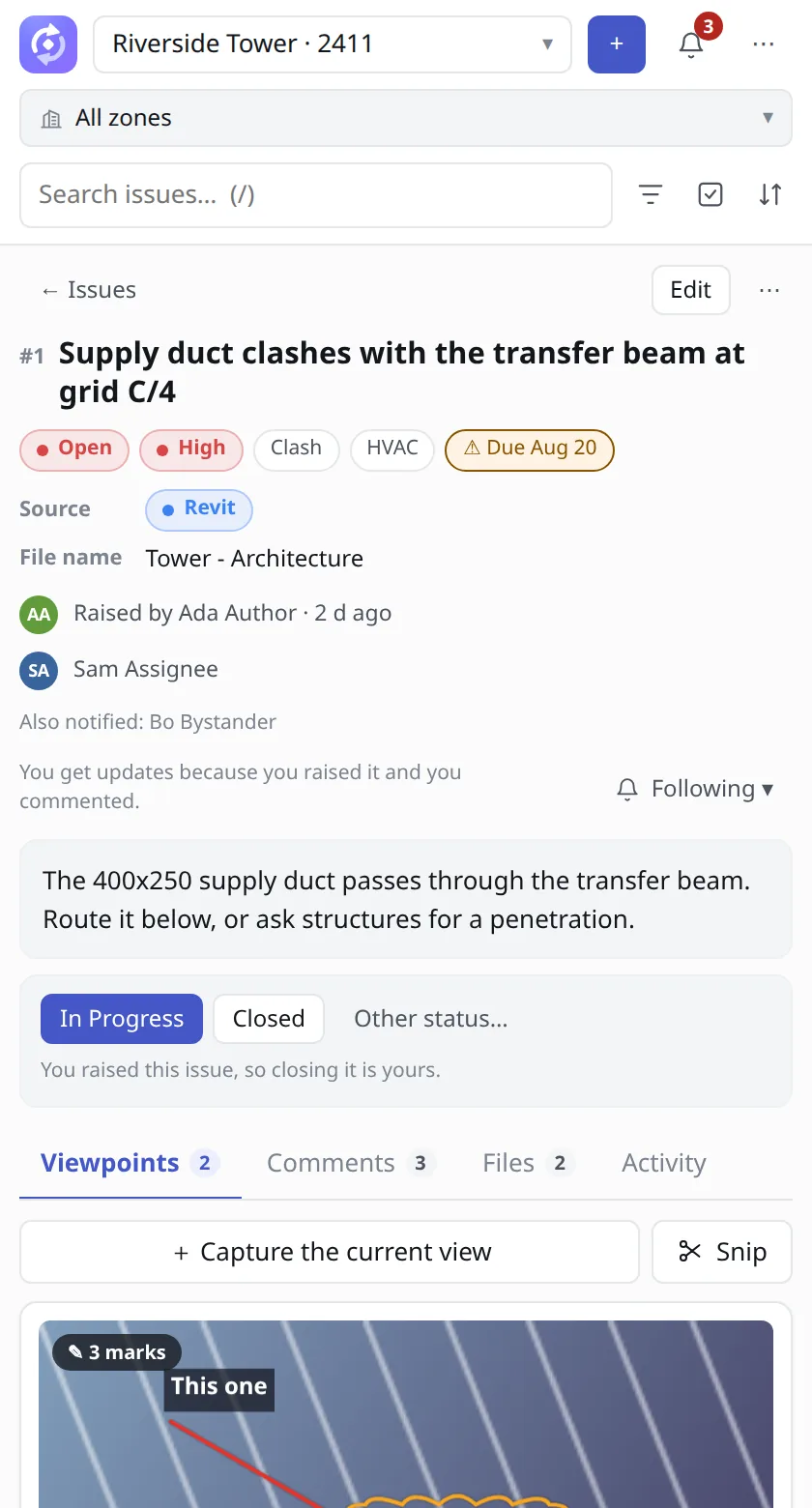
- The facts: status, priority, type, Discipline and due date, then Source (Revit or Navisworks) and File name of the model it was raised in.
- Who raised it and when, who it is assigned to, and Also notified for the people kept informed.
- A line saying why you get updates, for example "You get updates because you raised it". Choose Subscribe if you do not follow it. If you do, Following or Muted opens a menu: Mute - keep the updates, lose the toast and sound, Unmute or Unsubscribe. Mentions and assignments are never muted.
#The workflow bar
Under the description, a bar shows the next steps for the Issue: the next status, Reopen when it is closed, the status that closes it, and Other status…, which opens Move to with every status. A line tells you your part, for example "This is assigned to you. Move it to Resolved and its author will verify."
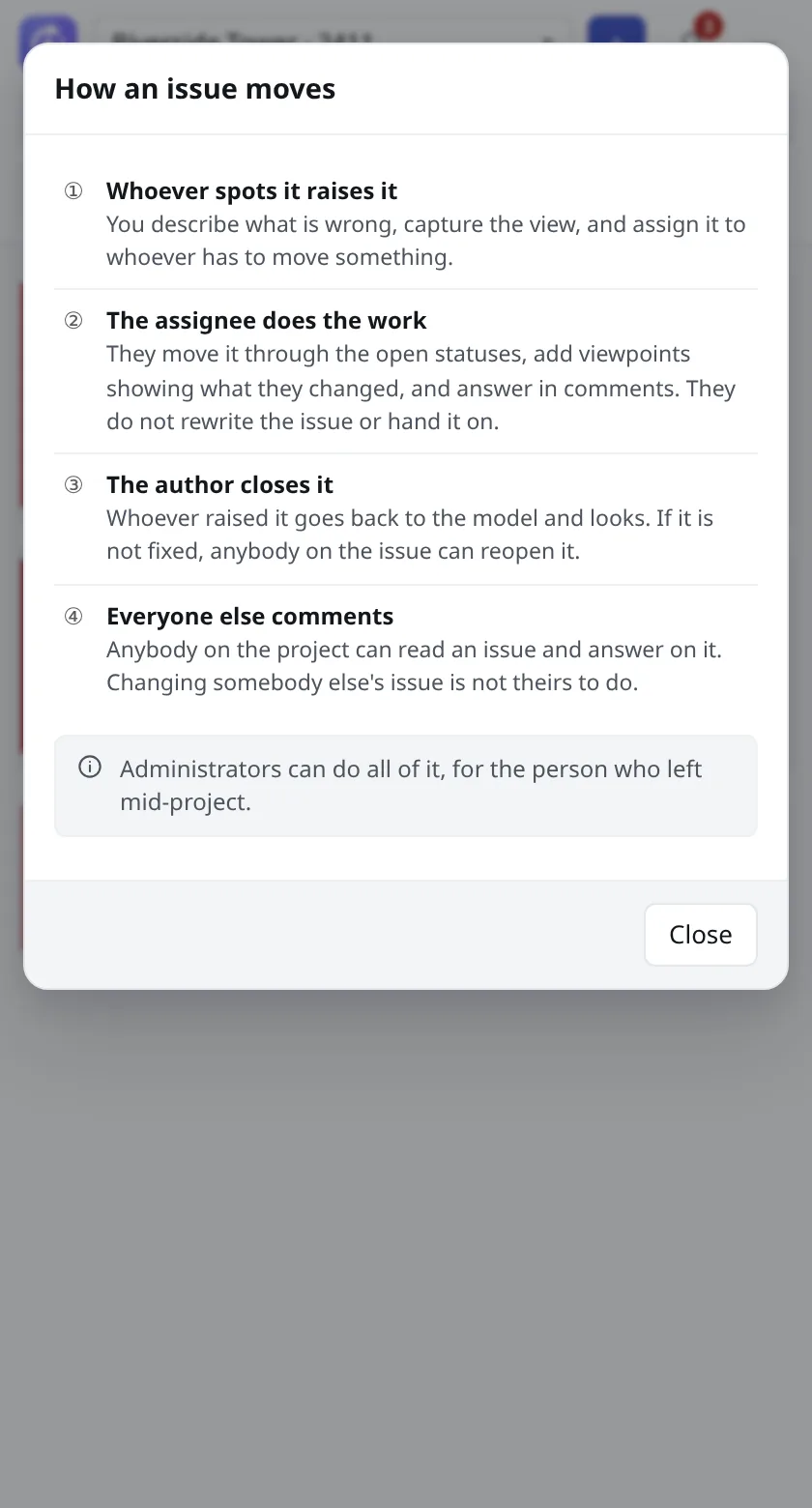
Open How the workflow works in the header’s ⋯ menu for the short version:
| Who | Does what |
|---|---|
| Whoever spots it | Raises the Issue. |
| The assignee | Does the work and moves the status. |
| The author | Verifies and closes it. Resolved is not closed. |
| Everyone else | Comments. |
#The ⋯ menu, Edit and archive
- The Issue’s ⋯ has Edit details…, Change status…, Copy a summary, Refresh and Archive this issue. Archiving asks "Archive this issue?" and says that it disappears from the list while its record is kept.
- Edit opens the form for the Issue. You can change the title, description, status, type, priority, Discipline, Zone, phase, due date, labels, Assigned to and Also notify, and Archive it. Choose Save.
- Moving an Issue to another Zone renumbers it. The pane says "Saved. It is" followed by the new reference.
- If somebody else changed the Issue first, the pane says so and reloads their version. Make your change again.
Note
The pane can archive Issues but not delete them. Archived Issues stay readable; see Working on an Issue.
#Comments
Choose the Comments tab. Type in the box ("Add a comment…") and choose Comment, or press Ctrl+Enter.
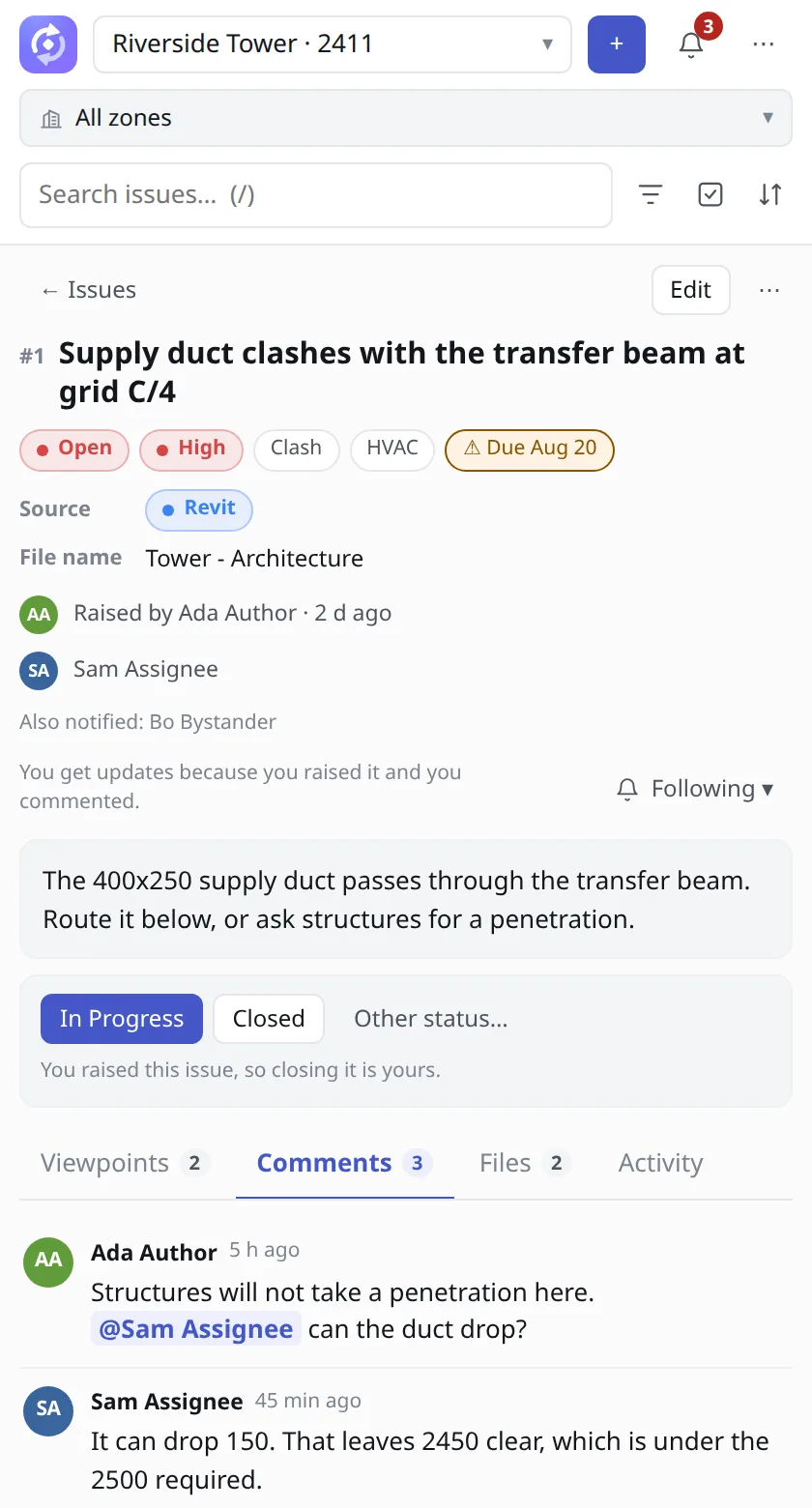
- Type
@to mention a person. They are notified, and the pane never mutes mentions. - Type
#to link another Issue of the Project, or a model element.
#Pick an element in the model
Type # in the comment
The list that opens offers Issues and Pick element in the model.
Choose Pick element in the model
In Revit the status bar says "TeamSync: click an element to reference it in the comment. Esc cancels."
Click the element
The reference is added to your comment.
You can also type # followed by an element id such as #123, a GUID or a Revit UniqueId. Later, choosing the reference in the comment finds that element in the model. For comments on the web, see Comments and mentions.
#Files
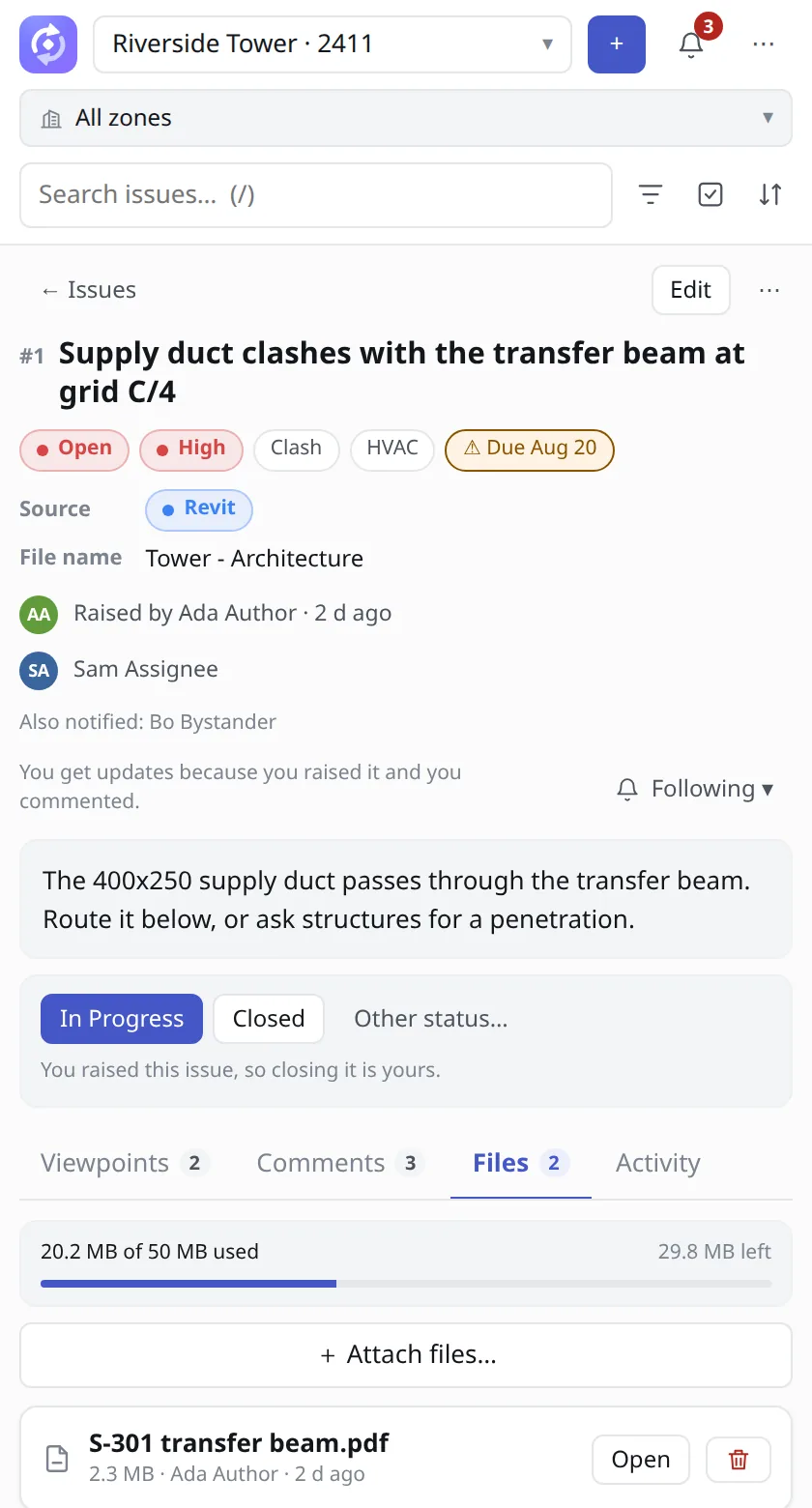
The Files tab shows how much of the Issue’s 50 MB you have used (for example "X of 50 MB used"). Snapshots of viewpoints do not count. Choose + Attach files… to add files. Each file has Open and a delete button. Only the author and assignees can attach files.
#Activity
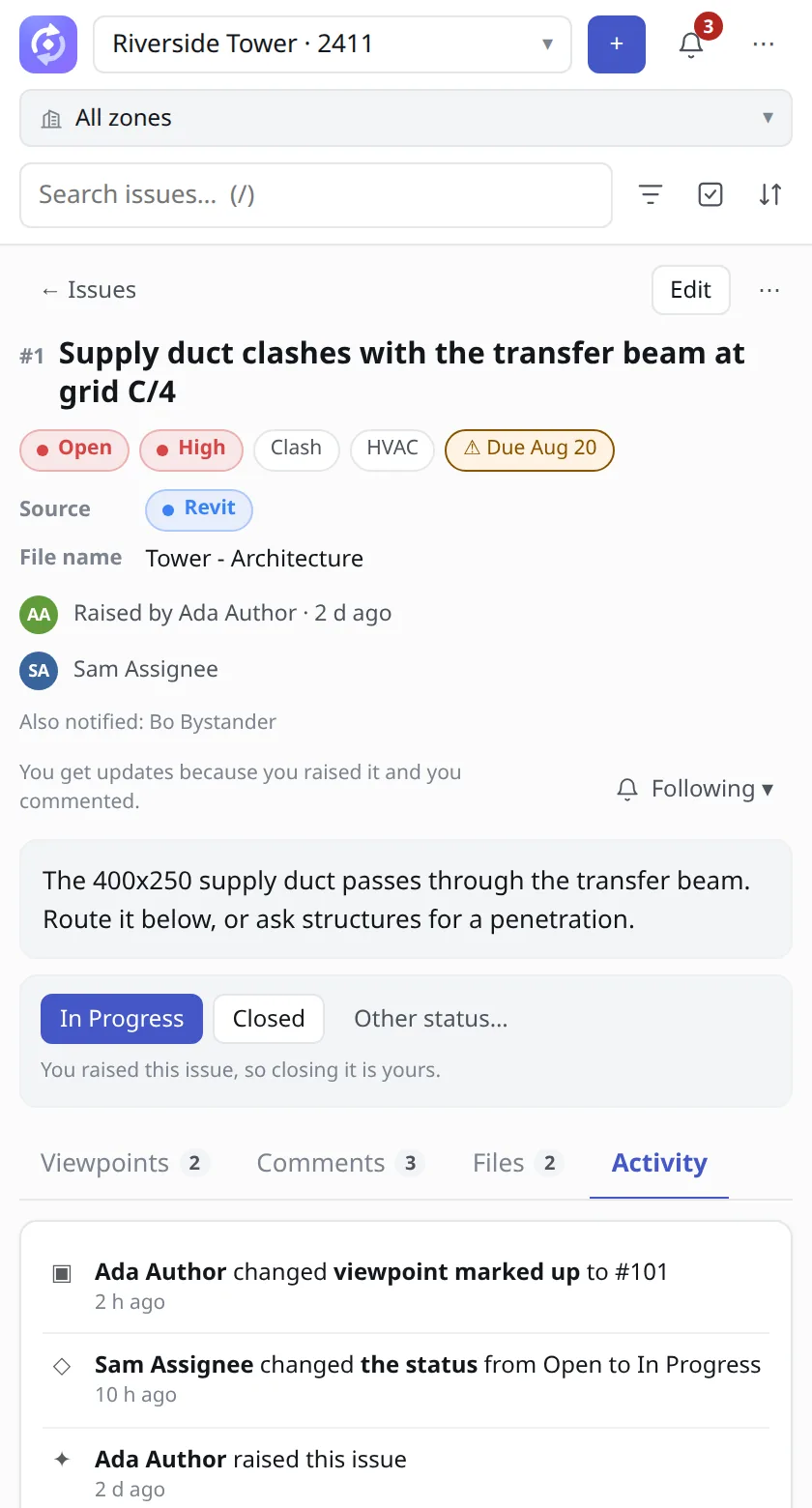
The Activity tab is the Issue’s history of changes.
#Changing several Issues at once
Choose Select issues
Choose the select button next to the search box. The pane asks you to pick Issues to change together and shows how many are selected. All and None select or clear every Issue in the list.
Tick the Issues
Tick the cards you want to change.
Choose Edit
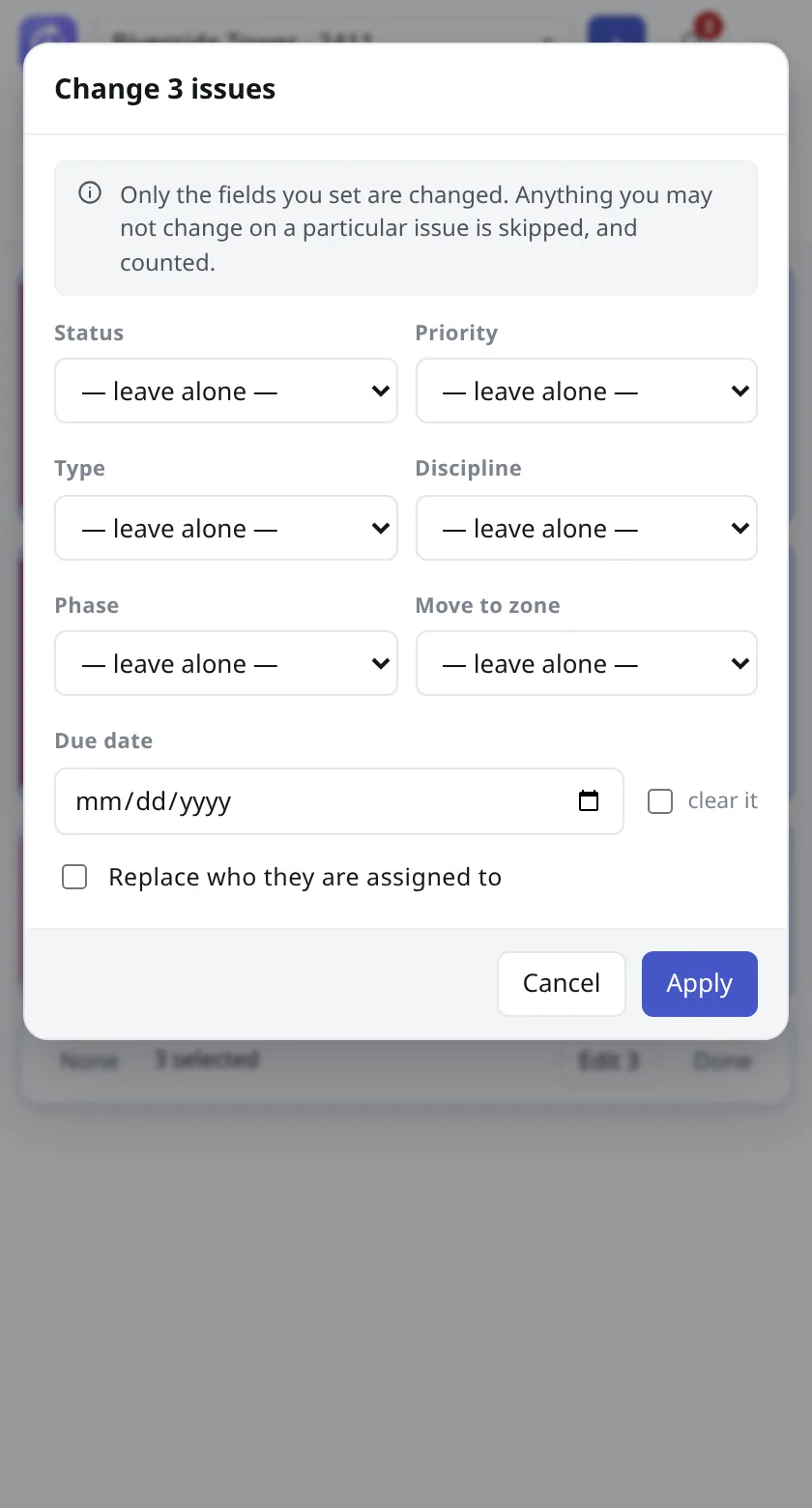
Choose Edit N, where N is how many you ticked. The Change N issues sheet opens.
Set what should change
Every field starts at "— leave alone —". Change only the fields you want. You can move the Issues to another Zone with Move to zone, empty a field with clear it, and replace who they are assigned to.
Choose Apply
The pane says how many changed and how many were left alone. Choose Done to leave selection.
#Notifications in the add-in
The bell in the header opens Notifications. The filters are All, Mentions, Assigned, Status and Due. New ones are listed under New, older ones under Earlier. Choose Mark all read to clear the badge, or See all notifications for the full history, where you can choose Load older.
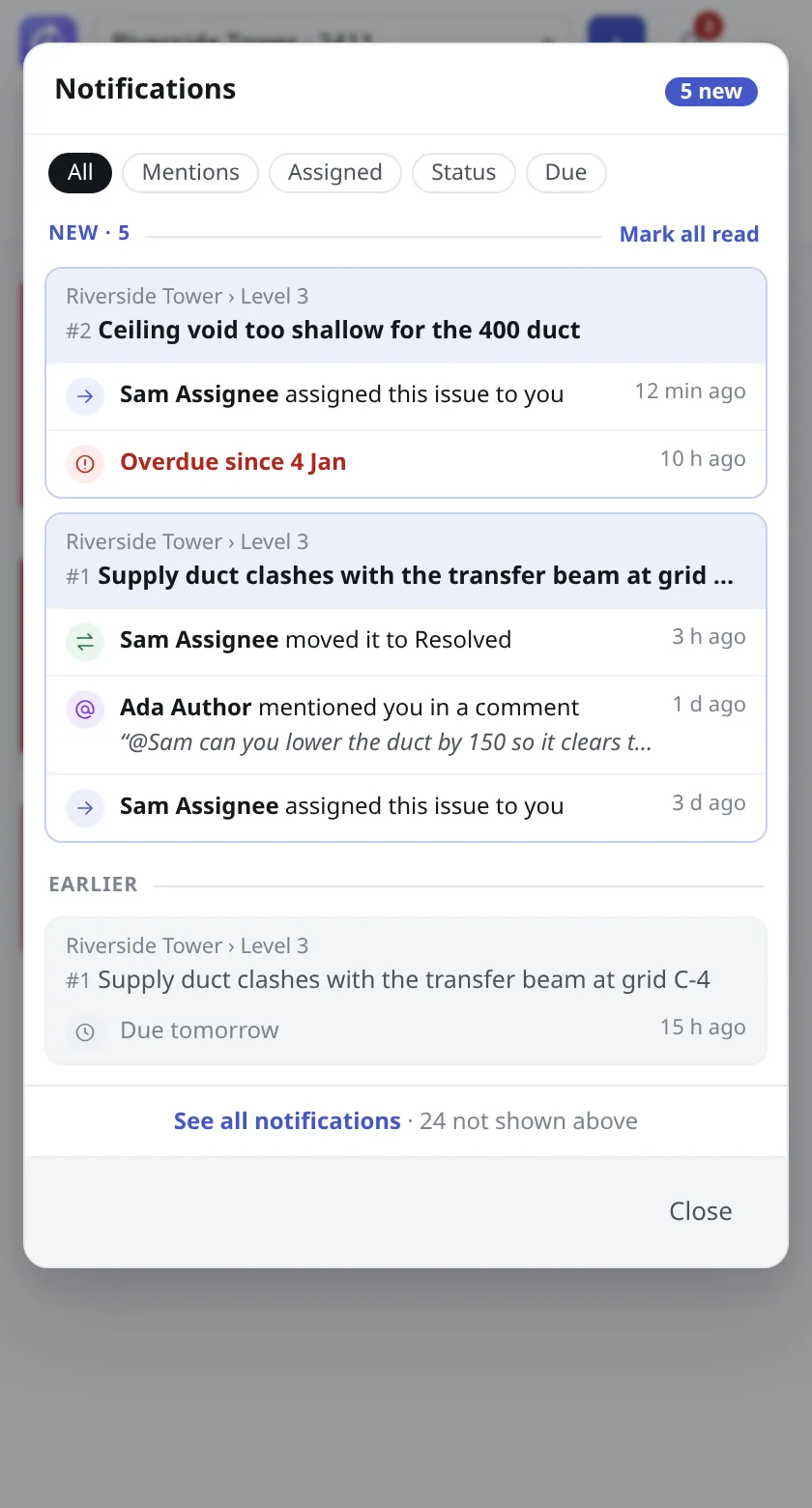
You are told when an Issue is assigned to you, when you are mentioned, when a new comment arrives on an Issue you follow, when a status changes, when you are kept informed on an Issue, and when an Issue is due today or tomorrow or is overdue.
A Windows toast has an Open issue button that opens the Issue in the pane. The Team Sync button on the ribbon shows a red badge while you have unread notifications. The pane has no setting to silence its sounds: to quiet an Issue, mute it from its following line. The web app has more notification settings; see Notifications and reminders.
Can’t find what you need? Write to info@top-matrix.com and we’ll help.