Set up your Organization
Get started is a six-task checklist for a new Organization. Each task ticks itself off when TeamSync sees it done.
A new Organization shows Get started at the top of the sidebar, with your progress beside it (for example 2/6). Only General Managers see it. Progress belongs to the Organization, so every General Manager sees the same ticks.
You do not have to work through the list in order, or from this page. A task ticks when TeamSync sees it done, wherever in Organization settings you did it. The next open task is highlighted.
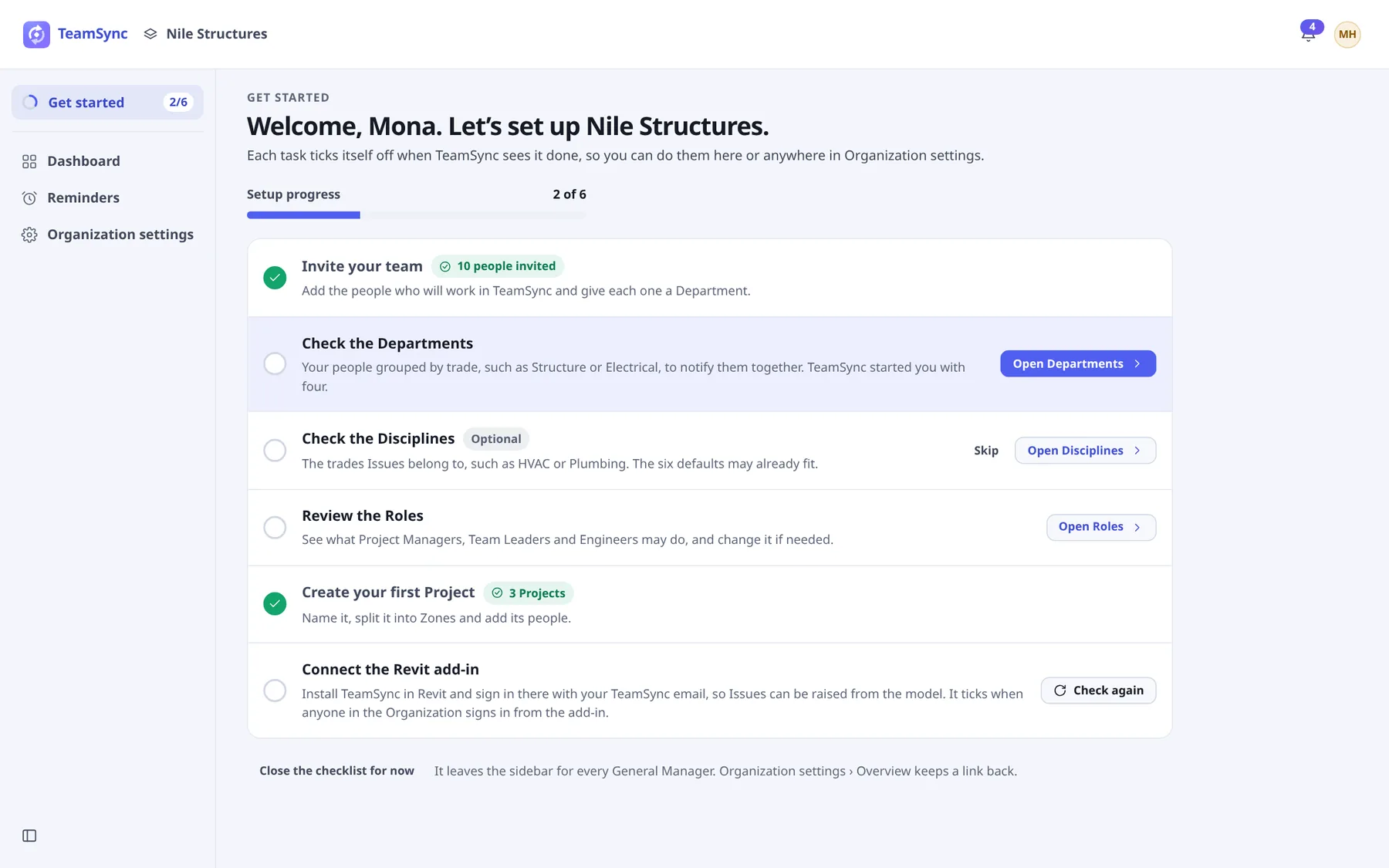
#The six tasks
#Invite your team
Add the people who will work in TeamSync and give each one a Department. It ticks when at least one person besides the General Managers is a member or has a pending invitation, and shows how many people were invited.
How: choose Invite people, then follow Invite people.
#Check the Departments
Departments group your people by trade, such as Structure or Electrical, so you can notify them together. TeamSync starts you with four. Open them and decide whether they fit how your company is organised.
How: choose Open Departments, change the list if you need to, then choose These Departments fit. The task ticks only when you confirm it. Details are in Departments and Disciplines.
#Check the Disciplines
Disciplines are the trades Issues belong to, such as HVAC or Plumbing. The six defaults may already fit. This is the only optional task.
How: choose Open Disciplines, then These Disciplines fit. If you would rather not look at them now, choose Skip. A skipped task counts as done and shows Skipped. Choose Undo skip to open it again.
#Review the Roles
See what Project Managers, Team Leaders and Engineers may do, and change it if needed. Roles decide what people can do on a Project and which Issues they see.
How: choose Open Roles, then These Roles fit. See Roles and permissions.
#Create your first Project
Name it, split it into Zones and add its people. It ticks when the Organization has a Project.
How: choose Create a Project. See Projects.
#Connect the Revit add-in
Install TeamSync in Revit and sign in there with your TeamSync email, so Issues can be raised from the model. It ticks when anyone in the Organization signs in from the add-in.
How: follow Install the add-ins and Sign in to the add-in. Then come back and choose Check again.
Note
The tasks for Departments, Disciplines and Roles do not tick on their own, because TeamSync starts you with defaults and cannot tell whether you have looked at them. Confirm each one on its page. Choose Open again on a ticked task to reopen it.
#Close the checklist
When every task is done, a banner says your Organization is ready. Choose Close the checklist to take Get started out of the sidebar, or Go to the Dashboard to leave it there.
You can also choose Close the checklist for now before the tasks are done. It leaves the sidebar for every General Manager.
#Get it back
Open Organization settings › Overview. The Setup checklist banner at the top shows how many tasks are done. Choose Open Get started to return to the checklist.
Can’t find what you need? Write to info@top-matrix.com and we’ll help.