Using TeamSync on a phone
Open TeamSync in your phone's browser for a layout made for one hand: a bar along the bottom, Issues grouped by due date, and an Issue sheet with quick actions.
On a narrow screen TeamSync swaps the sidebars for a bottom bar. You read Issues, comment, change status, assign people and set reminders. As on the desktop web app, you cannot raise an Issue on a phone. Issues are raised in Revit and Navisworks.
#The bottom bar
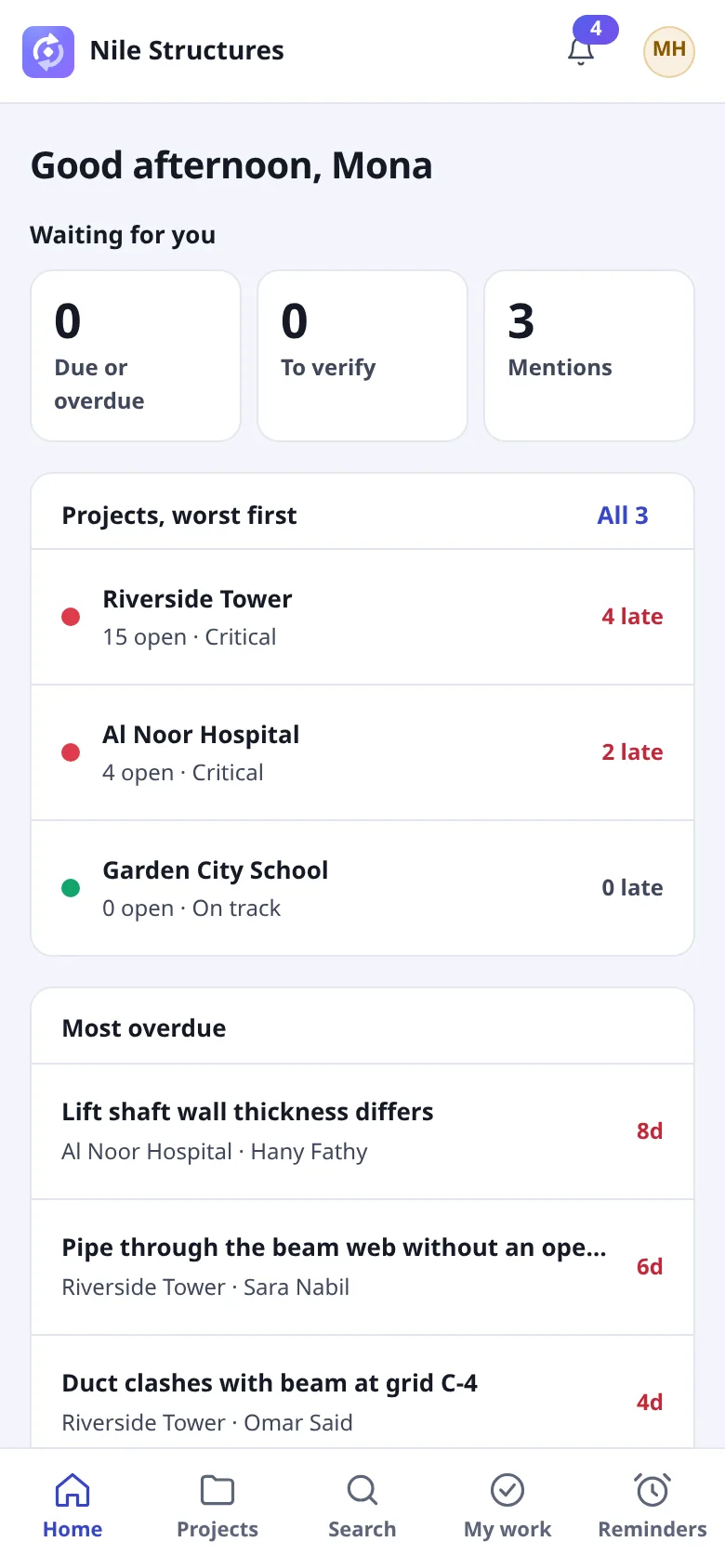
| Tab | What it opens |
|---|---|
| Home | The Dashboard: what is waiting for you and your Projects, worst first. |
| Projects | All your Projects, which you can search and filter by Active, Favorites, Recent and Archived. |
| Search | Search across Issues, Projects and people in every Project you can open. Type at least two letters. |
| My work | Everything waiting for you in all your Projects. |
| Reminders | Your reminders. |
The bell and your avatar are at the top. The bell opens your notifications. The avatar opens the You screen, which holds what the sidebars hold on a wide screen: the Organization you are in and Switch to another one, the Theme for This browser, Sign-in and security and Sign out. See Signing in.
#A Project on a phone
A Project's tabs become a menu. The button at the top right shows the current page, for example List; tap it to open Project pages and go to the Overview, the Issues, Team or Settings. Under the name, a line says how many Issues are overdue.
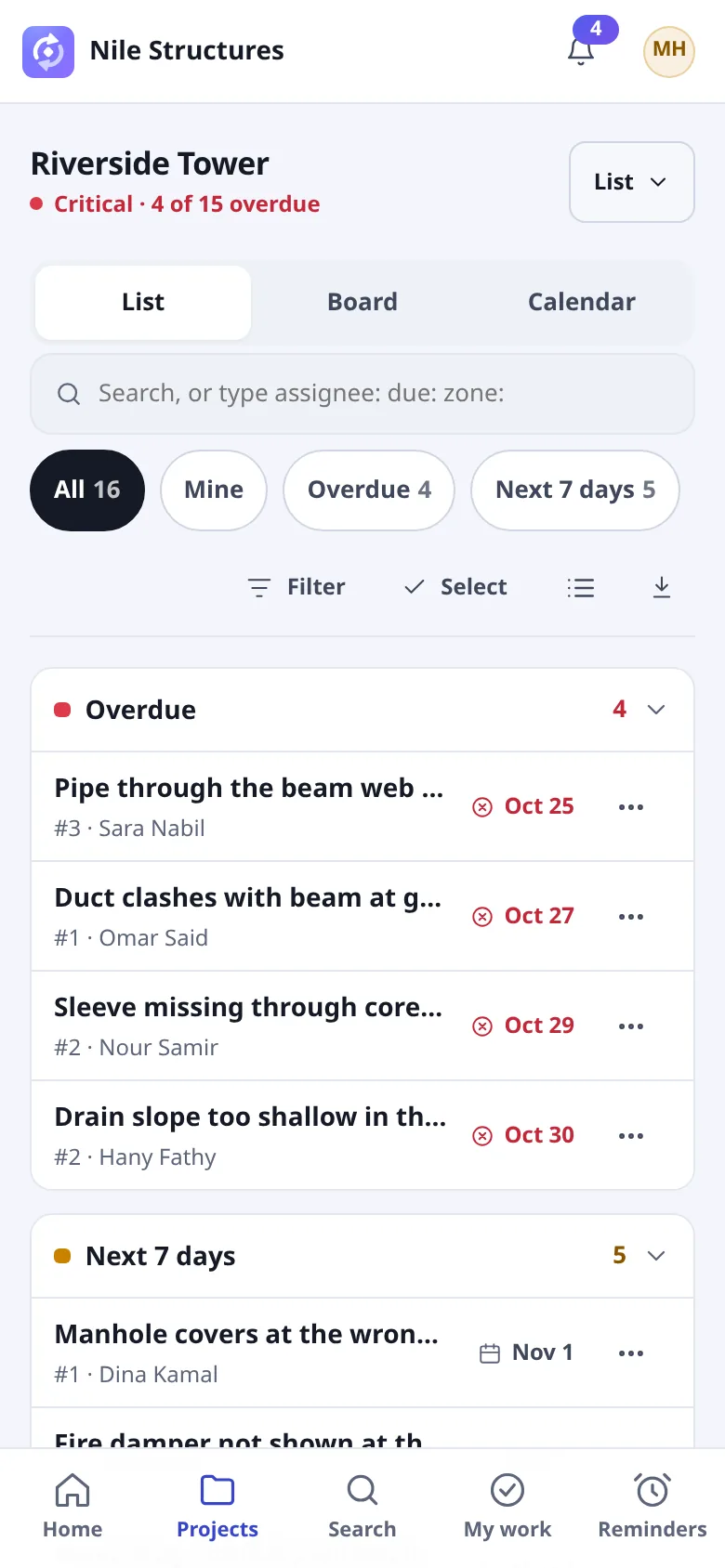
- Switch between List, Board and Calendar at the top.
- The list is grouped by due date: Overdue, Today, Next 7 days, Later, No due date and Earlier (closed). Tap a group to fold it.
- The view chips All, Mine, Overdue and Next 7 days show their counts.
- Filter opens the filters. Select lets you pick several Issues and change them together. The list icon switches between Compact rows and Comfortable rows, and the download icon exports the filtered Issues as a CSV file.
#Search with filters
The search field says "Search, or type assignee: due: zone:". Type words to search titles, descriptions and numbers, or type a filter as key: value:
| You type | It filters |
|---|---|
assignee: me | Issues assigned to you. |
due: overdue | By due date. The other values are today, next 7 days (or this week), soon and none. |
status: | By status. |
zone: | By Zone. |
discipline: | By Discipline. |
The field offers Try a filter hints you can tap. Each filter becomes a chip you can remove with its cross.
#Pin a view
Set up filters and choose Pin as a view in the Filter Issues sheet. Give it a name and tap Pin. It appears as a chip beside All, Mine and Overdue. Tap the button beside a pinned chip to Rename it, Move earlier, Move later or Remove view.
#Swipe actions
On a row, swipe left for actions, or tap the ⋯ button. If your Role allows it, Assign and Close are there. Assign replaces whoever has the Issue now with the Members you choose. Close moves the Issue to its closed status, if your Role and the Project's workflow allow it, after you confirm with Close Issue.
#The Issue sheet
Tap an Issue to open it as a sheet over the list.
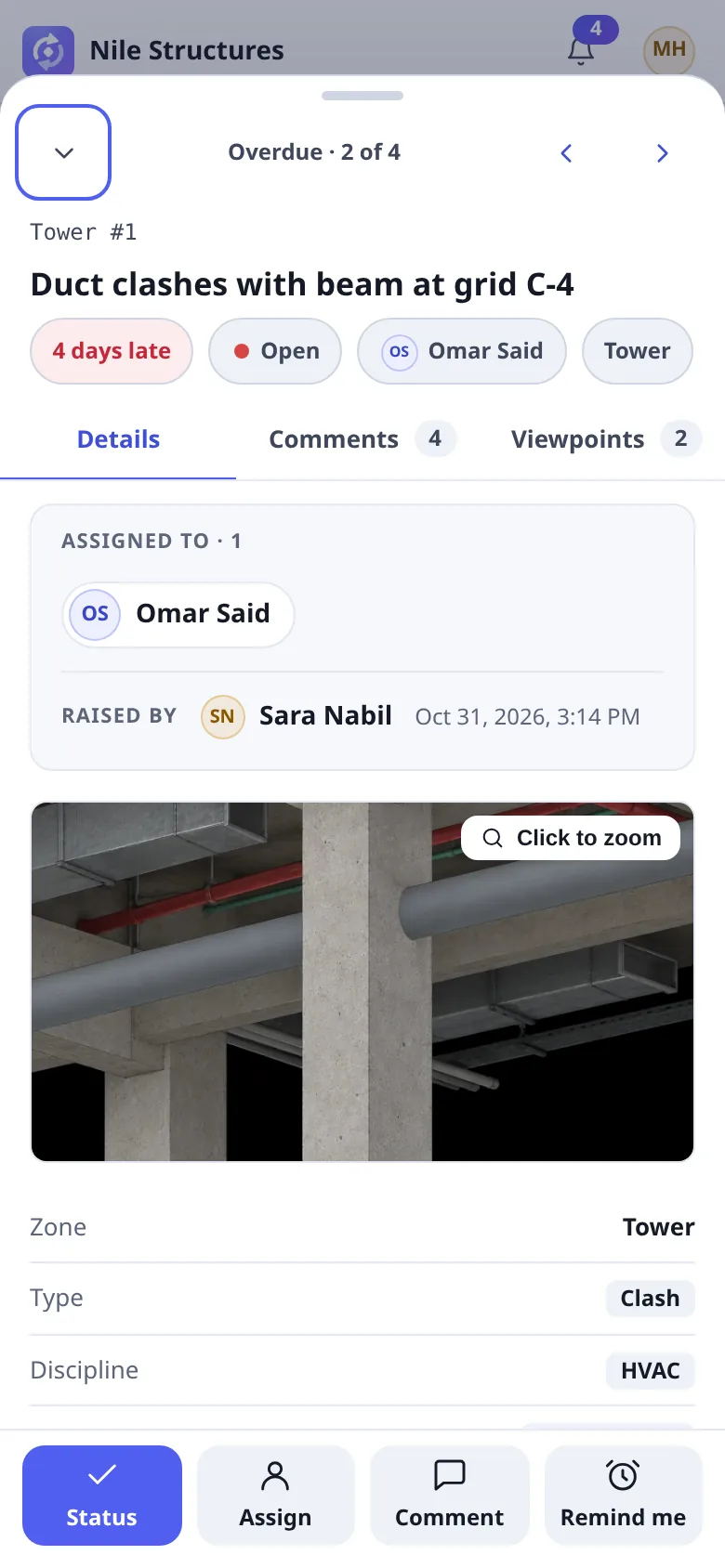
- The arrows at the top go to the Previous Issue and Next Issue in the list you came from, and the line between them says where you are, for example "Overdue · 2 of 4". The button at the left closes the sheet and returns to the list.
- The pills show the due date, status, assignee and Zone. When your Role allows, tap one to change just that.
- The tabs are Details, Comments and Viewpoints. Details also holds the following line, the files and the activity.
- The actions at the bottom: Status changes the status, Assign changes who it is assigned to, Comment jumps to the comment box and Remind me sets a reminder.
- Edit all fields opens the full form, and Open in Project goes to the Issue in the Project.
Everything on the sheet works as on a wide screen. See Working on an Issue and Comments and mentions.
#Reminders and notifications on a phone
The Reminders page has two switches: Coming up and Sent, 30 days. Each reminder is a card with Change time (a menu of quick moments, including In 1 hour) and Cancel. A sent reminder has Remind again instead. New reminder works as on a wide screen. See Notifications and reminders.
Can’t find what you need? Write to info@top-matrix.com and we’ll help.