The Dashboard
See every Project at once: your own work, the totals, each Project's Health and who is carrying the open work.
The Dashboard is the home page of an Organization. It reads Based on the Issues you can see, so two people can see different numbers: Issues in Projects you are not a Member of, and Issues hidden from you by Issue Visibility, are left out.
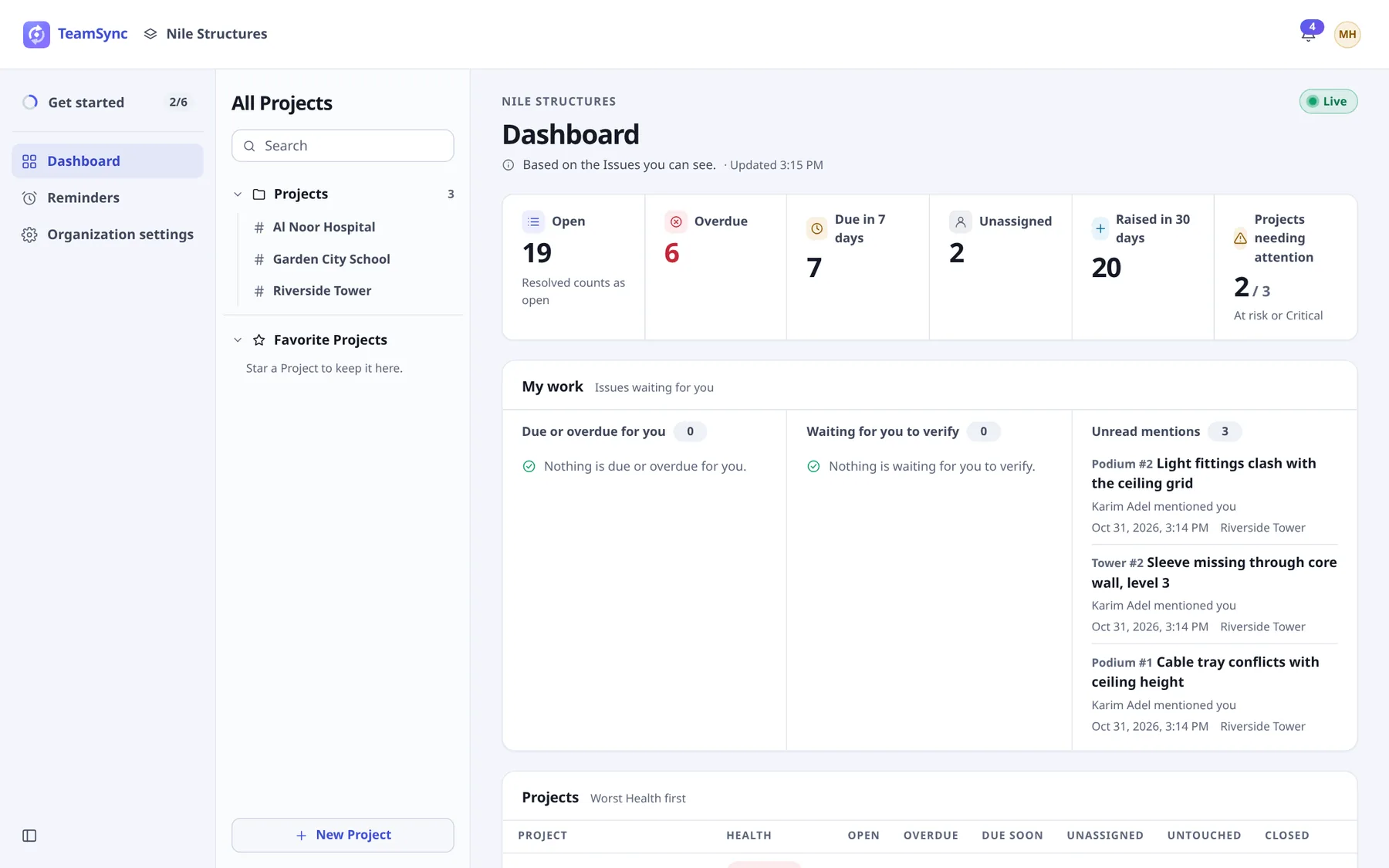
#My work
Three lists of what is waiting for you, across all your Projects.
| List | What it holds |
|---|---|
| Due or overdue for you | Issues assigned to you that are overdue or due within 7 days. |
| Waiting for you to verify | Issues you raised that are Resolved or In Review. You decide whether they are really done. |
| Unread mentions | Comments that mention you and that you have not read, newest first. |
Each list shows a limited number of rows. Select Show all to see the rest and Show fewer to fold it again. Select a row to open the Issue.
#Totals
| Tile | Counts |
|---|---|
| Open | Issues not in a closed status. Resolved counts as open. |
| Overdue | Open Issues past their due date. |
| Due in 7 days | Open Issues due within the next 7 days. |
| Unassigned | Open Issues with nobody assigned. |
| Raised in 30 days | Issues raised in the last 30 days. |
| Projects needing attention | How many Projects are At risk or Critical, out of all of them. |
#See the Issues behind a total
Select a total
For example Overdue. A panel opens below with those Issues: number, title, status, priority, who they are assigned to and the due date.
Group them
Under Group the Issues by, choose None, Project or Project › Zone. Use Collapse all and Expand all to fold the groups.
Open an Issue or close the panel
Select an Issue to open it. Select Close the list when you are done.
Projects needing attention opens the Projects table narrowed to the At risk and Critical ones. Select Show all Projects to widen it again.
#The Projects table
One row per Project, Worst Health first. Select a Project's name to open it. Each count (Open, Overdue, Due soon, Unassigned, Untouched) links to that Project's Issues filtered to it. Closed is the share of the Project's Issues that are closed, and Last activity says when something last changed.
#Health
Health is worked out from the Issues as they are now, not set by hand. Each badge carries the sentence that explains it, for example "27 of 97 open Issues are overdue."
| Health | When |
|---|---|
| Critical | A quarter or more of the open Issues are overdue. |
| At risk | A tenth or more of the open Issues are overdue, or a quarter or more have nobody assigned. |
| On track | Anything else. |
Note
Open work counts Resolved Issues, because they still wait for the person who raised them to verify. A Project with nothing open reads Nothing open.
#Charts and lists below the table
- Raised and closed per week: the last 12 weeks, across all Projects.
- Open work per person: open Issues for each person, most Overdue first, split into Overdue and Not overdue.
- Most Overdue Issues: up to 25, oldest due date first, with how many days each is overdue. Select one to open it.
#Keeping it current
The Dashboard has a Live badge and an Updated time. Changes made in Revit, Navisworks or the web refresh the numbers within a couple of seconds. Without a live connection it refreshes every minute, so you can leave it open on a meeting-room screen. If a refresh fails it keeps the last numbers and says so.
If you are not a Member of any Project yet, the Dashboard says You haven't been added to a Project yet. Ask your General Manager to add you, then select Check again.
Can’t find what you need? Write to info@top-matrix.com and we’ll help.