Notifications and reminders
TeamSync tells you when something happens on an Issue you are part of. Mute an Issue to quiet it, and set a private reminder for anything you need to come back to.
#The bell
The bell at the top right of every page shows how many notifications you have not read. Click it to see the latest ones.
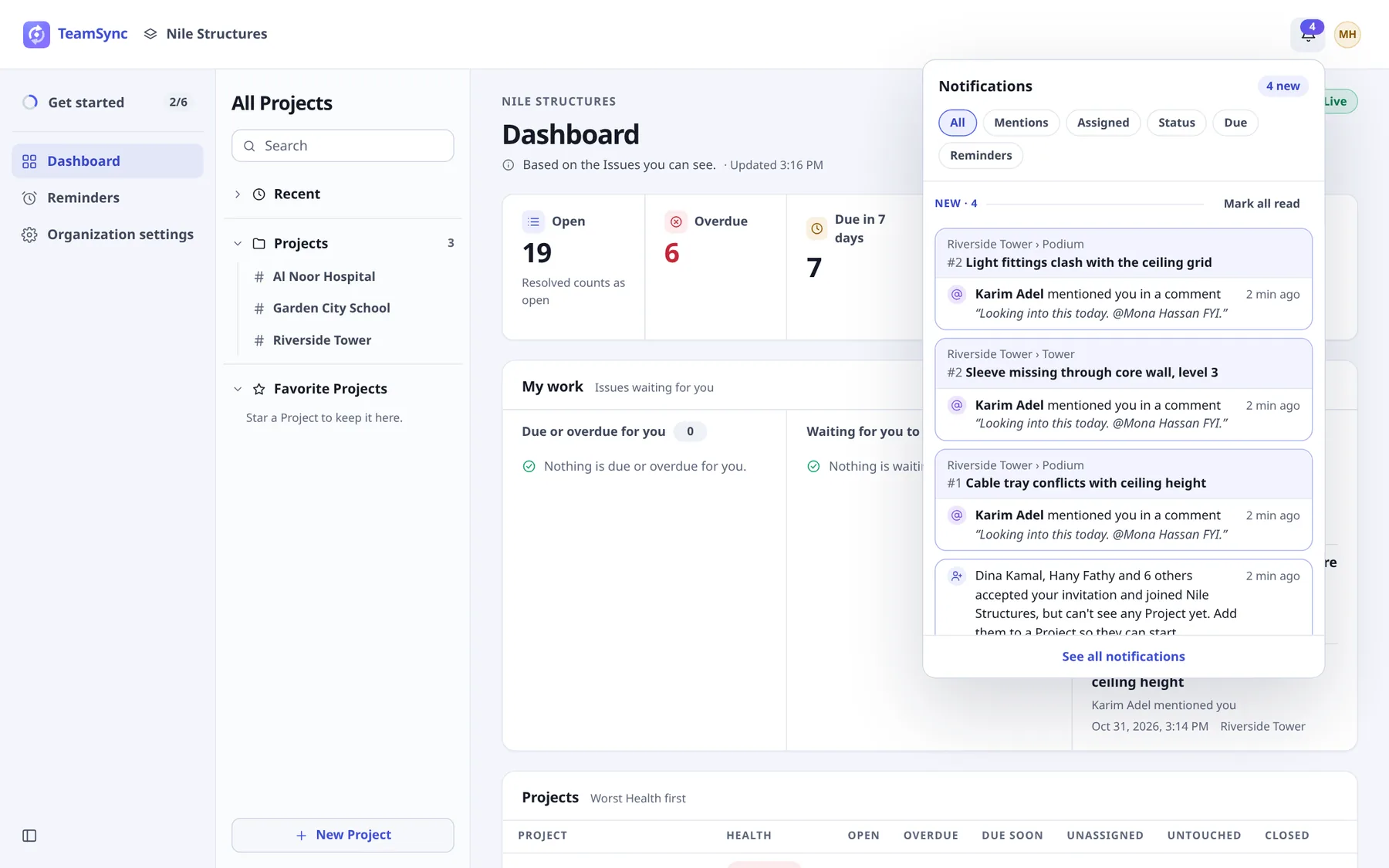
- The chips All, Mentions, Assigned, Status, Due and Reminders narrow the list.
- New holds what you have not read, with the comment quoted for a mention. Earlier holds what you have read, in one line each.
- Click a card to open the Issue. That marks it read.
- Mark all read marks every unread notification.
- See all notifications opens the notifications page.
#The notifications page
The page lists everything you were sent in this Organization, newest first, grouped by day, with the same filters. Scroll to the end or click Load older to go further back. At the end it says "That is everything." On a phone it has a Back button and an Unread chip.
#What you are told about
| Notification | When you get it |
|---|---|
| Assigned to you | Someone assigns an Issue to you. |
| You were mentioned | A comment names you. It opens on that comment. |
| Status changed | Someone moves an Issue you are on to another status. |
| New comment | Someone comments on an Issue you are on. |
| Due soon | An Issue you are on is due today or tomorrow. |
| Overdue | An Issue you are on is past its due date and still open. |
| Keeping you informed | Someone adds you to an Issue so that you hear about it. |
| Your reminder | A reminder you set goes off. |
| Invitation accepted | A person you invited accepted and joined the Organization. It offers to add them to a Project. |
You are "on" an Issue when you raised it, it is assigned to you, you are kept informed, your team is kept informed or you commented on it. You are never notified about something you did yourself. People are told only about Projects they can open.
#Toasts
While you work, a new notification also appears as a small toast. Its buttons depend on what arrived.
| Button | What it does |
|---|---|
| Open Issue | Opens the Issue the notification is about. |
| Mark read | Marks it read. |
| Dismiss | Closes the toast. When several have arrived, Dismiss all closes them all, and "+N more" says how many are not shown. |
| See them on the Project, Add to Projects, Open People | On an accepted invitation: look at the new person, add them to Projects, or open the People page. See People. |
#Mute or unsubscribe
To quiet an Issue, open it and use the button on its following line. See Working on an Issue.
| Choice | What you still get | What you lose |
|---|---|---|
| Mute | Comments, status changes and due dates still arrive in the bell, marked "muted". | The pop-up and the sound. |
| Unsubscribe | Mentions. | Updates about the Issue. Commenting on it, being assigned to it or being added to its informed list brings you back. |
Mentions and assignments are never muted. If you raised an Issue or it is assigned to you, you can mute it but not unsubscribe.
No notification emails
TeamSync notifies you in the bell, on toasts and in the Revit and Navisworks add-ins. It does not send an email for Issue notifications. Emails are sent only for account actions such as invitations and password resets.
#Reminders
A reminder asks TeamSync to tell you about an Issue at a time you choose. Reminders are private: only you see them, and they are not shown through Support Access.
#Set one from an Issue
Open the Issue
Find the Remind me line under the following line.
Choose when
- Tomorrow and In 3 days go off at 9:00 your time.
- Day before due goes off at 9:00 on the day before the due date. It appears only when the Issue has a due date still ahead.
- Pick… opens a small form with Date, Time and Note for yourself (optional). Save it with the button that starts "Remind me". A moment in the past is refused with "Pick a moment in the future."
Once set, the line shows the time, your note, and Change and Remove. When the reminder goes off you get a Your reminder notification, and it moves to Sent.
#The Reminders page
Reminders in the left sidebar lists all your reminders in the Organization.
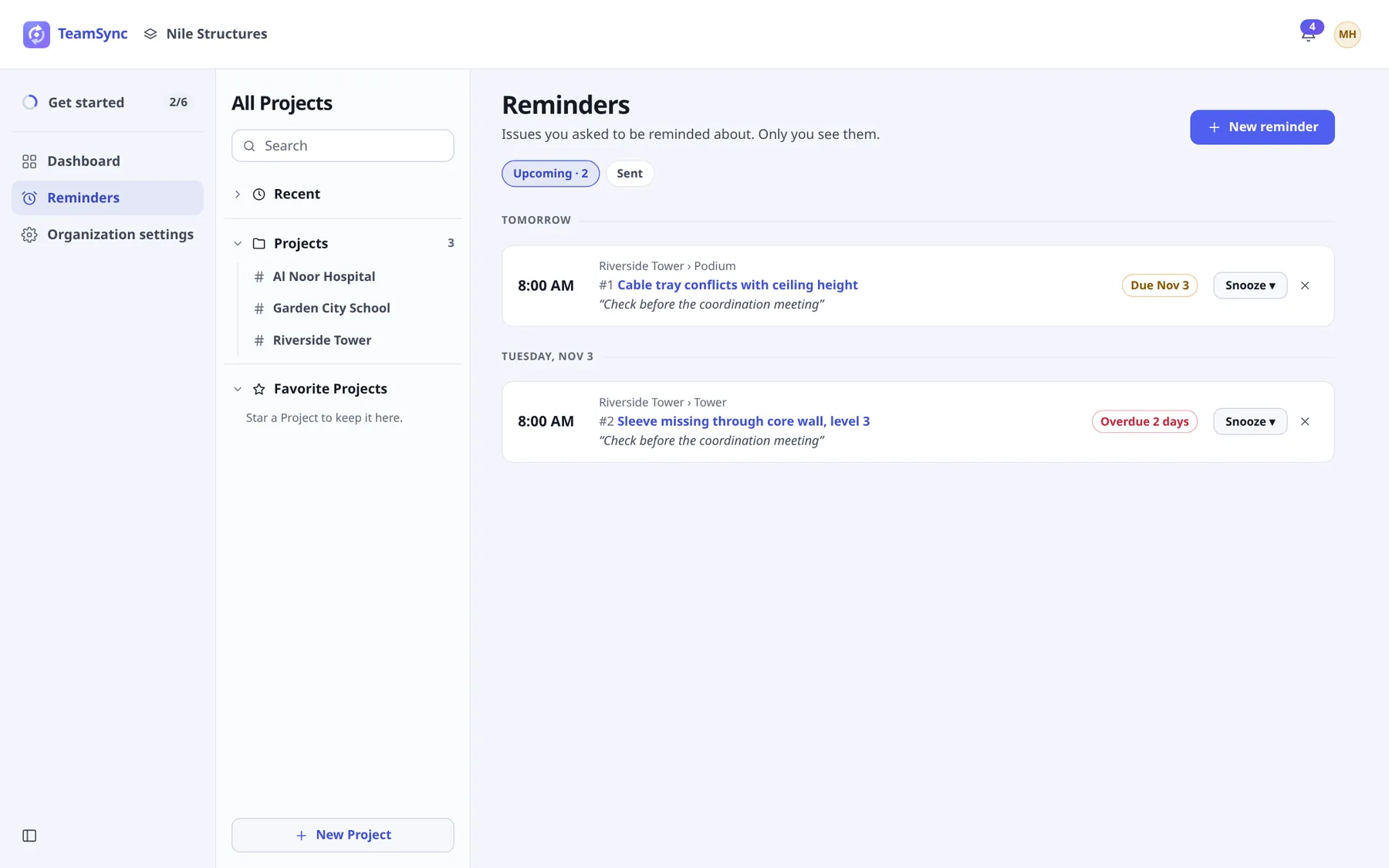
- Upcoming lists reminders still to come, soonest first, by day. Sent lists those that went off in the last 30 days.
- Snooze moves an upcoming reminder. Its menu offers In 1 hour, Tomorrow, In 3 days and Day before due. On a sent reminder the same menu is called Remind again.
- Remove (the cross) deletes an upcoming reminder.
- New reminder picks a Project, then an Issue (search by title or number), then when, with an optional note, and saves with Save reminder.
- Click an Issue's title to open it.
Can’t find what you need? Write to info@top-matrix.com and we’ll help.