Projects
Create, open, archive, delete and restore Projects, and keep track of the Project Limit.
Open Organization settings › Projects. It lists every Project of the Organization with its Status (Active or Archived), its Access (Members only or Open to the Organization), and how many people are on it.
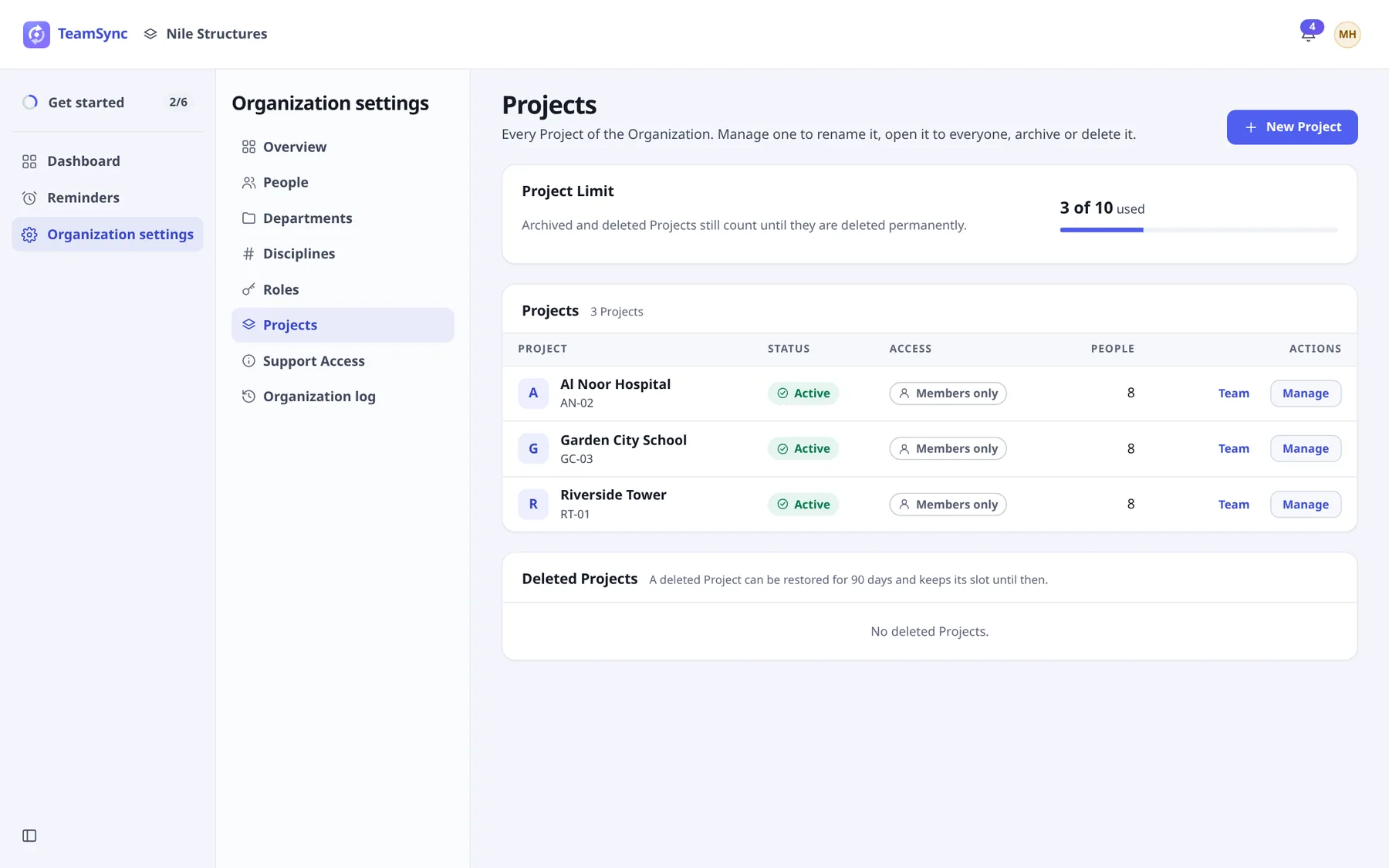
#Create a Project
Choose New Project
It is the button at the top right.
Enter the name and number
Name is required. Number is optional, for example RT-01.
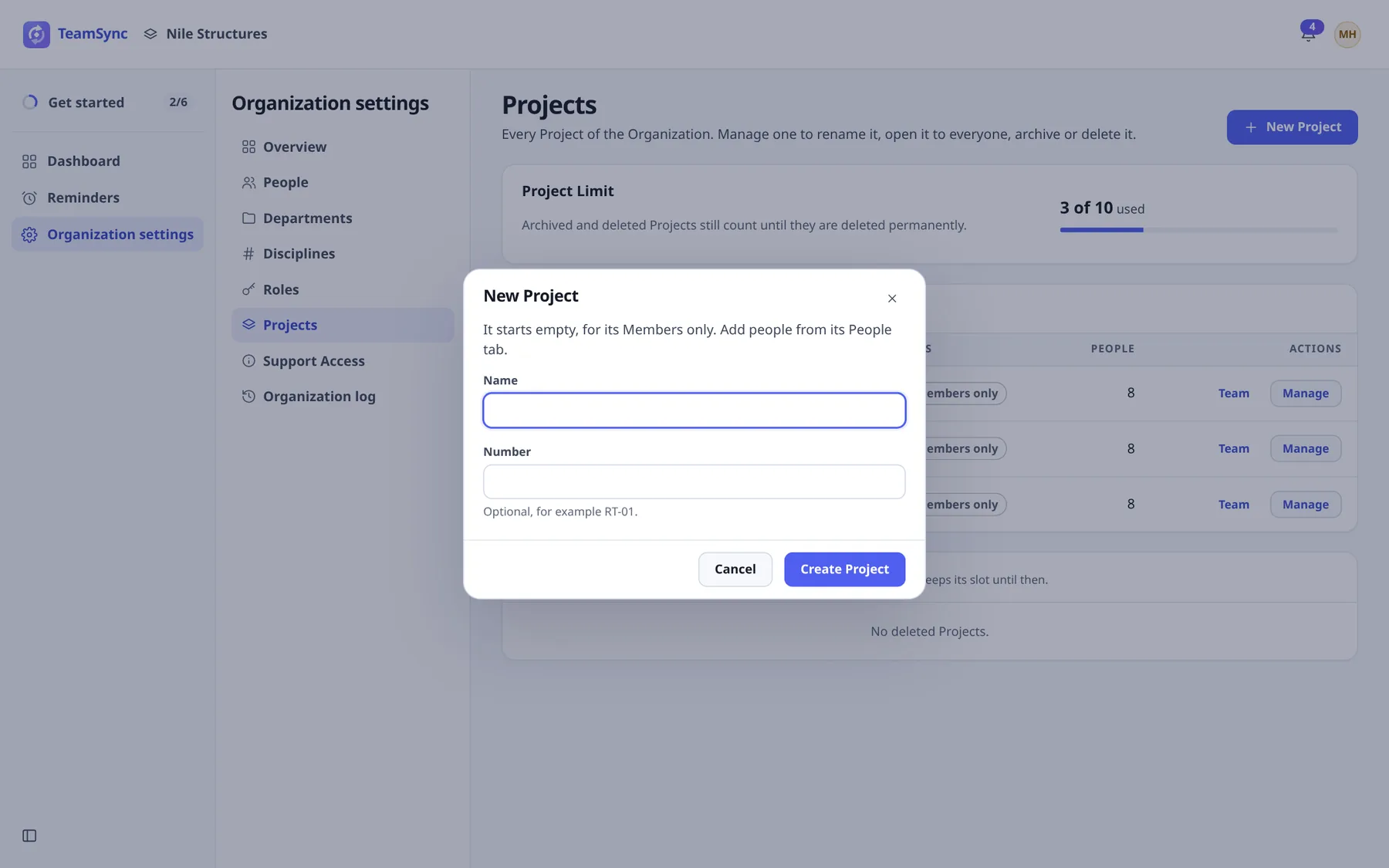
The New Project dialog. Choose Create Project
The Project starts empty, for its Members only, with one Zone called Zone 1.
Add people and set it up
Choose Team on its row to add people. Rename the Zone and add others in the Project’s Settings tab. See Team and Project settings.
Note
You cannot create a Project when the Project Limit is reached. Delete a Project permanently, or ask for a bigger License. See below.
#Members only or Open to the Organization
A new Project is Members only: only the people added to it, and General Managers, can open it. You can open it to everyone.
| Members only | Open to the Organization | |
|---|---|---|
| Who can work on it | Only its Members | Everyone in the Organization |
| Role without being added | None. People who are not Members cannot see it. | Anyone without a Project Role counts as an Engineer who sees all its Issues. |
Choose Manage on the Project’s row, then Open to the Organization or Close to Members only under Access and status. TeamSync asks you to confirm. Closing a Project removes access from people who are not Members at once, and its Issues no longer show for them.
#Manage a Project
Manage opens the Project’s page in Organization settings, with Name and number, Access and status, Project Members (a link, Open the Team, to its Team tab) and Delete this Project. Use Open the Project to go to the Project itself.
#Archive and unarchive
Archiving a Project sets it aside. It stays listed, marked Archived, and leaves the Dashboard. You can unarchive it later.
Choose Manage
On the Project’s row.
Choose Archive
Under Access and status. Confirm in the dialog.
Careful
An archived Project still counts against the Project Limit. Unarchiving needs a free slot under it.
#Delete and restore
On the Project’s Manage page, under Delete this Project, choose Delete Project. Its Issues disappear for everyone, but you can restore it for 90 days. It keeps its slot of the Project Limit until it is deleted permanently.
Deleted Projects are listed under Deleted Projects, with the date they will be removed for good.
Find it under Deleted Projects
At the bottom of the Projects page.
Choose Restore
Confirm. It comes back with its Issues, files and Members, for everyone who could reach it before it was deleted.
#Delete permanently
To free the slot at once, delete the Project permanently. Nothing can be restored: its Issues, files and Members are removed for good.
Choose Delete permanently
On the Project’s Manage page, or beside it under Deleted Projects.
Type the Project’s name
In Project name, to confirm.
Choose Delete permanently
The slot frees up at once.
Careful
This cannot be undone. Even without it, a deleted Project is removed for good after 90 days.
#The Project Limit
Your License allows a number of Projects. The Project Limit card shows how many you use, for example 3 of 10. Every Project counts, whether active, archived or deleted, until it is deleted permanently.
That is so deleting and restoring cannot be used to go past the limit. Creating, restoring or unarchiving a Project each need a free slot. If you are full, delete a Project you no longer need permanently, or contact Top Matrix for a bigger License.
Can’t find what you need? Write to info@top-matrix.com and we’ll help.