Comments and mentions
Discuss an Issue in its Comments tab. Mention people with @ to notify them, and point at other Issues and model elements with #.
#Write a comment
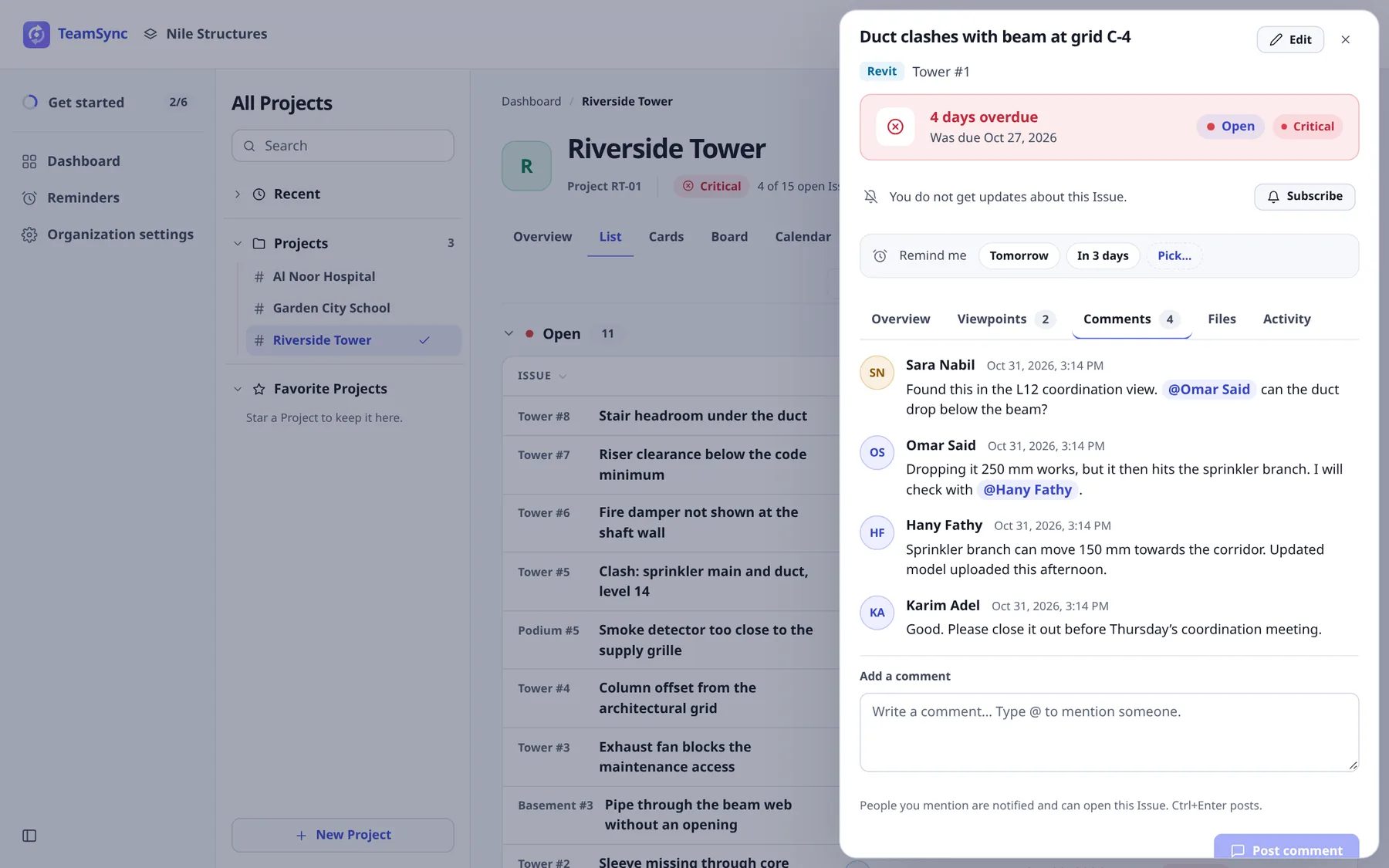
Open the Comments tab
Open the Issue and click Comments.
Write your comment
Click the box under Add a comment. It says "Write a comment… Type @ to mention someone."
Post it
Click Post comment, or press Ctrl+Enter.
Comments written in Revit and Navisworks appear here, and comments written here appear in the add-ins. When someone comments while you have the Issue open, the new comment appears without reloading. Commenting also brings you back to an Issue you unsubscribed from, so you hear about what happens next.
If your Role cannot comment on this Issue, the box says "Your Role can't add comments to this Issue."
#Mention someone
Type @
A list of people appears. Keep typing to narrow it by name or email.
Choose a person
Use the arrow keys and Enter, or click a name. Press Esc to close the list without closing the drawer.
Finish and post
The name is highlighted in the box. Backspace right after a name removes the whole name.
A mention does two things.
- It notifies the person. They get a You were mentioned notification that opens the Issue on this comment. A mention is never muted, so it reaches people who muted or unsubscribed from the Issue.
- It lets them open the Issue. People you mention can see this Issue even when their Issue Visibility is limited to their Department or to their own Issues, because the Issue then counts as one they were named on.
#Someone who is not on the Project
The list shows the Project's people first. Once you type a letter, people in the Organization who cannot open this Project appear below Not on this Project, greyed.
- If you may add people to the Project (you hold
project.members.manage, and the Role you add them as is ranked below yours), each has an Add button with a Role picker, or Add as followed by a Role name. Adding them gives them access and mentions them in one step. TeamSync confirms with "<Name> was added to this Project as <Role> and mentioned." - If you cannot, the list says "To mention them, ask a Project Manager or Team Leader to add them to this Project."
#Refer to an Issue or a model element
Type # in a comment to point at another Issue of the same Project. A reference you picked is shown in blue as a link, and clicking it opens that Issue. A number you only typed, without picking it, stays plain text.
References to model elements are made in Revit and Navisworks, where you click an element in the model to reference it. In the web app they are shown in green, and the web app has no model to find them in. Click the reference in the add-in and TeamSync finds the element in the model.
#Comments on a viewpoint
A comment can be about one viewpoint. Such a comment is marked On a viewpoint and names the viewpoint, so a reader knows which picture is meant.
#Older comments
The latest comments are shown first. When an Issue has more, click Load older comments at the top of the list.
Can’t find what you need? Write to info@top-matrix.com and we’ll help.