Signing in to the add-in
Open the TeamSync pane in Revit or Navisworks, sign in with the email and password from your invitation, then choose the Organization, Project and Zone you are working in.
#Open the pane
- In Revit, open the TeamSync tab and choose Team Sync in the Issues panel. The pane docks on the right.
- In Navisworks, open the TeamSync tab and choose Team Sync in the Issues panel, or choose TeamSync on the Add-ins tab.
If you have unread notifications, the Team Sync button shows a red badge and the TeamSync tab shows a dot, even while the pane is closed.
#What happens when it starts
The pane works through a short sequence each time it opens.
- Connecting…: the pane reaches your Organization’s server.
- Activate TeamSync: only on an on-premise (PostgreSQL) connection whose computer is not activated yet. Copy the request code, send it to whoever looks after your licenses, then paste the key you are sent and choose Activate. You can do the same in Settings › License.
- Not connected: the pane has no usable connection. It shows the reason. Choose one in Settings › Connection, install from the Setup file you were given, or ask whoever gave you TeamSync, then restart Revit or Navisworks.
- Update required: this computer has an older TeamSync than your team now needs. See Updating.
- The sign-in screen.
#Sign in
You sign in with the same email and password you use on the TeamSync web app. There is no server address to type: the connection is built into the installer.
Note
On TeamSync cloud you join by invitation, and you accept it on the web. If you have not joined yet, ask your Organization’s General Manager to invite you, then follow the link in the invitation email and set your password there (Signing in to the web app explains it). The add-in shows New here? Create an account, but the cloud answers that people join by invitation. Come back to the add-in afterward and sign in with the same email and password.
Enter your email
Type it in Work email.
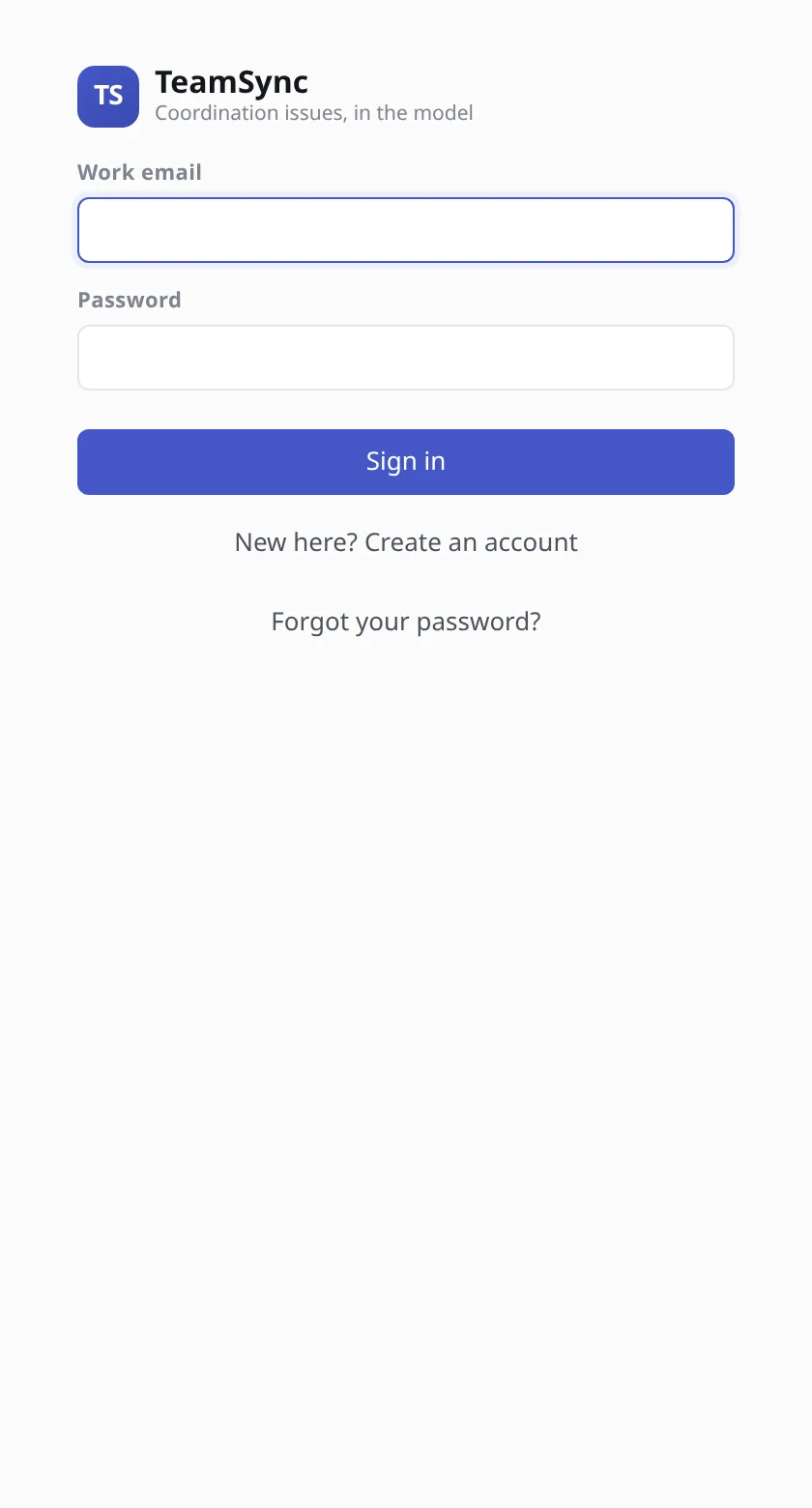
The sign-in screen. Enter your password
Type it in Password.
Choose Sign in
The pane loads your Projects. After sign-in a notice tells you how many notifications arrived while you were away.
Your sign-in is remembered. It is shared by Revit, Navisworks and the TeamSync Dashboard desktop app, so signing in once on a computer signs in all of them.
#If you forgot your password
Choose Forgot your password?
The pane shows Reset your password.
Ask for a code
Enter your email and choose Email me a code. The pane says that if that address has an account, a code is on its way, and that it expires in 20 minutes.
Set a new password
Enter the Code, then a New password and the same again in Confirm password. The password rules are listed under the field and tick off as you type (see password rules). Choose Set password and sign in.
If no code arrives, choose Send another code. To return to the sign-in screen, choose Back to sign in. The rules for a good password are in Signing in to the web app.
#If your account uses two-factor sign-in
The add-in cannot ask for an authenticator code yet. If your User signs in with an authenticator code, the pane says: "This User signs in with an authenticator code, which TeamSync in Revit and Navisworks does not ask for yet. Sign in as a User that does not need one."
#Choose where you work
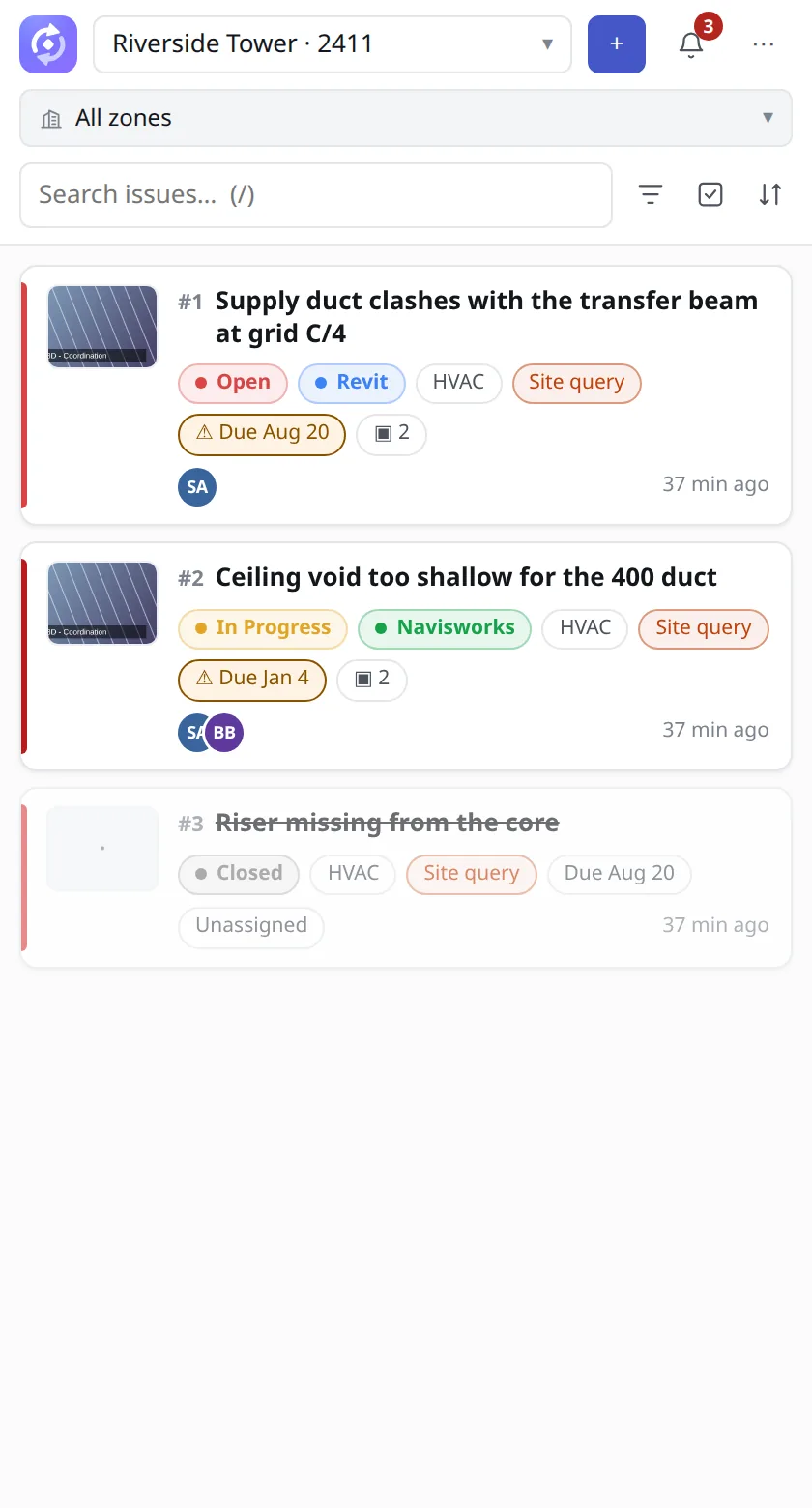
The header at the top of the pane decides which Issues you see and where new Issues go.
- Organization: a dropdown that appears only when you belong to more than one. With one, it opens automatically. The add-in sometimes calls an Organization a hub.
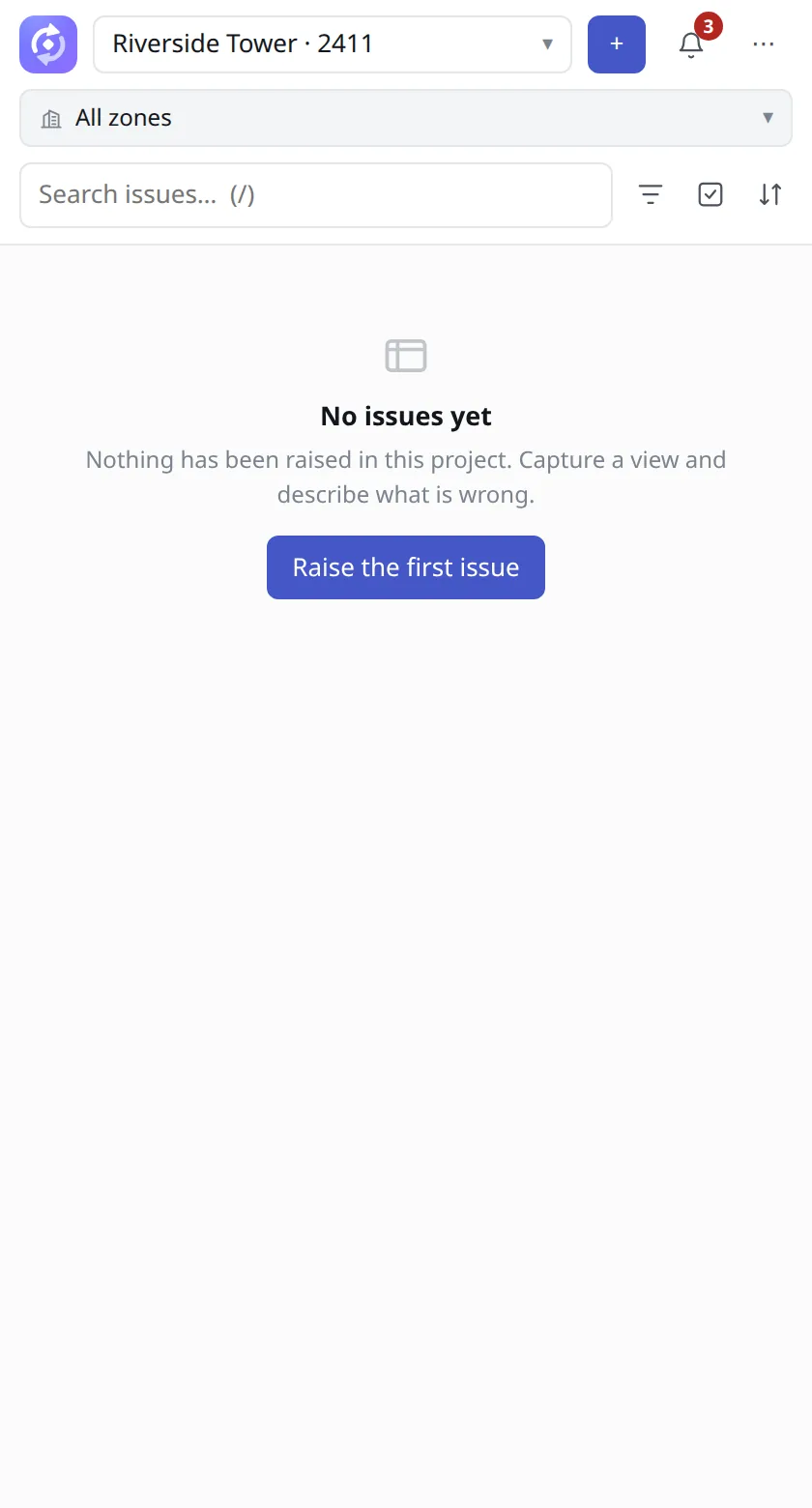
- Project: the Project picker, headed Projects. Choose Switch project, type in Search projects…, or choose + New project to create one.
- Zone: the Zone bar, which starts at All zones. Choose Switch zone to narrow the pane to one Zone, with Search zones… to find it. The Zone you choose is remembered for each Project.
If your Organization has no Projects yet, the pane says so and offers Create a project. Projects hold the Issues, so create one before you raise the first Issue.
#Sign out
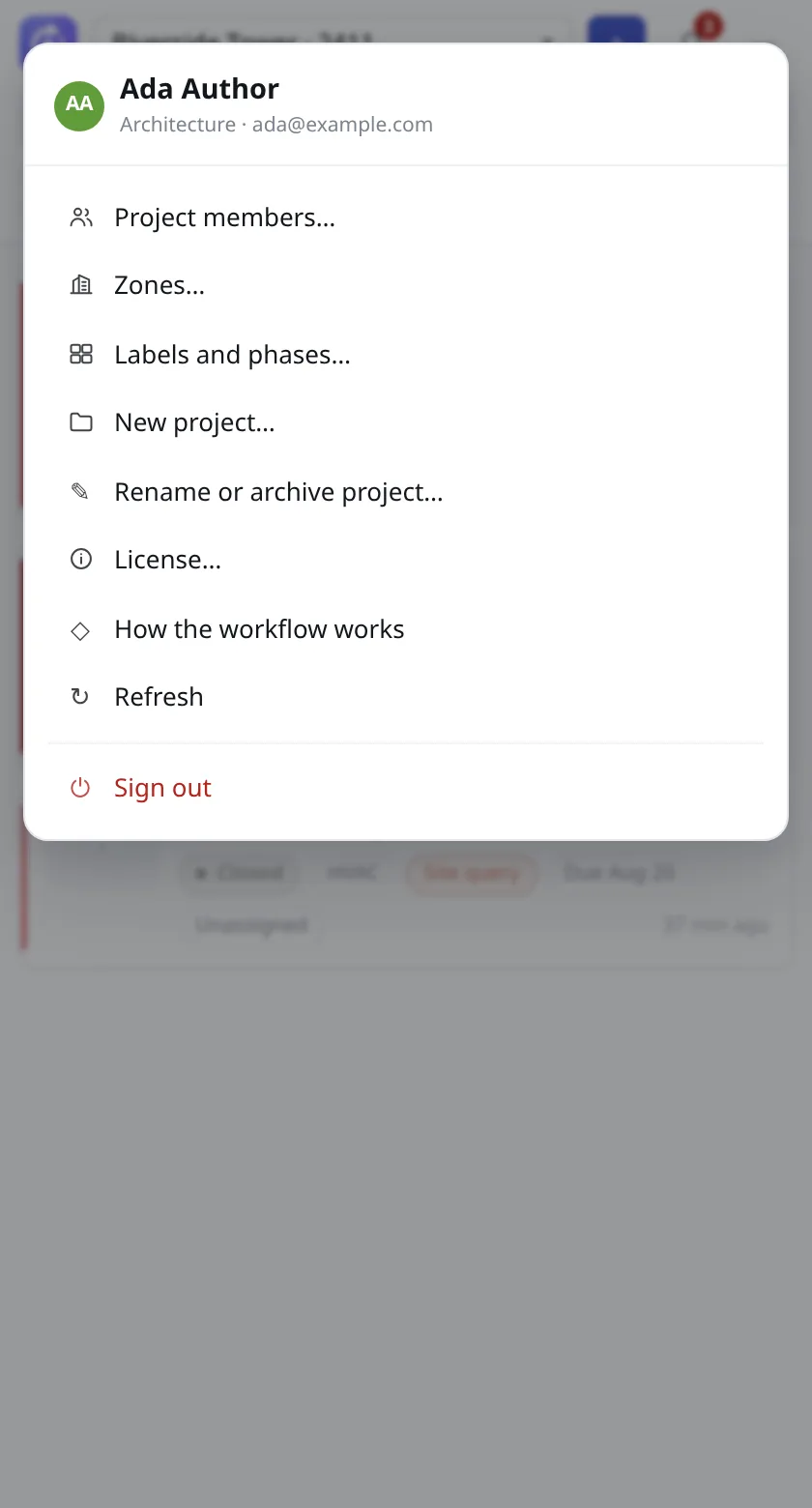
Choose the ⋯ menu in the header. It shows your name, Department and email, and has Sign out at the bottom.
Next: Raising an Issue in Revit.
Can’t find what you need? Write to info@top-matrix.com and we’ll help.