Signing in and your account
Join an Organization from an invitation, sign in, reset a forgotten password, turn on two-factor sign-in and change your password.
You do not create a TeamSync account on your own. A General Manager or Project Manager invites you by email, and the invitation is how you join. After that you sign in with the same email and password in the web app and in Revit and Navisworks.
#Accept an invitation
Open the link in the invitation email
The link works once and expires after 7 days. If it has expired, or you have already used it, the page says This invitation can't be used. Ask the person who invited you to send a new one.
Check your details
The page shows your Email. Fill in your First name and Last name.
Choose a password
Type it in Password and again in Repeat the password. The rules below the field tick off as you type.
Select Join
The page then says You're in. Select Go to sign in and sign in with your email and the new password.
#Password rules
A new password, whether you choose it when you join, reset it or change it, needs all of these:
- At least 8 characters (12 for TeamSync platform staff).
- An uppercase letter.
- A lowercase letter.
- A number.
- It does not include your email address. The check uses the part before the @, from 3 characters on.
A symbol is not required. Passwords you set before these rules existed keep working; the rules apply only when you choose a new one.
#Sign in
Go to the sign-in page
It is titled Sign in to TeamSync.
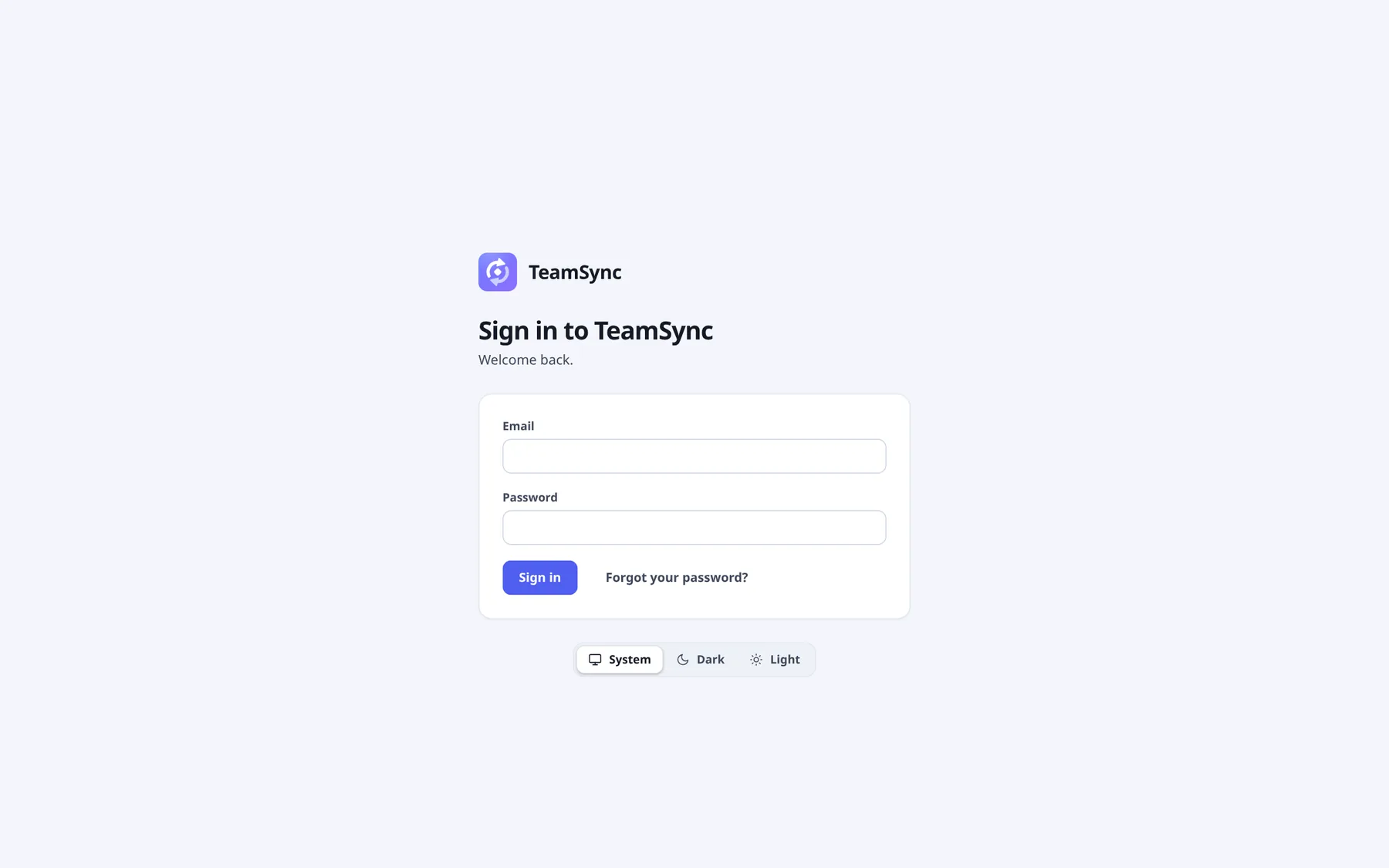
The sign-in page. The switch under the form sets the color theme before you sign in. Enter your email and password
Select Sign in
If you use two-factor sign-in, a second step asks for a code. See Two-factor sign-in.
Note
The sign-in page tells you to open the link in your invitation email if you want to join. There is no sign-up form.
#Reset a forgotten password
Select Forgot your password?
It is next to Sign in.
Ask for a code
On Reset your password, enter your Email and select Send code.
Read the email
If the address has a TeamSync account, it receives a 6-digit code. The code works once and for 20 minutes. Check your spam folder if it has not arrived.
Set the new password
On Check your email, enter the Code from the email and a New password, then select Set new password.
Sign in
The sign-in page says your password has changed. Sign in with the new one.
If you asked for more than one code, use the newest. Select Send a new code to get another, or Back to sign in to leave.
#Two-factor sign-in
Two-factor sign-in asks for a 6-digit code from an authenticator app each time you sign in, so a stolen password alone is not enough. It is optional for you. It is required for TeamSync platform staff, who cannot turn it off.
#Turn it on
Open Sign-in and security
Select your avatar in the top bar to open the User menu, then Sign-in and security. The Two-factor sign-in card shows Off.
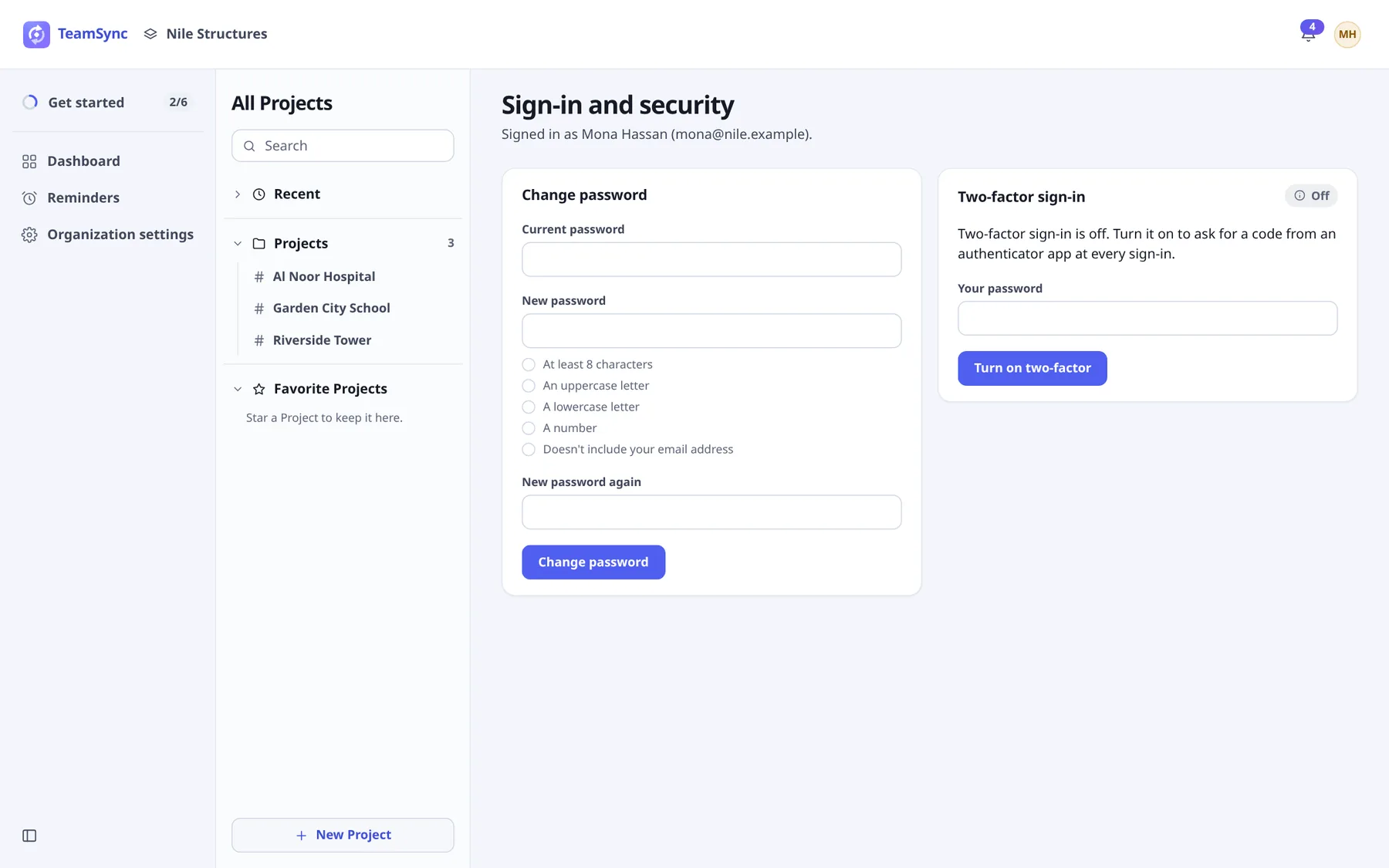
Sign-in and security: Change password on the left, Two-factor sign-in on the right. Enter your password
Type it in Your password and select Turn on two-factor.
Add the account to your authenticator app
Scan the QR code with the app, or type the Key into it.
Confirm
Enter the 6 digits in Code from the app and select Confirm and turn on. Two-factor stays off until you do. You can select Cancel instead.
#Sign in with a code
After your password, the Two-factor sign-in step asks for the Authenticator code. Enter the 6 digits from your app and select Verify. Select Start over to go back to the first step.
#Turn it off
On Sign-in and security, enter your password and a current code, then select Turn off two-factor.
Careful
Revit and Navisworks cannot ask for an authenticator code yet. If your account uses two-factor, the add-in tells you so and does not sign you in. See Signing in to Revit and Navisworks.
#Change your password
Open Sign-in and security
From the User menu.
Fill in the Change password card
Enter your Current password, then the New password and New password again. Check that every rule is ticked.
Select Change password
The page says Password changed. Your other sessions were signed out. You stay signed in here; everywhere else you must sign in again.
#Sign out
Open the User menu and select Sign out.
#Belonging to several Organizations
One email and password can belong to more than one Organization, for example a consultant who works for two clients. Each Organization has its own Projects, people and Role for you. The top bar shows the Organization you are in; use the switcher beside it to change. See Finding your way.
Can’t find what you need? Write to info@top-matrix.com and we’ll help.