Troubleshooting
Find the message or symptom you see, what it means and what to do. If nothing here helps, write to info@top-matrix.com.
#Signing in
#You cannot sign in on the web
- What you see: the sign-in page does not accept your Email and Password.
- Why: the email or password is wrong, or you have not accepted your invitation yet.
- What to do: check the email address, then use Forgot your password?. If you were invited and never opened the link, open the invitation email and follow it first. People join TeamSync by invitation.
#The reset code does not arrive
- What you see: you chose Send code and nothing comes.
- Why: TeamSync does not say whether an address has an account, so the page looks the same either way. The email may be in your spam folder, or the address has no account.
- What to do: check spam, and make sure you typed the address you were invited with. Choose Send a new code and use the newest code. A code works once and for 20 minutes. On-premise installs need the company's mail settings; ask your IT administrator.
#The invitation link has expired
- What you see: This invitation has expired. Ask for a new one.
- Why: an invitation link works once and for 7 days.
- What to do: ask a General Manager of your Organization to send a new one from People. They can cancel the old invitation and invite you again.
#The password is refused
- What you see: Your new password doesn't follow every rule below it yet.
- Why: a new password needs at least 8 characters, an uppercase letter, a lowercase letter and a number, and must not include the name part of your email address.
- What to do: follow the checklist under the field. It ticks off as you type.
#The add-in
#Not connected
- What you see: the screen Not connected, with a reason.
- Why: this computer has no connection to your Organization, for example because TeamSync was installed from a setup that does not include your company's connection. A message such as The TeamSync server could not be reached. Check the connection and try again. means the network is the cause.
- What to do: if it is the network, check the connection and try again. Otherwise open Settings on the TeamSync tab and check the connection under Connection (Settings and About), or reinstall TeamSync from the installer your company gave you, then restart Revit. Connection settings are saved encrypted for your Windows account, so an older TeamSync version, or another Windows user, cannot read them: update TeamSync rather than going back to an older one.
#Update required
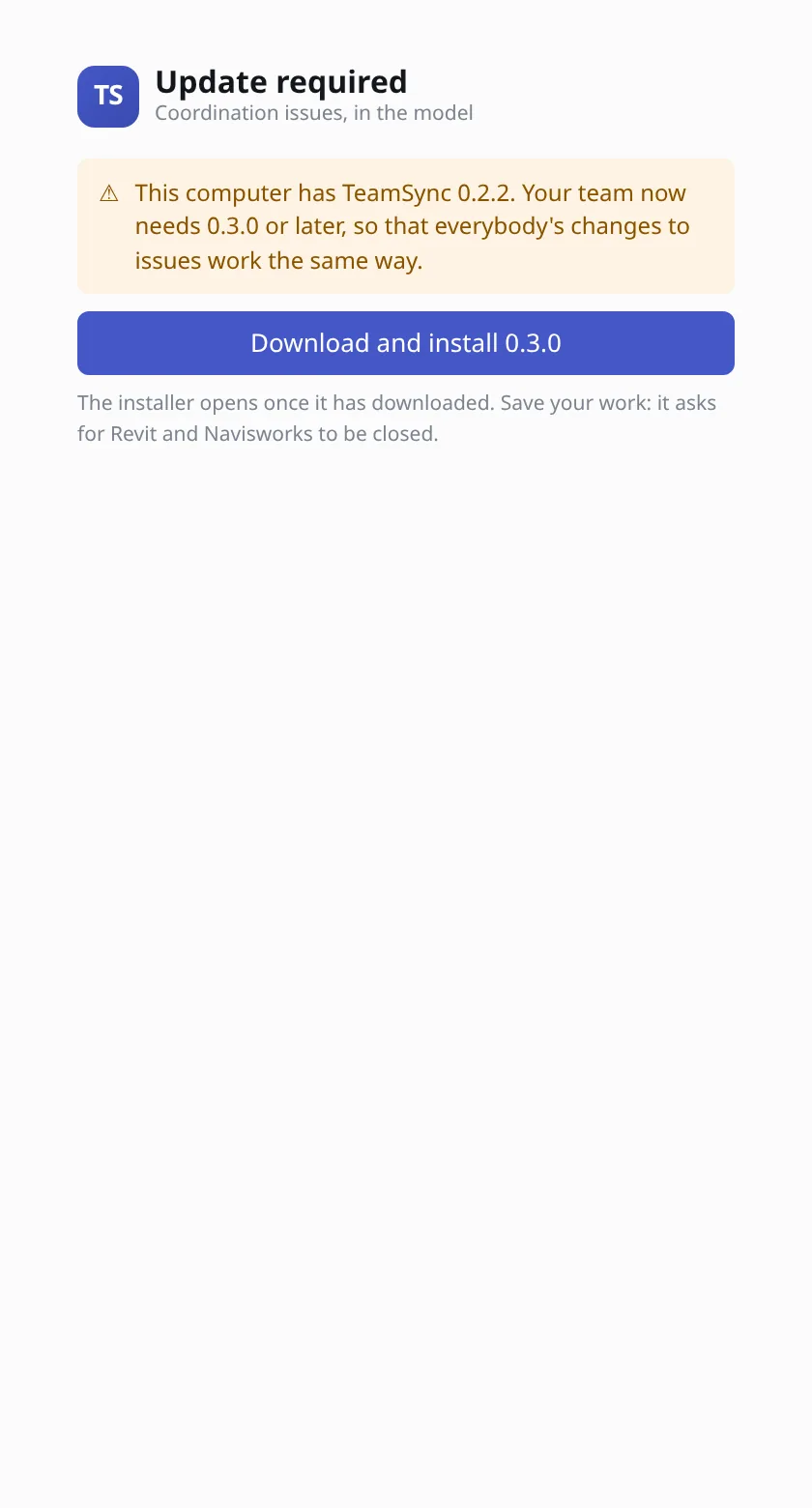
- What you see: Update required, with the version you have and the version your team needs.
- Why: everyone on a team needs the same minimum version, so that changes to Issues work the same way for all.
- What to do: choose Download and install the version it names. If it says No installer has been published yet, ask whoever looks after TeamSync for the newer version. Close Revit and Navisworks when the installer asks.
#The add-in asks for an authenticator code
- What you see: This User signs in with an authenticator code, which TeamSync in Revit and Navisworks does not ask for yet. Sign in as a User that does not need one.
- Why: your sign-in uses two-factor, which the add-ins cannot ask for yet. The web app can.
- What to do: ask your General Manager how two-factor is set for your sign-in. Until the add-ins support it, a sign-in that needs a code cannot be used in them.
#You cannot create an account in the add-in
- What you see: People join the TeamSync cloud by invitation. Ask your Organization's General Manager to invite you, then follow the link in the invitation email.
- Why: the add-in shows New here? Create an account, but cloud accounts are created from invitations.
- What to do: accept the invitation on the web, then sign in in the add-in with the same email and password.
#This issue belongs to another model
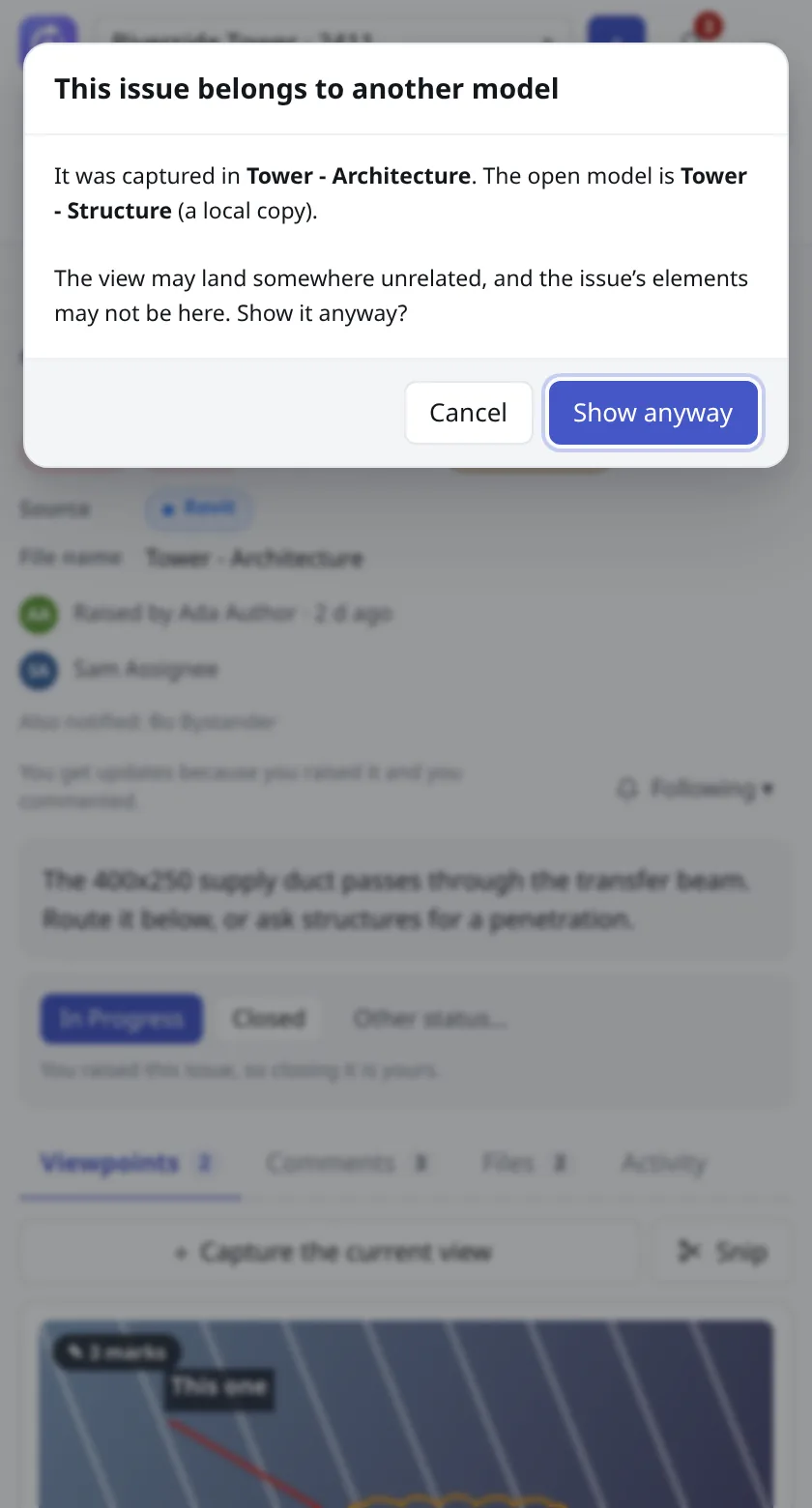
- What you see: This issue belongs to another model when you choose Show in model.
- Why: the Issue records the file name of the model it was raised in, and the model you have open has a different one.
- What to do: open the right model and try again. Choose Show anyway only if you know it is the same model under another name.
#The Issue's elements are not in this model
- What you see: The issue's elements are not in this model or Some of the issue's elements are not in this model.
- Why: the elements were deleted or replaced since the Issue was raised, or you have a different version of the model.
- What to do: check you have the model the Issue was raised in. The camera and section box still apply where they can.
#No model is open
- What you see: Open a model first, then show the viewpoint in it.
- What to do: open the model, then choose Show in model again.
#You cannot attach files
- What you see: You can't add files to this Issue: only its author, an assignee, or someone who edits any Issue. Or the Files tab shows that the Issue is full.
- Why: only the author, the assignees and people whose Role may edit any Issue can attach files. Each Issue also holds a limited amount of files (the Files tab shows how much is used).
- What to do: ask the author or an assignee to attach it, or to make you an assignee. Remove files you no longer need to make room.
#The add-in cannot be started or logs are needed
- What you see: the pane does not open, or shows an error you do not understand.
- What to do: send the log files to Top Matrix. They are in
%LocalAppData%\TopMatrix\RevitTeam\logs\. Paste that path into the Windows Explorer address bar.
#Permissions and limits
#You do not have permission
- What you see: You do not have permission to do that. (or a message beginning You can't that names what is missing).
- Why: your Role on the Project does not allow it. For example an Engineer edits their own Issues, not everyone's.
- What to do: ask a Project Manager or Team Leader on the Project, or a General Manager. They can change your Role on the Project's Team tab. See Roles.
#The Organization is read-only
- What you see: you can read Issues but cannot change anything. On the Organization settings Overview the License shows Ended.
- Why: the License ended. The Organization is read-only until it is renewed.
- What to do: a General Manager contacts the TeamSync supplier to renew. See License.
#Project Limit reached
- What you see: a message such as The Project Limit is reached. Delete a Project permanently, or ask for a bigger License, to make room.
- Why: archived and deleted Projects still count against the Project Limit until they are deleted permanently.
- What to do: a General Manager deletes a Project permanently under Projects, or asks for a bigger License. Restoring or unarchiving a Project also needs a free slot.
#Every seat is taken
- What you see: Every seat of your Organization's License is taken. Ask a General Manager to free one. (your Organization's name is shown in place of "your Organization")
- What to do: a General Manager removes someone from People, which frees their seat at once, or asks for a bigger License.
#Missing Projects and Issues
#A Project is missing from the sidebar
- What you see: a Project your colleagues have is not in your list, or You haven't been added to a Project yet.
- Why: you are not a Member of it and it is not an Open Project.
- What to do: ask a Project Manager, Team Leader or General Manager to add you on the Project's Team tab. It may also be archived: look under Archived Projects.
#A teammate cannot see an Issue
- What you see: you can open an Issue but a colleague says it is not there, or a number differs between you.
- Why: Issue Visibility. A Project Member may see all Issues, only their Department's, or only their own. A person with Own Issues sees an Issue only if they authored it, are assigned to it, or were named on it.
- What to do: assign them, mention them in a comment or add them under Also notify, which makes the Issue visible to them. Or a Project Manager changes their Issues they see on the Team tab. See Concepts.
#Notifications
#Notifications are too noisy
- What you see: too many pop-ups or sounds about one Issue.
- What to do: open the Issue, choose the Following button and then Mute. Muted updates still arrive in the bell, without a pop-up or a sound. Mentions and assignments are never muted. You cannot unsubscribe from an Issue you raised or that is assigned to you, but you can mute it.
#Where to get help
Write to info@top-matrix.com. Include what you did, the exact message, your Organization, and the log files if the problem is in the add-in.
Can’t find what you need? Write to info@top-matrix.com and we’ll help.