Installing the add-ins
One installer puts TeamSync into Revit and Navisworks. Run it once per computer, choose the versions you use, then open the TeamSync pane from the TeamSync tab.
#Requirements
| What | Requirement |
|---|---|
| Revit | Revit 2023 to 2026 |
| Navisworks | Navisworks Manage or Simulate, 2023 to 2026 |
| Windows | Windows 10 or later, 64-bit |
| Microsoft Edge WebView2 Runtime | Windows 11 and Revit 2025 or later already have it. Otherwise it comes with Microsoft Edge. |
The installer is one file named TopMatrix.TeamSync-<version>-Setup.exe, where <version> is the version number. It installs both the Revit add-in and the Navisworks plugin.
#Before you start
- Save your work and close Revit and Navisworks. They hold TeamSync’s files open while they run, and Setup asks you to close them and choose Retry if they are still open.
- To install for everyone who uses the computer, run Setup as an administrator. To install only for yourself, you do not need administrator rights.
- Setup does not ask for a license. On TeamSync cloud the Organization’s License covers everyone. On an on-premise (PostgreSQL) connection, you activate the computer after installing, in Settings.
#Install with the wizard
Run the Setup file
Double-click
TopMatrix.TeamSync-<version>-Setup.exe. The app is called TopMatrix TeamSync.Choose who it is for
Setup asks whether to install for all users or only for the current user. There is no folder page.
- All users needs administrator rights. It installs into
%ProgramData%\Autodesk\ApplicationPlugins\. - Only the current user installs into
%AppData%\Autodesk\ApplicationPlugins\. - Either way the add-in is an Autodesk bundle named
TopMatrix.TeamSync.bundle, so Revit and Navisworks find it themselves.
- All users needs administrator rights. It installs into
Choose the versions
Pick Every supported version or Choose versions. With Choose versions, tick the versions under Revit add-in and Navisworks plugin (Manage or Simulate). Setup ticks the versions it finds installed on the computer. If nothing is ticked it asks you to choose at least one Revit or Navisworks version.
Finish
When Setup says it has finished installing TopMatrix TeamSync, start Revit or Navisworks and choose Team Sync on the TeamSync tab.
#Where to find it afterward
In Revit and in Navisworks, open the TeamSync tab. The Issues panel has the Team Sync button, which opens the TeamSync pane, docked on the right. The Settings panel beside it has Settings (the connection and the license; see Settings and About) and About. Navisworks also lists TeamSync on the Add-ins tab. Signing in to the add-in covers what you see first.
#Install for many computers
IT can run Setup without any windows. Add switches to the command line:
| Switch | What it does |
|---|---|
/VERYSILENT | Runs Setup with no windows. |
/SUPPRESSMSGBOXES | Suppresses message boxes, so nothing waits for a click. |
/ALLUSERS | Installs for all users. Needs administrator rights. |
/CURRENTUSER | Installs only for the signed-in user. |
/COMPONENTS="revit\r2025,navisworks\n2025" | Installs only the listed versions. Here: Revit 2025 and Navisworks 2025. |
A typical command is Setup.exe /VERYSILENT /SUPPRESSMSGBOXES /ALLUSERS.
Setup no longer takes a license key. For on-premise computers, activate each one in Settings › License after installing, or ask Top Matrix for the TeamSync activation tool to activate many computers from the command line: teamsync-activation activate --key-file <file> --scope computer.
Note
The connection to your Organization’s server is built into the installer you were given. Install from that Setup file, not a copy from somewhere else, or the pane shows Not connected. For on-premise details, see On-premise.
#Updating
Running a newer Setup upgrades TeamSync in place. Running the same version again with different versions ticked adds or removes those versions. Setup refuses to put an older version over a newer one: it tells you to uninstall the newer version first from Windows Settings, Apps, then run the older Setup again.
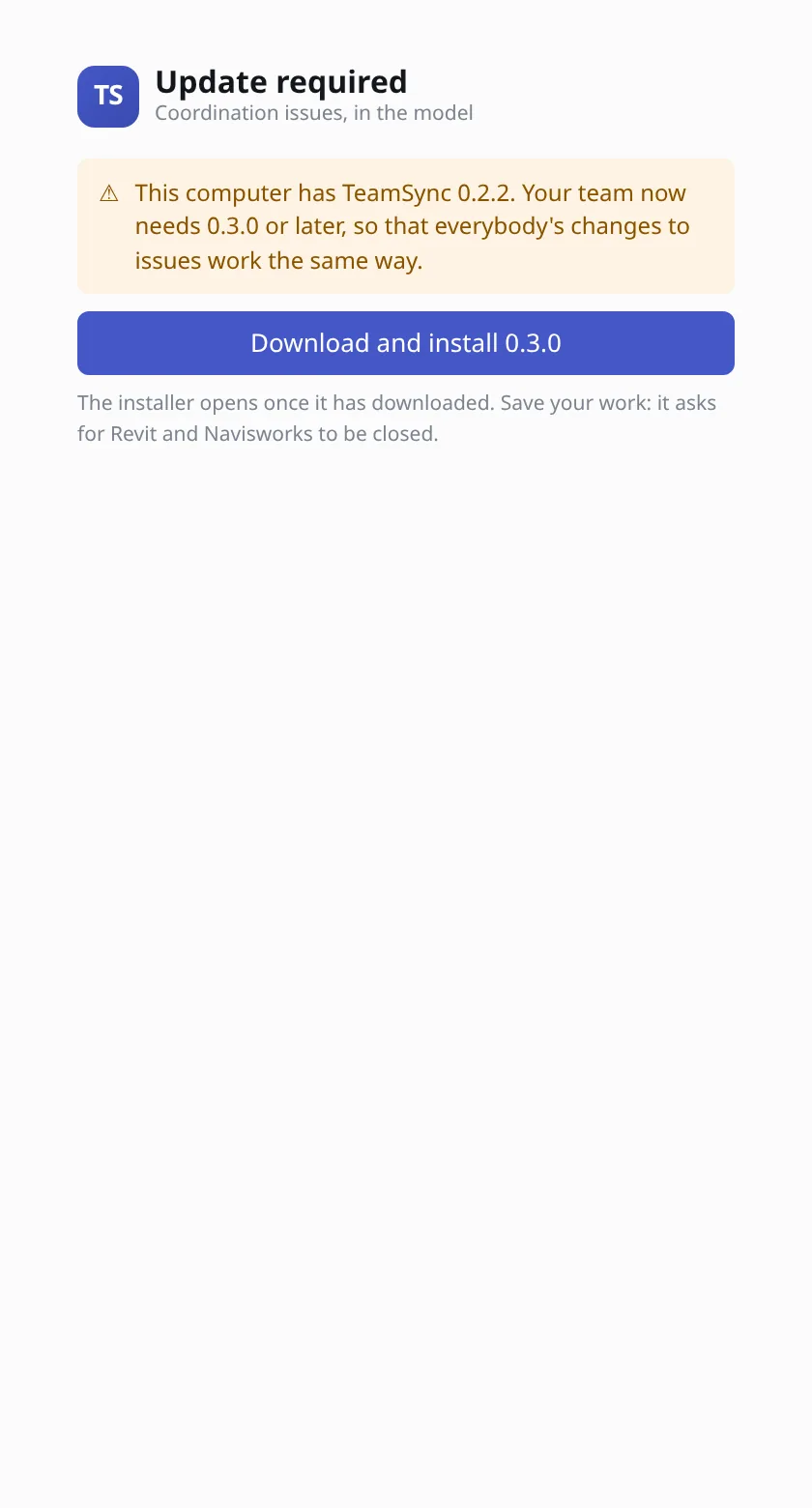
You can also update from inside the pane. When a newer version exists, a bar says that it is available and which version you have. Choose Update, or Later to hide the bar until TeamSync is next opened. The pane shows Downloading…, then Installer opened. Save your work, and close Revit and Navisworks when the installer asks.
Sometimes your team needs a newer version so that everybody’s changes to Issues work the same way. Then the pane shows Update required and nothing else until you update. Choose the Download and install button, which names the version. If no installer has been published yet, the pane says so and tells you to ask whoever looks after TeamSync.
#Uninstalling
Open Windows Settings, Apps, and uninstall TopMatrix TeamSync. The license key file stays on the computer at %ProgramData%\TopMatrix\TeamSync\license.key, so reinstalling does not need a new key.
Tip
If something goes wrong, TeamSync writes logs to %LocalAppData%\TopMatrix\RevitTeam\logs\. About › Open log folder opens it. Send them to support when you ask for help. See Troubleshooting.
Can’t find what you need? Write to info@top-matrix.com and we’ll help.