Viewpoints and markup
Add more viewpoints to an Issue, draw on a picture in the markup window, and jump back to the saved view in the model with Show in model.
#Add a viewpoint to an Issue
An Issue can have several viewpoints, for example one before and one after a fix. Open the Issue in the pane and choose its Viewpoints tab.
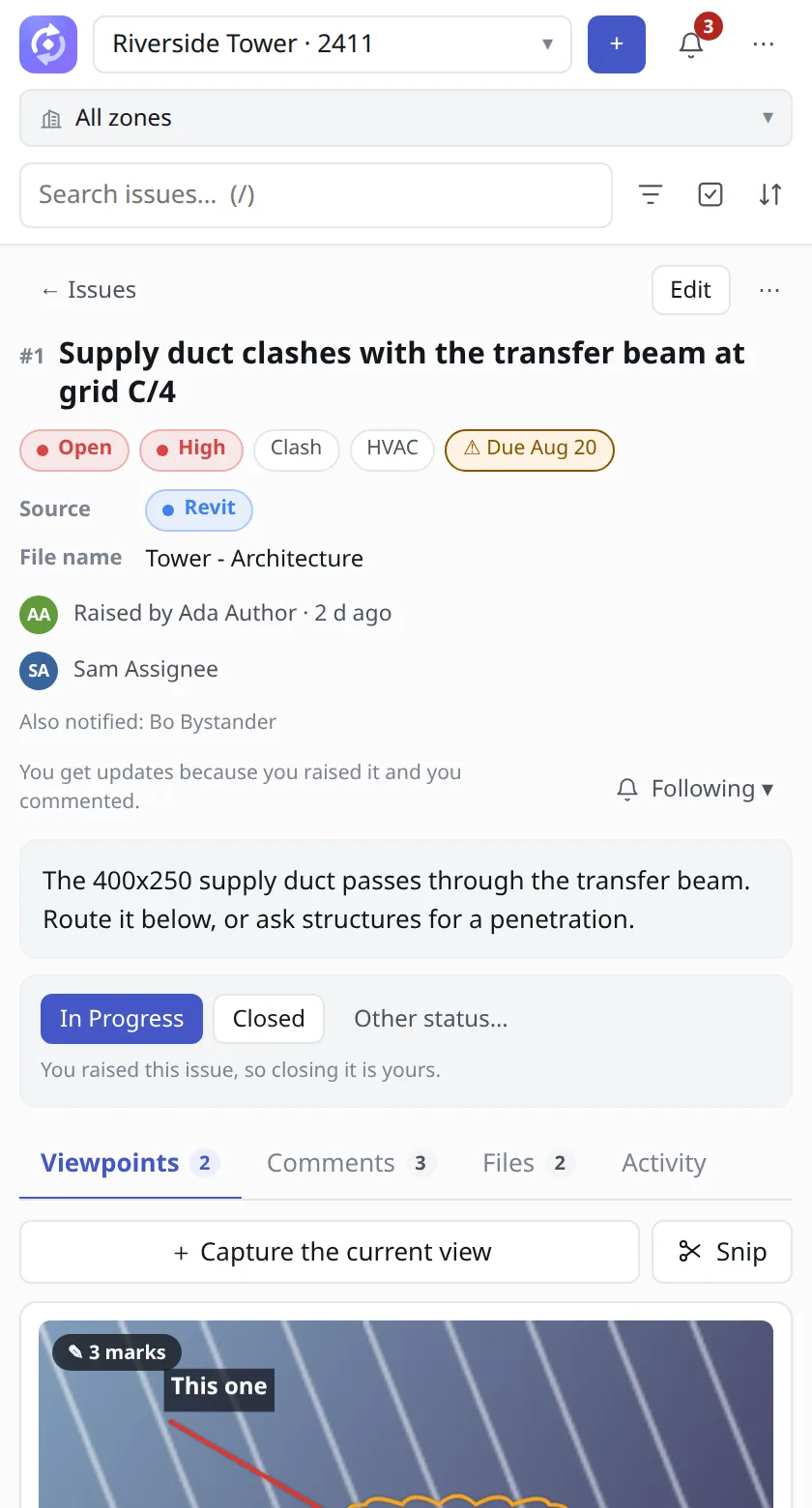
- + Capture the current view saves the view you are looking at in the model, with the camera, section box, hidden elements and selection.
- Snip lets you drag a rectangle on the screen and mark it up. It is unavailable until you open a 3D, plan or section view in Revit.
Each viewpoint is a card with Show in model, Mark up or View, and a delete button. Chips on the card show whether it is the Default viewpoint, has a Section box or a Clash sphere, and how many elements are hidden.
#Snip and mark up
Open a view
Show the part of the model you want in Revit.
Choose Snip
On the Viewpoints tab, choose Snip. The screen freezes.
Drag a rectangle
Drag over what matters. Use the corner handles to adjust.
Take the snip
Press Enter, double-click, or choose ✓ Snip. To cancel, press Esc, right-click or choose ✕; the pane says that the snip was cancelled.
Mark it up
The markup window opens. Draw what you need with the tools below.
Save it
Choose Continue while you are raising an Issue, or Save on a viewpoint that is already saved. Cancel or Close leaves without saving.
#The markup window
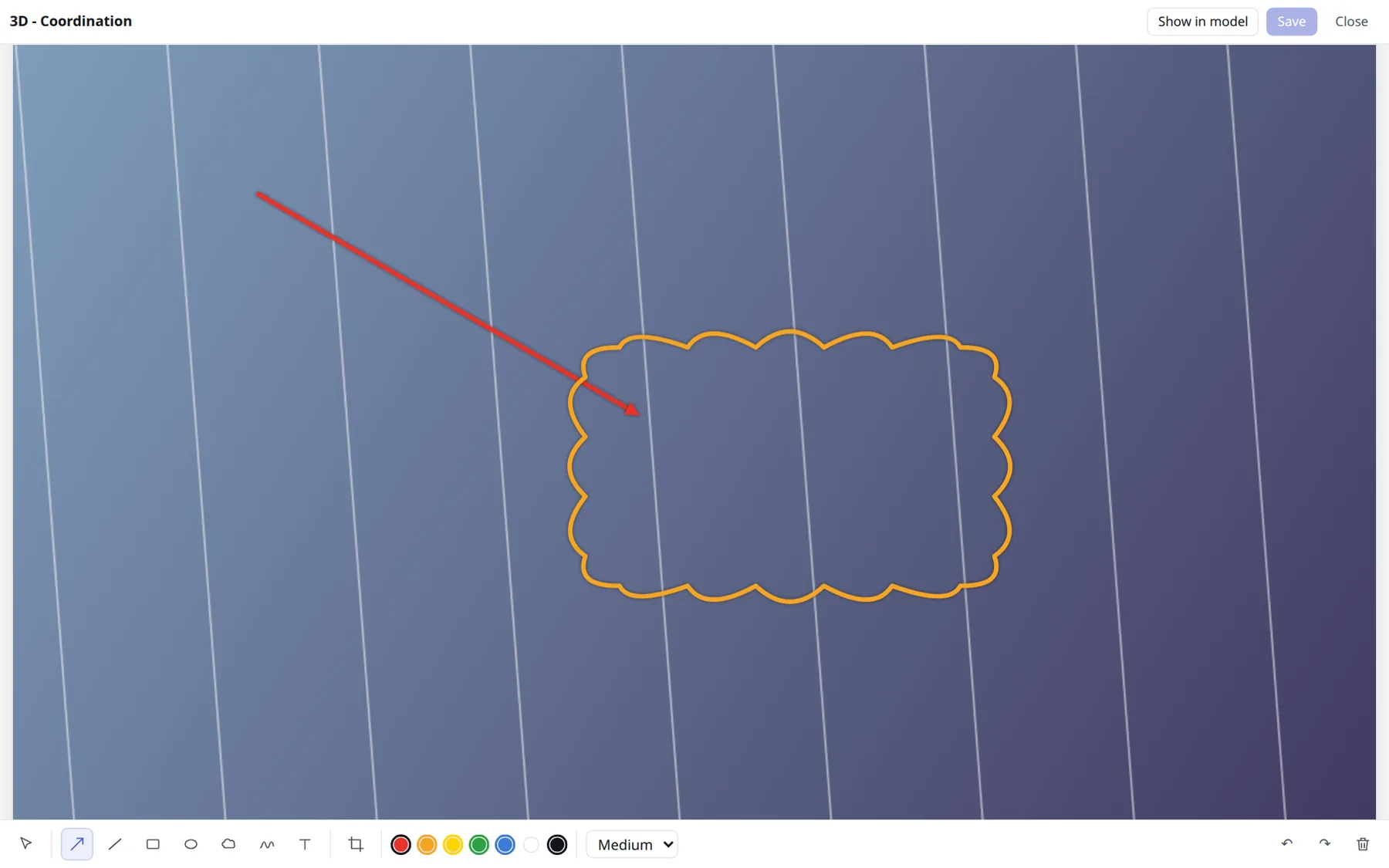
| Tool | What it does |
|---|---|
| Select | Pick a mark to move or change it. |
| Arrow | Points at something. |
| Line | Draws a straight line. |
| Rectangle | Draws a box around an area. |
| Ellipse | Draws an oval around something. |
| Revision cloud | Draws a cloud outline, the usual way to circle a change on drawings. |
| Freehand | Draws by hand. |
| Text | Types a note on the picture. You can set the text size. |
| Crop | Drag the part worth keeping. The original image is kept, so you can undo a crop later. |
| Thin, Medium, Thick | The line weight for new marks. |
| Colors | The color for new marks. |
| Undo, Redo | Undo is Ctrl+Z and Redo is Ctrl+Y. |
| Remove everything drawn | Clears all marks, leaving the picture. |
| Show all of it | Shows the whole picture again. |
#View or mark up later
On a viewpoint card, choose Mark up to draw on it again, or View to look at it. The original picture is kept, so you can undo a crop or remove marks later, then choose Save. The markup window also has Show in model, so you can jump to the view while you are looking at the picture.
#Show in model
Choose Show in model on a viewpoint to go back to what the person saw.
- For a 3D viewpoint, TeamSync restores the camera, the section box, the hidden elements and the selection in a 3D view named
RevitTeam - <your Windows user>. - It is one step in Revit’s Undo list, called Show in model.
- For a 2D viewpoint, TeamSync opens the original view.
#Warnings and what to do
| You see | What it means | What to do |
|---|---|---|
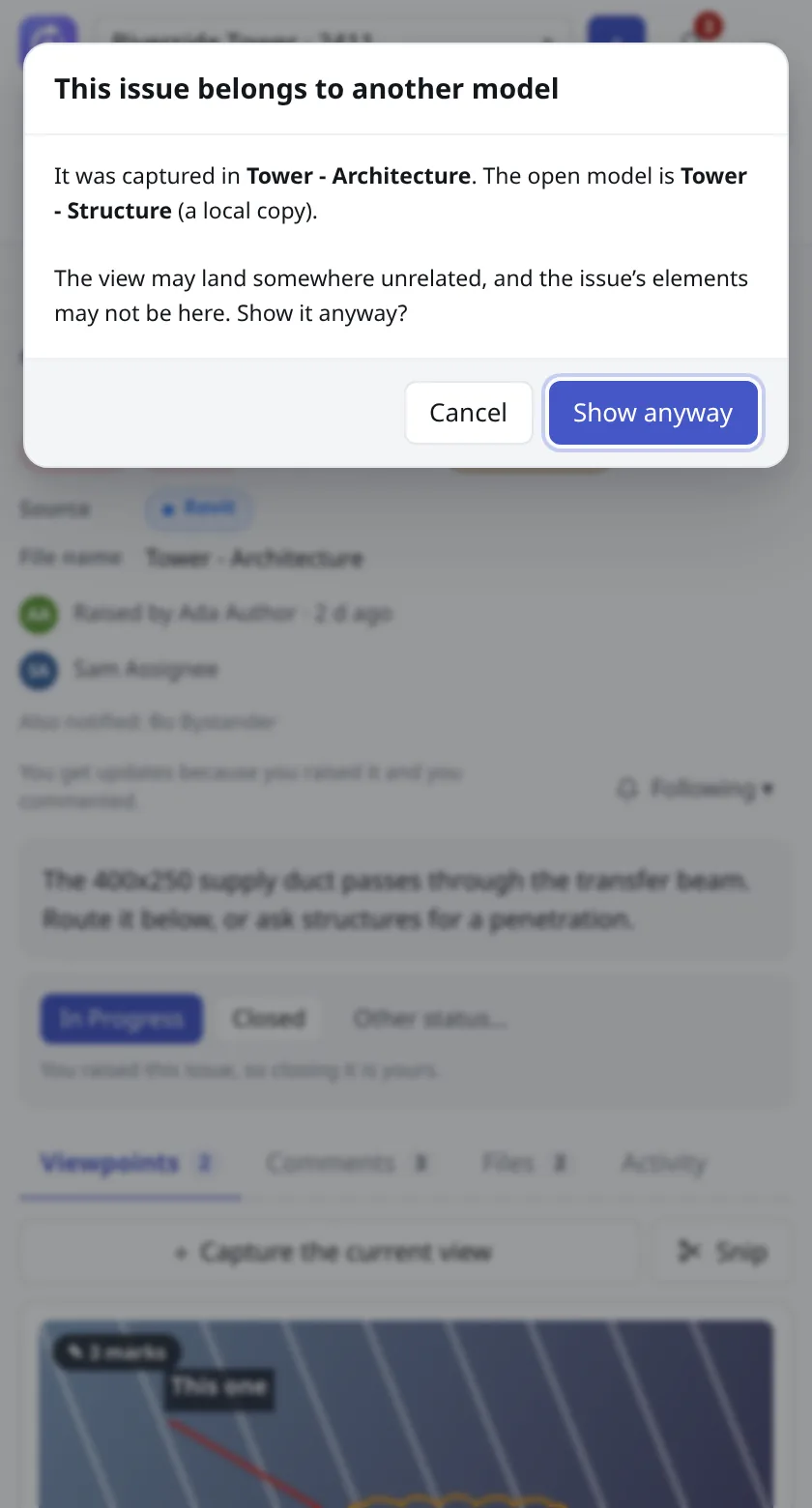
| This issue belongs to another model | The model open in Revit is not the one the Issue was raised in. | Open the right model. Or choose Show anyway if you know it is the right one. |
| The issue’s elements are not in this model or Some of the issue’s elements are not in this model | Elements the viewpoint refers to are missing, for example because the model changed. | Check that you have the right model and version. |
| Open a model first, then show the viewpoint in it. | No model is open. | Open the model, then try again. |
Can’t find what you need? Write to info@top-matrix.com and we’ll help.