Departments and Disciplines
Departments group your people. Disciplines describe your Issues. Both are lists you can add to, rename, reorder and trim.
#The difference
| Department | Discipline | |
|---|---|---|
| What it describes | People | Issues |
| Example | Structure, Electrical | HVAC, Plumbing |
| Used for | Tidiness, notifying people together, and Department Issue Visibility | Filing an Issue under a trade |
| Grants permissions? | No | No |
A Department grants no access by itself. It matters in one place: where a Role limits a person to their Department’s Issues. See Issue Visibility.
#The defaults
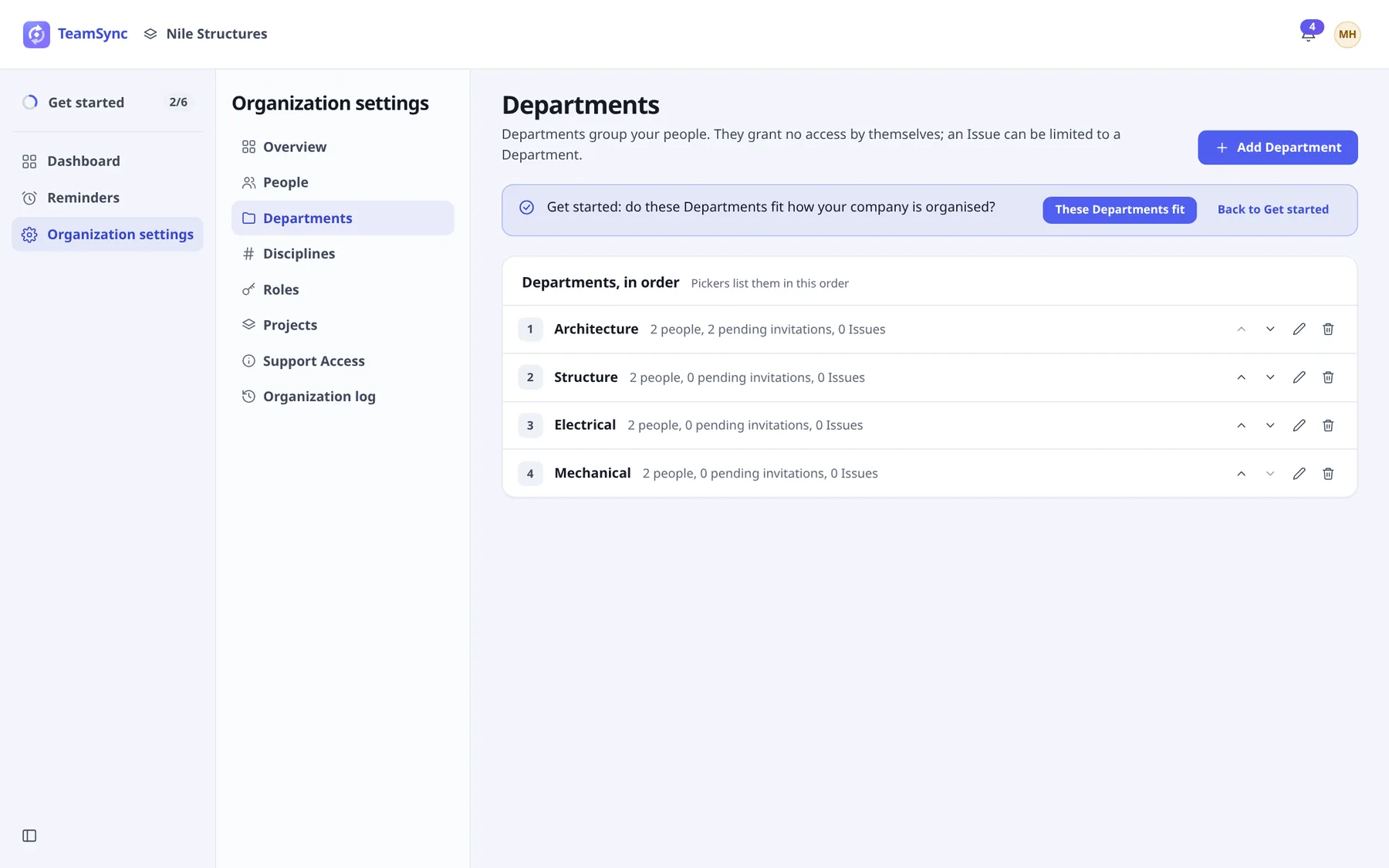
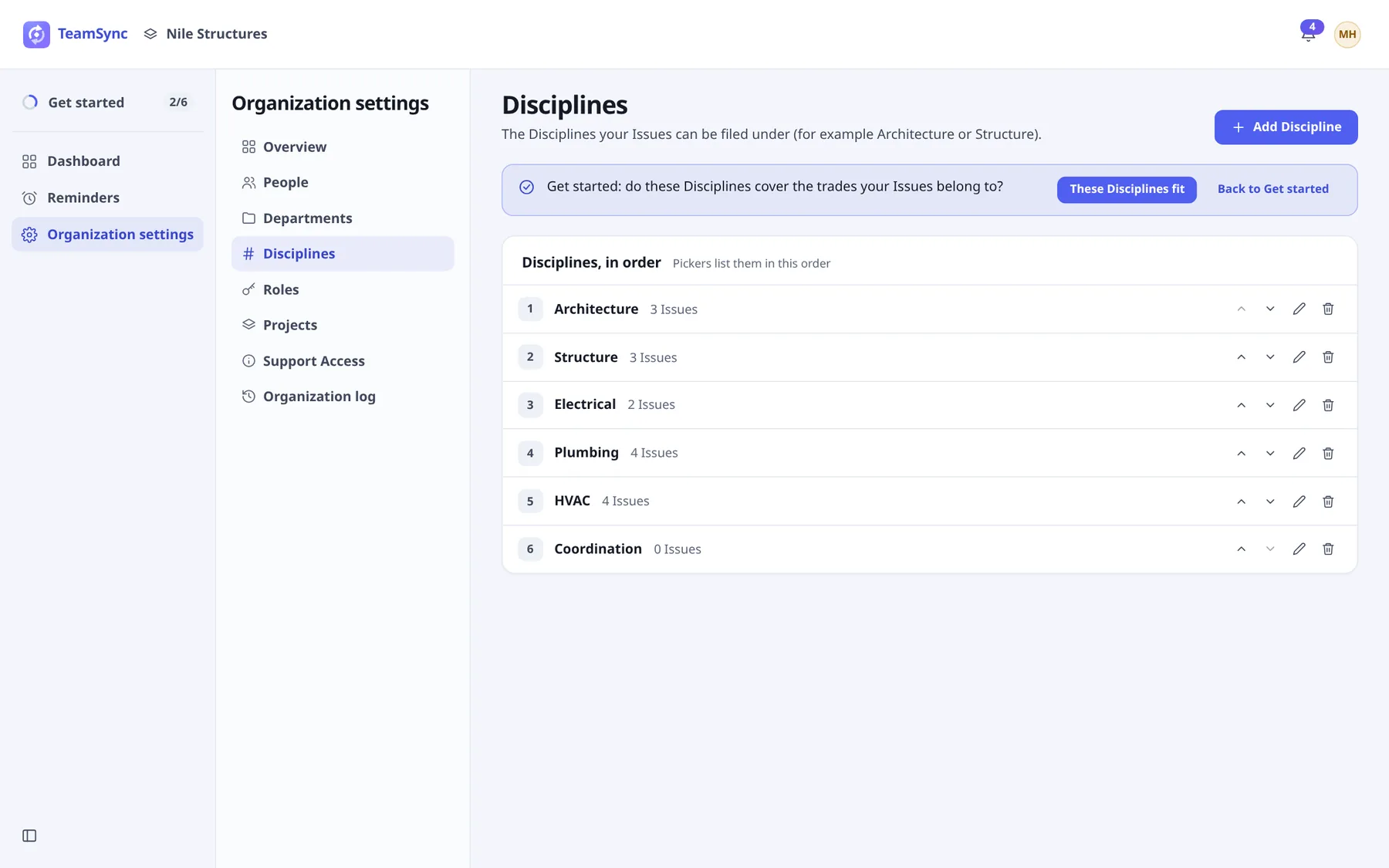
Every new Organization starts with four Departments and six Disciplines.
#Departments
- Architecture
- Structure
- Electrical
- Mechanical
#Disciplines
- Architecture
- Structure
- Electrical
- Plumbing
- HVAC
- Coordination
#Add one
Open the page
Open Organization settings › Departments or Disciplines.
Choose Add Department or Add Discipline
It is the button at the top right.
Type the name and confirm
Names must be different from each other.
#Rename one
Choose the pencil on its row (Rename), type the new name and choose Save name. Renaming keeps everything attached to it: people and Issues follow the new name.
#Reorder them
Use the up and down arrows (Up and Down) on each row. Pickers across TeamSync list them in this order, so put the ones you use most at the top.
#Remove one
Choose the bin on its row (Remove). If something uses it, TeamSync says so before you confirm with Yes, remove.
- A removed Department: the people and pending invitations that used it are left without a Department. Issues keep their history.
- A removed Discipline: the Issues filed under it, including deleted ones, are left without a Discipline. Their history keeps the name.
Careful
Removing a Department can change what people see, if their Role limits them to their Department’s Issues.
#Get started
While the Get started task is open, a banner on each page asks whether the list fits. Choose These Departments fit or These Disciplines fit to tick the task, or Back to Get started. See Set up your Organization.
Can’t find what you need? Write to info@top-matrix.com and we’ll help.