A Project's Overview
The counts and charts for one Project, and how to jump from a count to the Issues behind it.
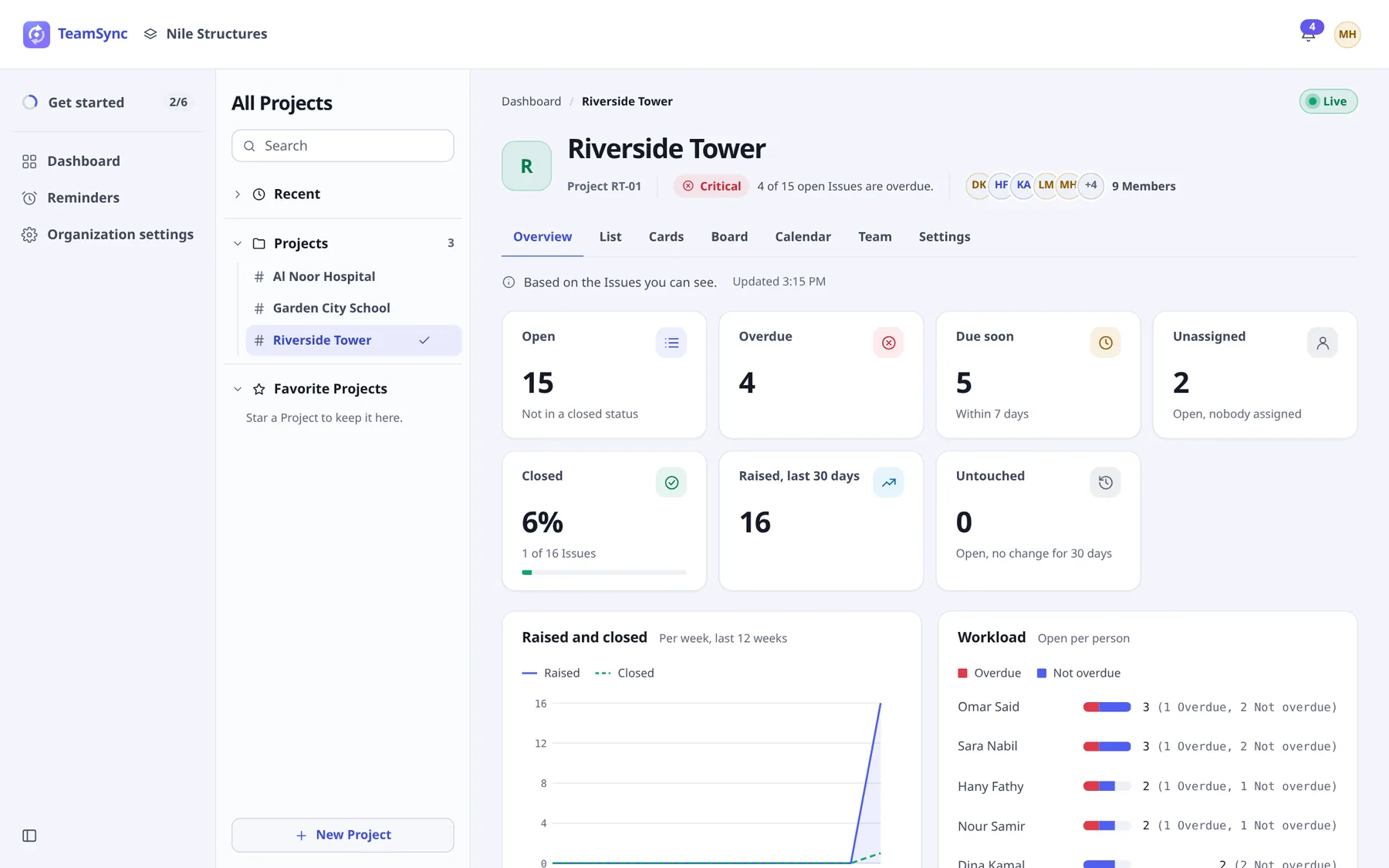
Open a Project and you land on its Overview tab. It answers three questions: how much is open, what is late, and who is carrying it. Like the Dashboard, it is Based on the Issues you can see, and it updates by itself while the Live badge is on.
#Counts
| Count | Meaning |
|---|---|
| Open | Not in a closed status. |
| Overdue | Open and past the due date. |
| Due soon | Within 7 days. |
| Unassigned | Open, nobody assigned. |
| Closed | The share of the Project's Issues in a closed status, with the numbers ("1 of 16 Issues"). |
| Raised, last 30 days | Issues raised in the last 30 days. |
| Untouched | Open with no change for 30 days. |
#Show these Issues
Select a count to see the Issues behind it. TeamSync opens the Issue list with the matching filter already applied, so selecting Overdue shows the Overdue Issues. The filter appears as a chip you can remove. See Issue views.
#Charts
| Chart | Shows |
|---|---|
| Raised and closed | Issues raised and closed per week over the last 12 weeks. |
| Workload | Open Issues per person, split into Overdue and Not overdue. |
| By status | All the Project's Issues. |
| By priority | Open Issues. |
| By Zone | Open Issues. |
| By Discipline | Open Issues. |
| By type | Open Issues. |
| By age | Open Issues, by how long ago they were raised. |
A chart with nothing to show says Nothing to show yet.
Tip
A Project with an old, quiet backlog shows it in Untouched and By age. Use them to find Issues nobody is looking at.
From here, go on to Issue views to work through the Issues themselves.
Can’t find what you need? Write to info@top-matrix.com and we’ll help.