Team and Project settings
The Team tab shows who works on a Project and how loaded they are, and lets you add people and change their Roles. The Settings tab holds the Project's name, Zones, Labels and Phases.
#The Team tab
Open a Project and click Team. Anyone who can open the Project can read it. Only people with the project.members.manage permission can change it: by default, General Managers, Project Managers and Team Leaders. Everyone else sees "Roles and which Issues people see are managed by the Project's managers."
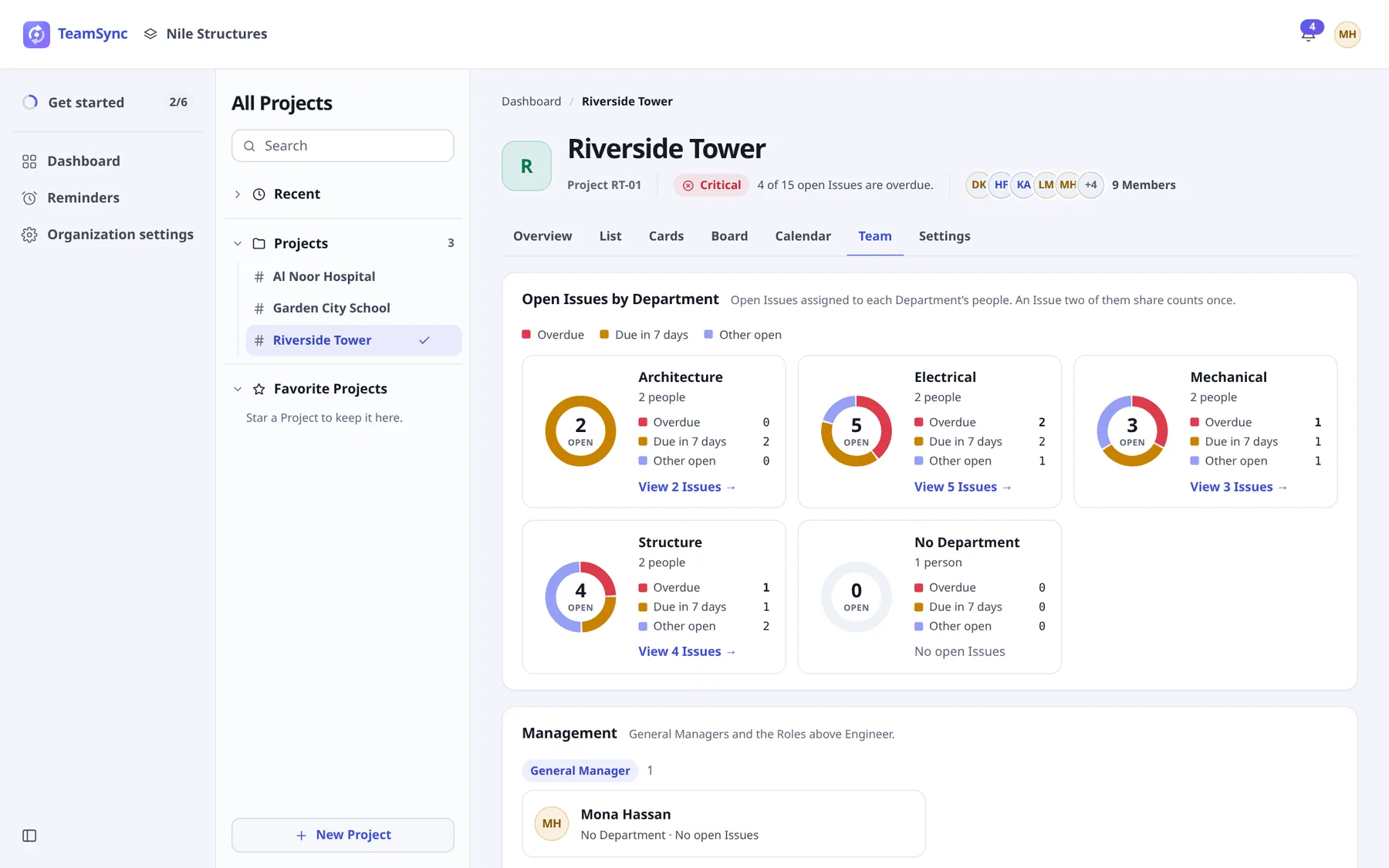
- Open Issues by Department
- One card per Department with its people, and its open Issues split into Overdue, Due in 7 days and Other open. An Issue two people share counts once. The View link on a card opens those Issues in the list.
- Management
- The General Managers and the Roles above Engineer on this Project.
- Members
- A table of the other people with their Person, Department, Issues and Actions. The Issues column shows how many are open, overdue and due this week.
#Edit a Member
Click Edit
In the Actions column of the person's row. You can edit people whose Role is ranked below yours, and not General Managers.
Change their Role or what they see
The dialog is titled "<Name> on this Project". Role sets what they may do. Issues they see is All Issues, Own Department or Own Issues, from the choices their Role allows. See Roles.
Save
Click Save.
To take someone off the Project, click Remove from the Project in the same dialog and confirm. They lose their access through this Project and stay in the Organization.
#Add a Member
Open the form
It is titled Add a Member on a wide screen. On a phone, tap Add people.
Choose a person
Under Person, use Choose a person. Only people already in the Organization can be added. To bring in someone new, invite them first. See People.
Set their Role and what they see
Leave Role as Default (Engineer) or choose another. Issues they see defaults to the Role's default.
Add
Click Add Member. On a phone you can pick several people with Find people, choose their Role under As, and add them together with a button such as Add 3 people.
If everyone in the Organization is already on the Project, the form says so. An Open Project needs no adding at all, because everyone in the Organization can work on it.
#The Settings tab
The Settings tab appears for people with the project.settings.edit permission. On a phone each row opens a sheet.
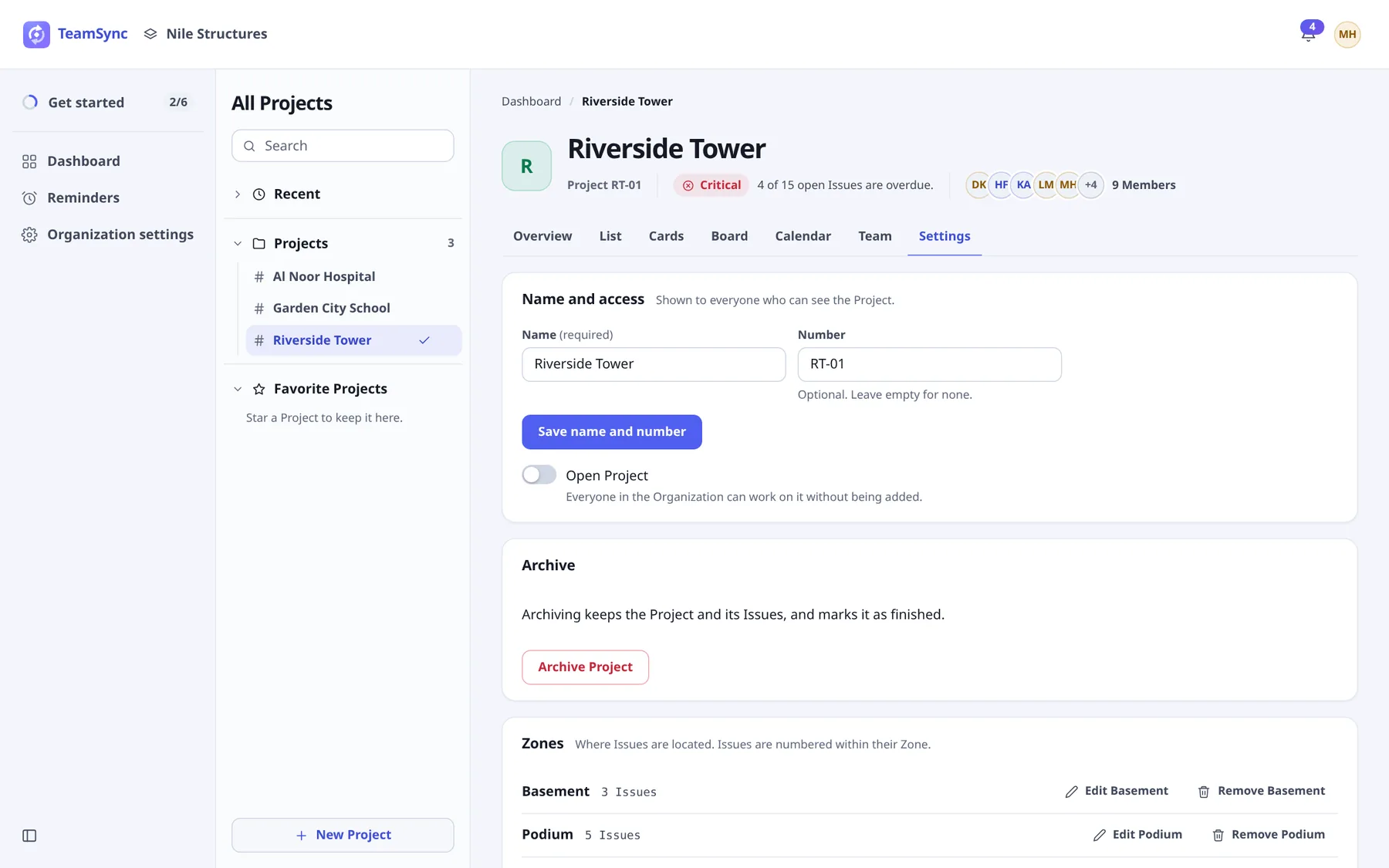
#Name and access
Set the Name and the Number of the Project (the number is optional), then click Save name and number. Only a General Manager can rename the Project, change its number or turn on Open Project; for others the page says so.
Open Project lets everyone in the Organization work on the Project without being added. Anyone without a Project Role counts as an Engineer who sees all its Issues. TeamSync asks you to confirm: "Open this Project to the whole Organization?" Turning it off asks "Close this Project to its Members only?", and people who are not Members lose access at once.
#Zones
Zones are where Issues are located, and Issues are numbered within their Zone. A Project needs at least one Zone.
- Add one with Add a Zone: type a Zone name and click Add.
- Rename one with its Edit button.
- Remove one with its Remove button. If it has Issues, choose Move its Issues to another Zone. They move and are numbered on from the end of that Zone, so their references change. The last Zone cannot be removed.
#Labels
Labels are tags for Issues. Add a Label takes a Label name and an optional Colour written as #rgb or #rrggbb, for example #3366cc. Removing a Label takes it off every Issue that has it.
#Phases
Phases are stages of the work that Issues can be filed under. Add a Phase, rename it or remove it. Removing a Phase clears it on the Issues that had it.
#Archive and restore
Archive Project keeps the Project and its Issues and marks it as finished. It stays listed. Restore Project makes it active again, but needs a free slot under the Project Limit. Archiving needs the projects.archive permission. See Projects and License.
Can’t find what you need? Write to info@top-matrix.com and we’ll help.