People
Invite people, move them between Departments, add them to Projects, make General Managers and remove people from the Organization.
Open Organization settings › People. The Members table lists everyone in the Organization, and Pending invitations lists people who have not yet accepted.
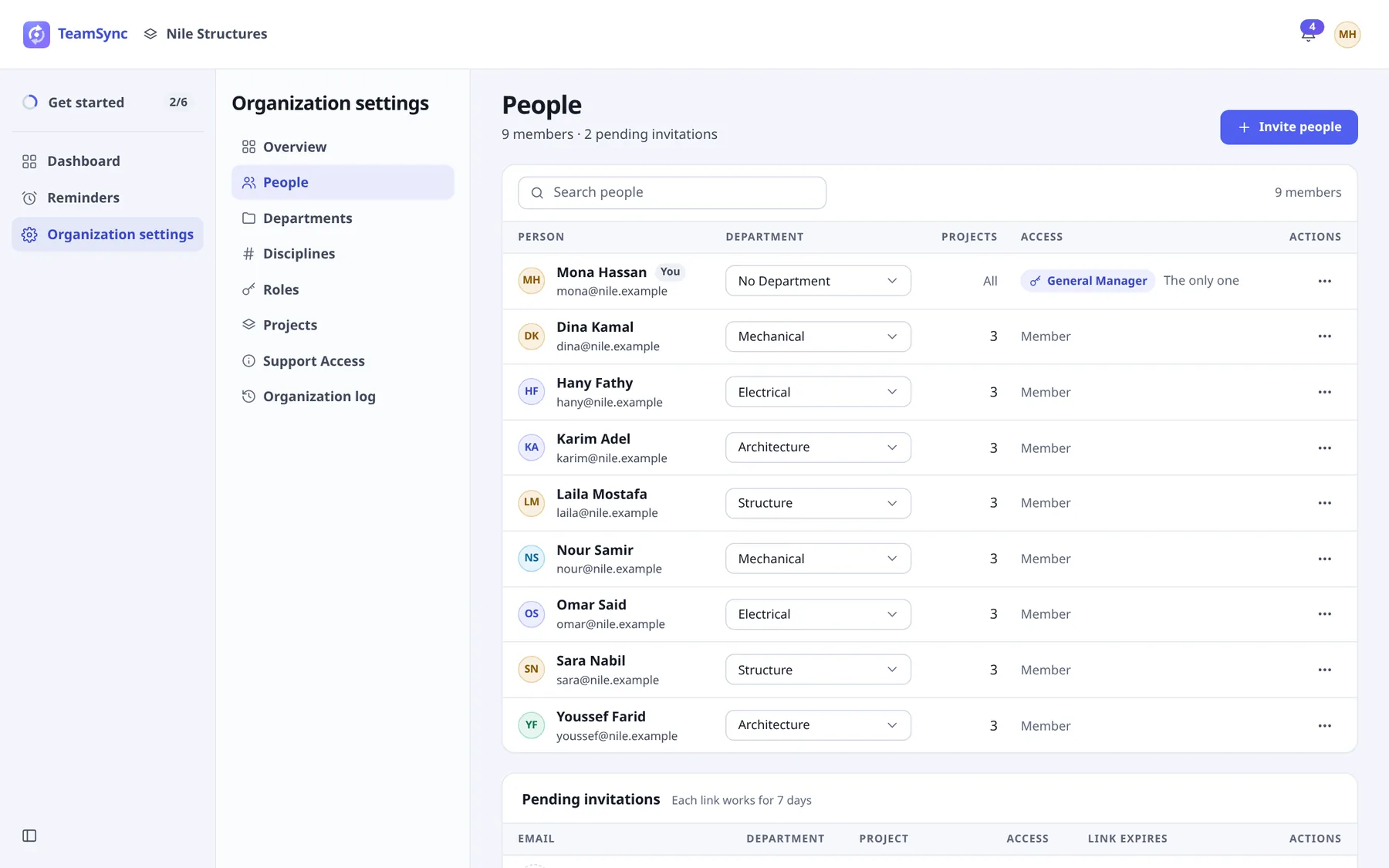
#The Members table
| Column | What it shows |
|---|---|
| Person | Name and email. You marks your own row. |
| Department | A picker. Change it right in the row. No Department is allowed. |
| Projects | How many Projects the person is on. All for a General Manager. |
| Access | General Manager, or Member. |
| Actions | A menu for each person: Add to Projects, make or remove a General Manager, remove from the Organization. |
Use Search people to narrow the list by name or email.
#Invite people
Each person you invite uses one seat of your License when they accept.
Choose Invite people
It is the button at the top right of the People page.
Enter their email
In Email, type the address they will sign in with.
Choose a Department
In Department, pick one. No Department is the default.
Optionally choose a Project
In Project, pick a Project to add them to when they accept, and then their Role on the Project. Leave it on No Project for now to add them later.
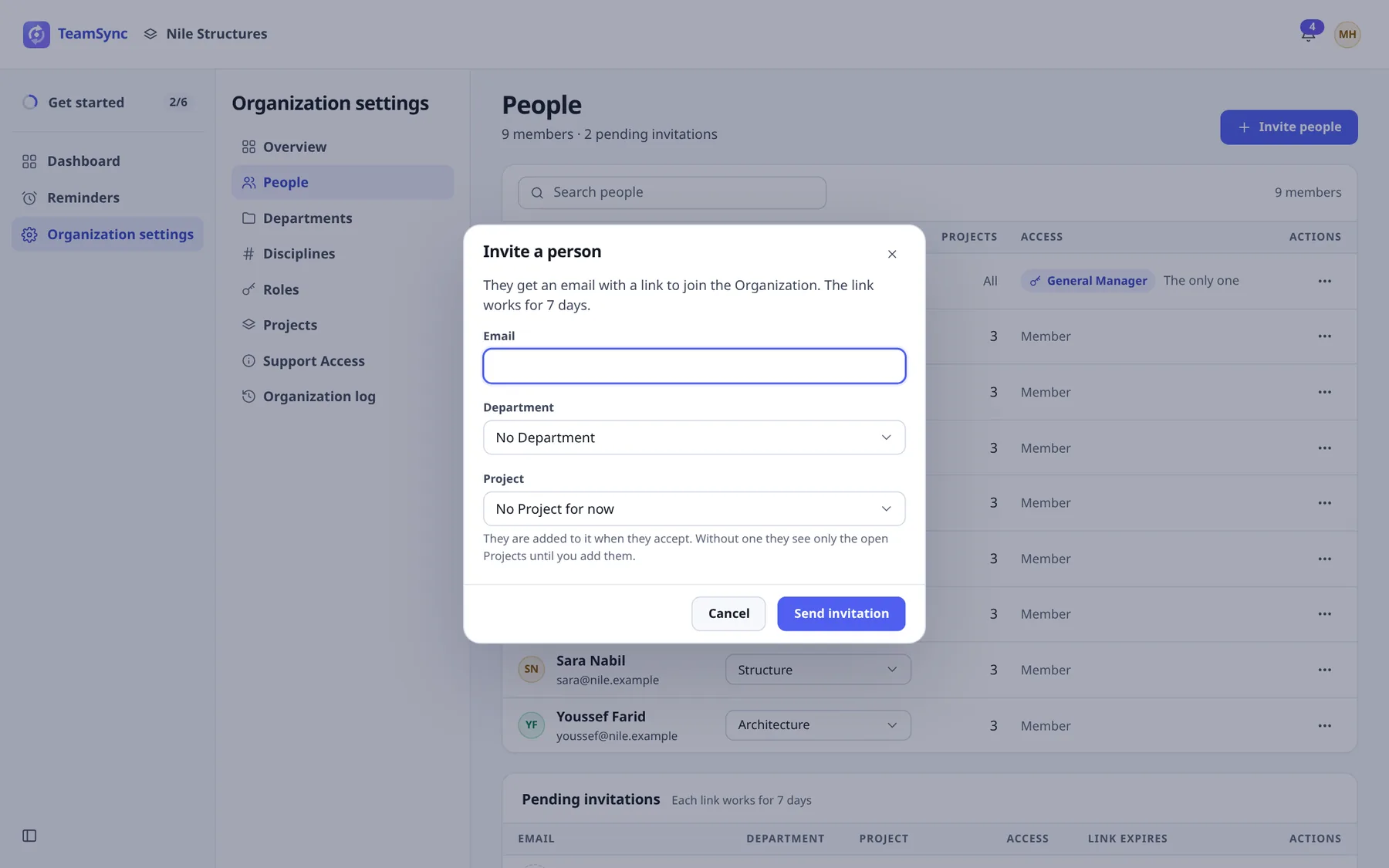
The Invite a person dialog. Choose Send invitation
They get an email with a link to join the Organization. The link works for 7 days.
Note
Without a Project, a new member sees only the Open Projects until you add them. See Projects.
#Pending invitations
Below the Members table, Pending invitations lists each invitation with its Department, Project, Role and a Link expires date. To withdraw one, choose Cancel invitation, then confirm with Cancel invitation again (or Keep it). The link stops working. You can invite the person again later.
#Add people to Projects
Open the person’s menu
In the Actions column, open the menu and choose Add to Projects.
Tick the Projects
Tick each Project and choose the person’s Role on it. Use Search Projects if the list is long. A Project they are already on shows Already on, with their Role.
Confirm
Choose Add to Projects (the button counts them, for example Add to 2 Projects). They can open the Projects, and see the Issues their Role allows, at once.
You can also manage a Project’s people from its Team tab. See Team and Project settings.
#Change a Department
Pick a new Department in the person’s row. TeamSync asks you to confirm with Move to the new Department.
Careful
A Department affects what some people see. Where a person may see only their Department’s Issues, they see the new Department’s Issues instead, at once, including old Issues. See Issue Visibility.
#Make and remove General Managers
General Managers see every Project and Issue, and manage people, Roles, Departments, Projects and Support Access, including removing other General Managers.
- To make someone a General Manager, open their Actions menu and choose Make General Manager, then confirm.
- To take it away, choose Remove General Manager in the menu. The person stays in the Organization but loses Organization settings, and keeps only the Projects they are a Member of, plus Open Projects.
An Organization always keeps at least one General Manager. If you are the only one, the table says The only one and you cannot remove yourself or be demoted. Make someone else a General Manager first.
#Remove someone
Open the person’s Actions menu and remove them from the Organization, then confirm with Yes, remove and their name. They lose access to the Organization and all its Projects at once, and it frees one seat of your License.
Note
Their Issues and comments stay. Removing someone does not delete their work.
Every one of these changes is written to the Organization log.
Can’t find what you need? Write to info@top-matrix.com and we’ll help.